Activate and Use Fixed User Licenses
The Fixed User and Floating licenses strictly defines users who can consume the license seats. These licenses can be used by individuals as well as by organizations.
Assign the license
In general, the person who purchases and manages the license is not the person who will run the product. So, by default, the Fixed User license is not assigned to anybody. The license administrator should assign it to a user.
Here are the instructions for the license administrator:
If you don’t have a License Management account, you must create one. This is simple: when you request a trial or purchase a license, we send a notification email with a link to complete your account creation. Click this link and set a password for your account in the License Management portal.
If you have a SmartBear account, log in to the License Management portal:
In the portal, find your product and license. Enter the email of the person who will use the license and click Assign:
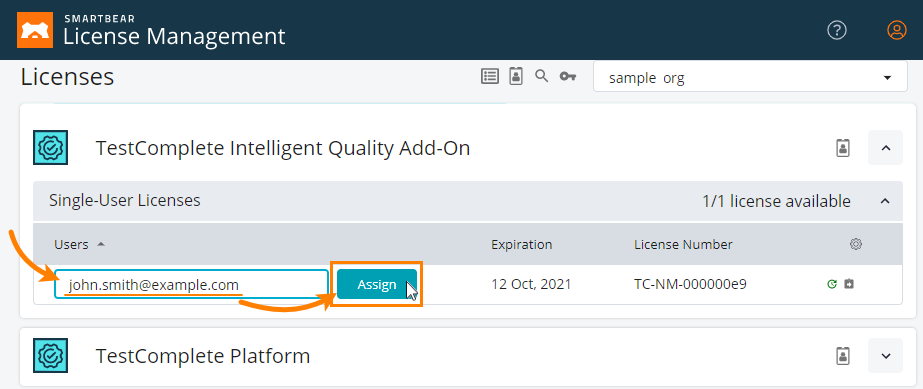
If your license has multiple seats, repeat the previous step for every seat.
Considerations
The Assign button remains disabled until you enter a valid email address.
If the person to whom you assign the license seat has no SmartBear account , the portal will send them an email asking them to finish the account creation. They need to follow the link in this email and specify a password for their account. After this, they will be able to run the licensed product.
The easiest way to assign license seats to multiple users is to share the license by a link — you generate a special link for the license on the portal and send it to your teammates. They open the link in a browser to accept the assignment. This approach works even for those users who don’t have a SmartBear account yet. See Option 2 — Share a license by link for more information.
You can also quickly assign license seats to users who already have SmartBear accounts. See Option 3 — Bulk assignment for more information.
Reassignment of fixed user licenses
Manage.smartbear.com allows license administrators to manage reassignments through self-service. Fixed user licenses have limits on revokes and reassignments, as follows:
Scope
Reassign a fixed license to another authorized user only when the original user no longer associated with your company. Reach out to SmartBear Software before you reassign the license.
Number
You can reassign each license SKU up to three times through self-service in any rolling 12-month period. Reassign a license only when the original authorized user no longer works for your company. When you reassign a license, License Management notifies license administrators how many reassignments remain for that SKU. After you reach the limit, the License Management portal displays an error message.
For further information, please see SmartBear Terms of Use and product licensing documentation:
Use the license
Below are the instructions for the license user:
Create a SmartBear account (if needed).
When the license administrator assigns a license to you, they specify your email. The License Management tool searches for a SmartBear account associated with this email. You must complete the account creation if you don't have an account.
Download and install a SmartBear product on your computer.
Your computer needs a connection to the SmartBear license servers:

https://manage.smartbear.com:443 https://api.slm.manage.smartbear.com:443 https://server.slm.manage.smartbear.com:443 https://server.manage.smartbear.com:443 https://profile-api.id.smartbear.com:443 https://profile.id.smartbear.com:443 https://login.slm.manage.smartbear.com:443 https://auth.id.smartbear.com:443Proxies and firewalls running in your network should allow access to these addresses. Ask your network administrator for assistance in configuring the proxies and firewalls.
For standard SmartBear licenses, access is needed both at the product start and during the whole product run. A version for use in private networks is also available upon request, which does not need a permanent internet connection. Ask a SmartBear Sales Representative for more information.
Run the product. On start, the product will ask you to specify your SmartBear account. Enter your account email and password if prompted. The product will connect to the SmartBear license server and will increase the use counter for the license.
To release the license, simply close the product or turn off your computer. You can then run the product on another machine, if needed.