Managing Members
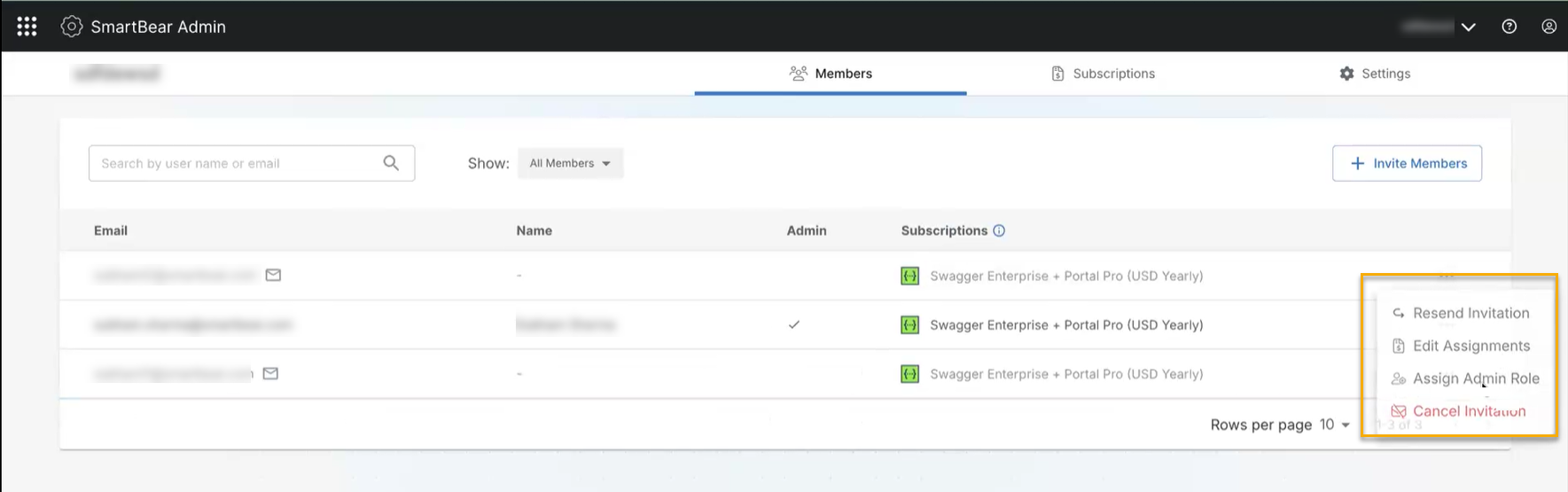
On the Members page, you can search for members by username or email ID to view their details. Click the ellipsis button next to the respective member to make the required changes. You can also click on the member email ID to view the details and make the required edits, such as removing members, managing subscriptions, assigning, and unassigning the Admin role.
Tip
Click Cancel Invitation if you want to cancel an invitation before a user accepts it by removing the invitation. The user will see an error when they try to accept the invitation in their email.
Click Resend Invitation to a user if they did not receive the original invitation. The system sends a new invitation email to the user's registered email address with an updated link.
Viewing Member Details
On the Members page, click the email ID of the member.
The member details page appears.
Click Remove member if you want to remove a member from the organization.
Verify the Organization Admin status (Yes or No) displayed next to the member details.
(optional) Click Change Admin Role to update the member’s administrator status.
Navigate to Subscriptions to view the products assigned to the member. Click Manage to modify the member’s subscription access. See Subscriptions to manage your subscriptions.
Review the listed Swagger products, subscription details, and the seat type for modular plans.
Editing and Managing Member Assignments
Note
Depending on your plan, you may see an option for an Editor or Viewer Seat Type. The Seat Type determines what roles and permissions you can grant to an organization member in the appropriate products.
Viewer Seat - read access or below.
Editor Seat - edit access or below.
Click the ellipsis button next to the member you want to edit.
Select Edit Assignments option to view or change the member’s Subscription Assignments.
The Edit Subscriptions Assignment dialog box appears. You can view the selected member subscription details, including the associated plans, member details, and subscription end dates.
Select the check box next to the subscription and edit the required details. If you want to remove the member's subscription, you can clear the check box.
Click Confirm to save the updated subscription.
Note
Only active subscriptions can be assigned to members of the organization.
Assigning and Unassigning Admin Role
Click the ellipsis button next to the member you want to edit.
Select Assign Admin Role.
The Assign Admin Role dialog box appears.
Click Assign to assign the user as an admin.
The user will now be an administrator.
(Optional) To unassign the user as an admin, click Unassign Admin Role to remove the admin role permissions for the selected member.
The Unassign Admin Role dialog box appears.
Click Unassign to unassign the user as an admin.
Note
If you are the only remaining administrator in any SmartBear organization, assign another user as an administrator before deleting your SmartBear account. For more information, refer to Deleting Your Account. For information about assigning administrator privileges to a member, see Permissions and Roles.
Removing Members
Click the ellipsis button next to the member you want to edit.
Click Remove Member to remove the selected member.
The Remove Member dialog box appears.
Click Yes, Remove to confirm the removal of the member.
This removes the member access to the organization and revokes all access to all associated subscriptions and products.