Configuring Swagger Portal External IdP Connection
You can configure and integrate an external identity provider (IdP) to authenticate both internal and external users with greater security, flexibility, and ease. The External IdP Connection is accessible to Swagger Portal Pro add-on users. Refer to Swagger Studio documentation for detailed instructions on this configuration.
Currently, you can configure one external IdP per organization through this interface. Contact SmartBear Support to set up additional or multiple Identity Providers.
Note
The Configure option is available only if you have purchased the External IdP Connection for Portal as an add-on. Click Contact Us to contact sales and purchase the add-on.
The External IDP Connection becomes inactive immediately after the subscription expires. However, the system continues to store your configuration. If you repurchase the subscription, go to Settings and turn on the toggle to enable the connection.
To configure the External IdP Connection, do the following:
On the Settings tab, under Authentication, click Configure next to Swagger Portal External IdP.
The Manage External IDP Connection page appears.
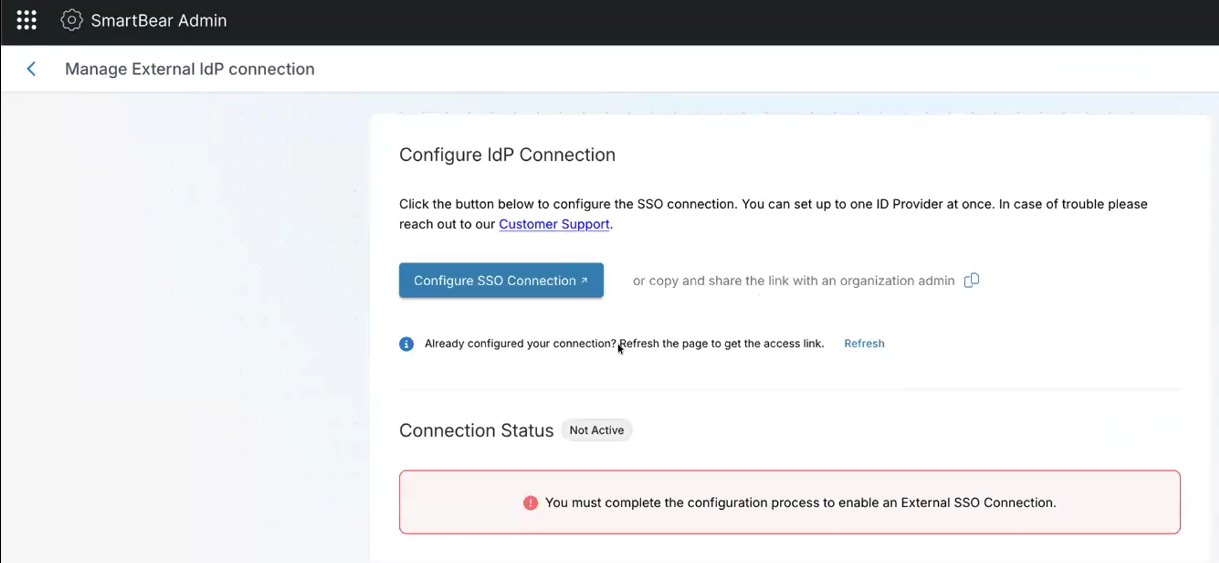
Click Configure SSO Connection to configure and activate your connection or copy and share the link with your organization admin.
Note
The Configure SSO Connection link can be accessed by anyone in the organization, and its validity is limited. If the link expires, click the Refresh button.
You are navigated to the Configure Single Sign-On tool.
On the Set up smartbear-external-users page, click Get Started.
On the Select Your Identity Provider page, choose the required identity provider access (for example, Auth0) to set up SSO configuration and integration, and click Next.
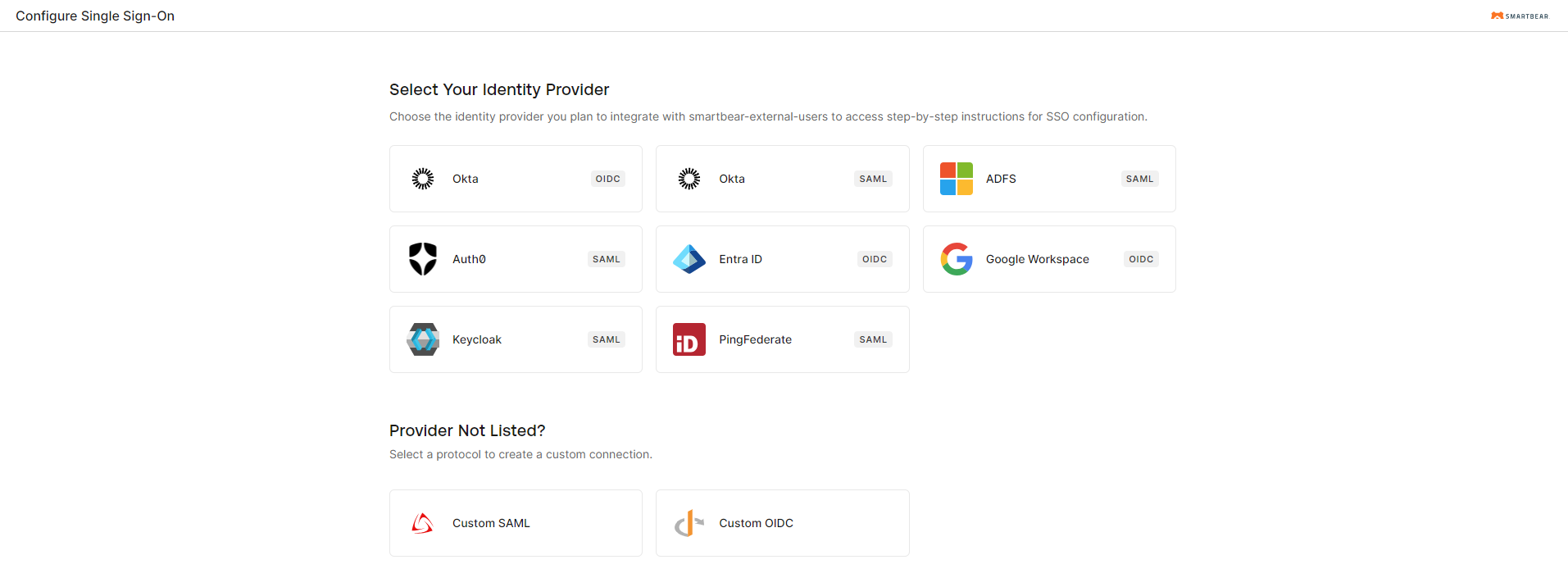
On the selected Identity Provider page, enter the required details to configure your connection.
You are navigated to the Claims Mapping section.
Important
Email is the only required claim across all identity provider protocols. All other claims are optional.
Under Required Claims, enter the email address. Email is mandatory for proper user identification and account linking.
Note
During setup, the system validates the email before you proceed. Without email, the identity provider cannot generate an ID token that is acceptable to Swagger Portal.
Email - Used for user identification and account linking.
Under Optional Claims, you can configure additional user attributes as needed, such as name, nickname, given_name, or family_name. These options vary depending on your identity provider.
Click Create Connection, and proceed with the configuration.
You are navigated back to the Manage External IDP Connection page on SmartBear Admin.
In the Configure IdP Connection section, review the current connection details.
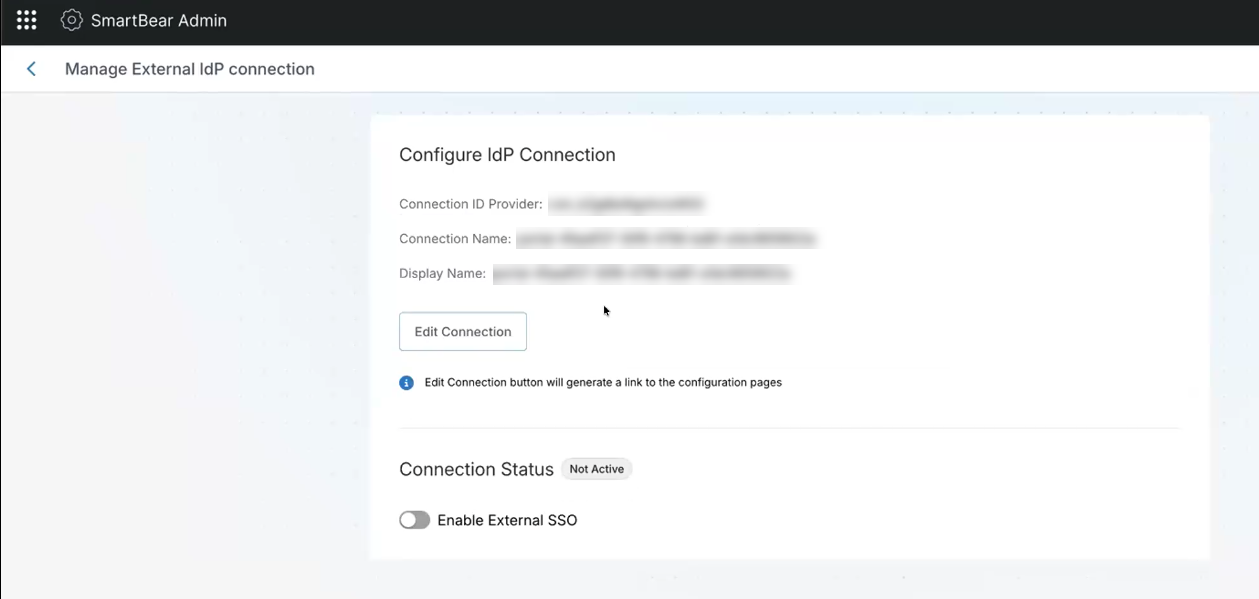
Click Edit Connection to update the identity provider settings and save your changes.
Note
If SmartBear Support configured your IdP connections, or if your organization has more than one external identity provider (IdP) connection, you cannot edit the connections directly. Contact SmartBear Support for any required changes.
Click Delete Connection to permanently delete a connection. This signs out all authenticated users from Swagger Portal, and all accounts created under this connection are deleted.
The Delete Connection dialog box appears.
Type I understand in the box, and then click Yes Delete to delete the users. This action cannot be undone.
In the Connection Status section, review the current status.
Turn on the Enable External SSO toggle to allow external single sign-on.
Verify that the connection status is set to Active.
The External IdP Connection is updated, and external SSO is enabled for Portal consumers if the Enable External SSO toggle is enabled.