Swagger Products for AWS Purchase
Swagger Products for AWS is now available for purchase from AWS Marketplace. You can now log in to the AWS Marketplace using your AWS credentials. Swagger for AWS page overviews the available resources and pricing options. For more information on starting with AWS Marketplace, refer to the AWS documentation to log in, create AWS credentials, and so on.
To purchase the Swagger Products for AWS subscription, perform the following steps:
Log in to the AWS Marketplace website using your AWS credentials.
You are navigated to the AWS Marketplace site.
The Shop All Categories list contains the list of categories you can choose from or search for Swagger Products. For example, select Swagger Products from the Software as a Service (SaaS) category.
You are navigated to the Swagger Products page.
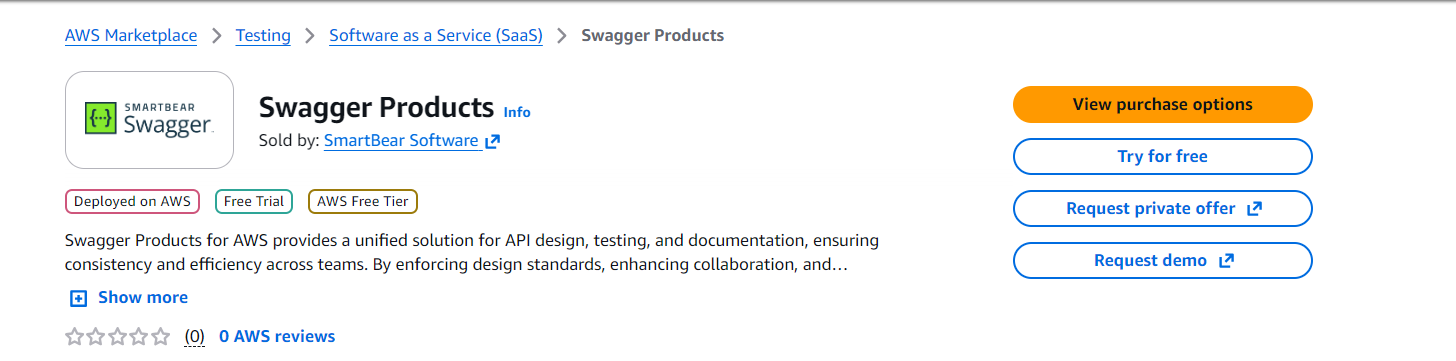
Click View purchase options.
The Subscribe to Swagger Products page appears. It allows you to configure your subscription settings, choose renewal options, review the pricing information, and accept the purchase terms.
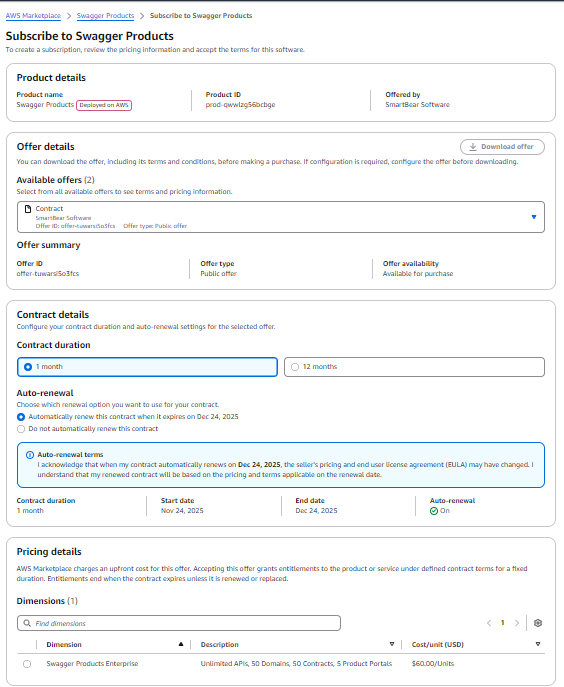
Select the required units and subscription for Swagger under the Pricing details pane.
In the Offer Summary pane, click Set up your account to enable the product for the first time. You are redirected to the login screen, and follow the on-screen instructions to sign up.
Once the validation is complete, the system creates your subscription and redirects you SmartBear Admin home page. You can here view the subscription details.
Note
If you select Set Up Your Account and the subscription already exists, you are redirected to the product homepage, where you can view your active subscription
Review your subscription details in the Contract Details pane. Renew your subscription by selecting the required option in the Contract Details pane.
Click Subscribe.
You are redirected to the SmartBear login page.
Click Continue if you are an existing SmartBear user.
You are navigated to SmartBear Admin Member tab. You can view a new organization with the selected plan.
Click Log in if you are an existing SmartBear user.
A new organization with the selected plan is created in SmartBear Admin. See SmartBear Admin Subscription documentation for more information.
(Optional) Click Switch Accounts to log in to another SmartBear user account, click Yes on the log out screen. Enter the required email address and password to log in to the respective account. To create a new SmartBear ID account, see SmartBear ID.
Once you have set up your account or logged into an existing one, all the subscription details and purchases will be available on SmartBear Admin Subscription page.
Note
If you are an existing trial user with an organization, a new organization will be created. See Trial Subscription for more information.
You are now navigated to the Swagger landing page. See the documentation for information on Adding and Managing Users.