Inviting Members
Organization Admins can invite members to your organization and assign subscriptions and administrator permissions. To invite users to an organization, you must have administrator permissions.
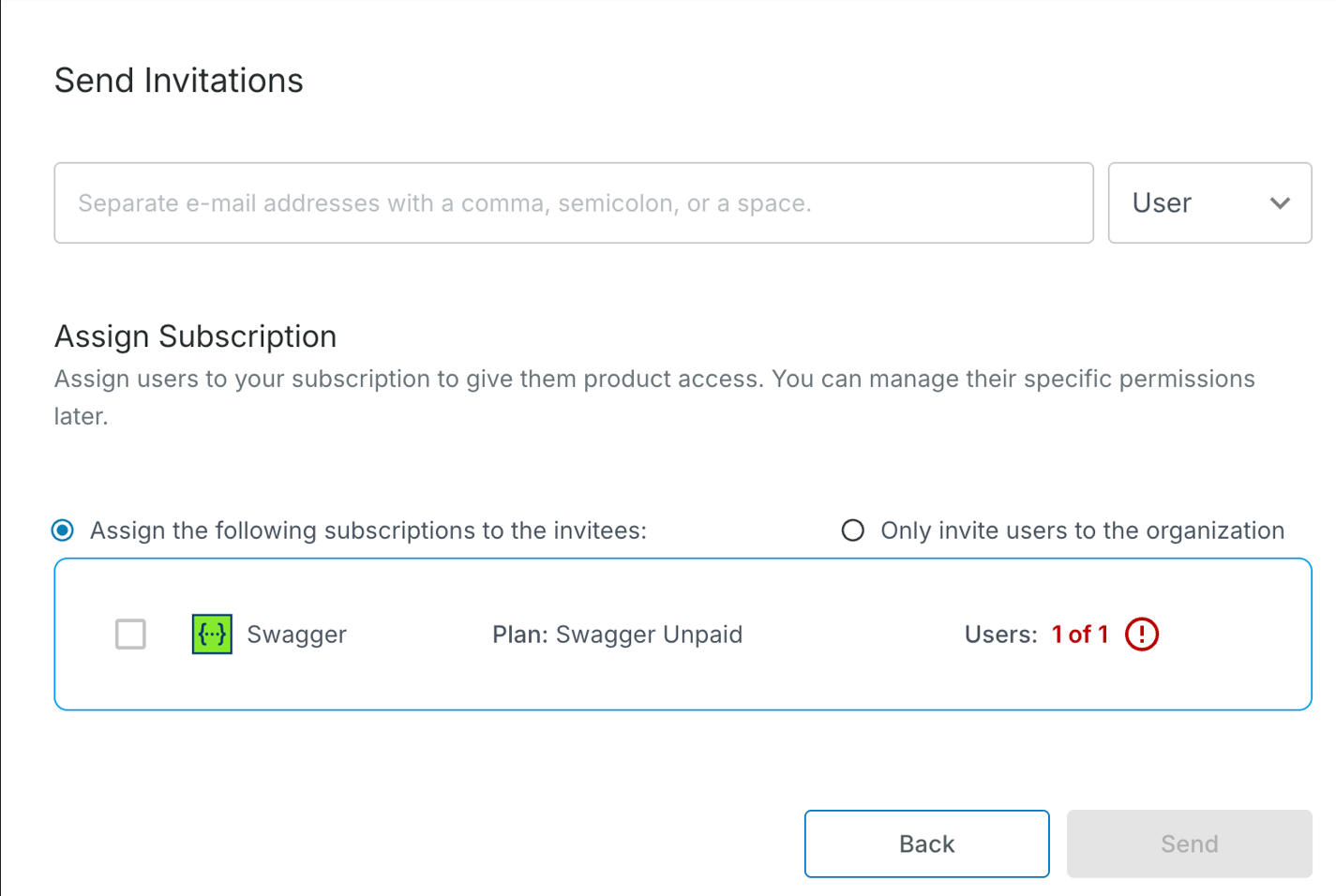
To invite members, perform the following steps:
On the SmartBear Admin homepage, click the Members tab.
Click Invite Members, to add a member to the organization.
In the Invitees box, enter the email address of the user you want to invite. To invite multiple users, separate each email address with a comma.
Note
During the trial, you can invite up to ten email addresses at a time.
(Optional) Select the Invite as Organization Admins checkbox to grant administrator permissions to the invited users.
Under Assign Subscriptions, the list of subscriptions for the particular solution appears.
Choose any one of the following subscription types to assign subscriptions to the users and assign the following permissions to the invitees.
Select Assign the following subscriptions to the invitees option to give all invited users the selected subscriptions.
Select Only Invite users to the organization option if you do not want to assign a subscription now. Inviting a user without a subscription allows you to assign guest-type roles in the respective solutions. You cannot assign a user with an existing email address that is already associated with an existing user account.
Select the checkbox for the subscription plan you want to assign, such as Swagger.
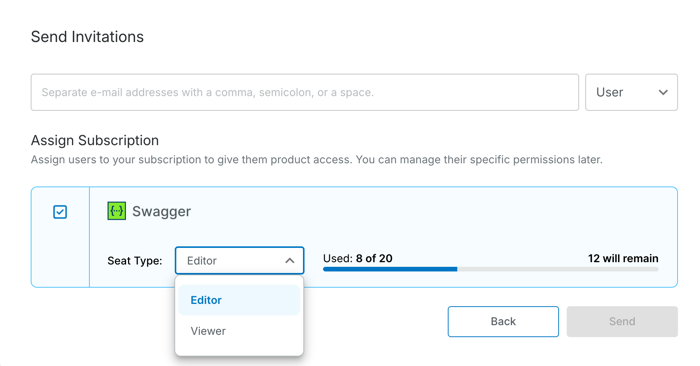
(Optional) If your plan includes the Viewer or Editor plan for Swagger, select the seat type Viewer or Editor from the Seat Type list.
Note
The view-only feature is only available for direct plans and is not available for e-commerce plans. SmartBear is rolling out this feature to a limited set of accounts. Some users may not yet have access. Contact the sales team for more information. To invite members for the view-only feature see Managing Assigned Subscriptions.
See Swagger documentation for more information on roles and permissions.
Select the Viewer option to grant users view-only access to Swagger. By default, viewer permissions apply to all Swagger products unless you configure specific permissions for individual products.
Select the Editor option to assign users the required Swagger product. You can configure the detailed permissions individually in each product after sending the invitation. You must assign modules to grant editor permissions in each Swagger product. Only assigned modules provide editor access.
For the modular plan, do the following:
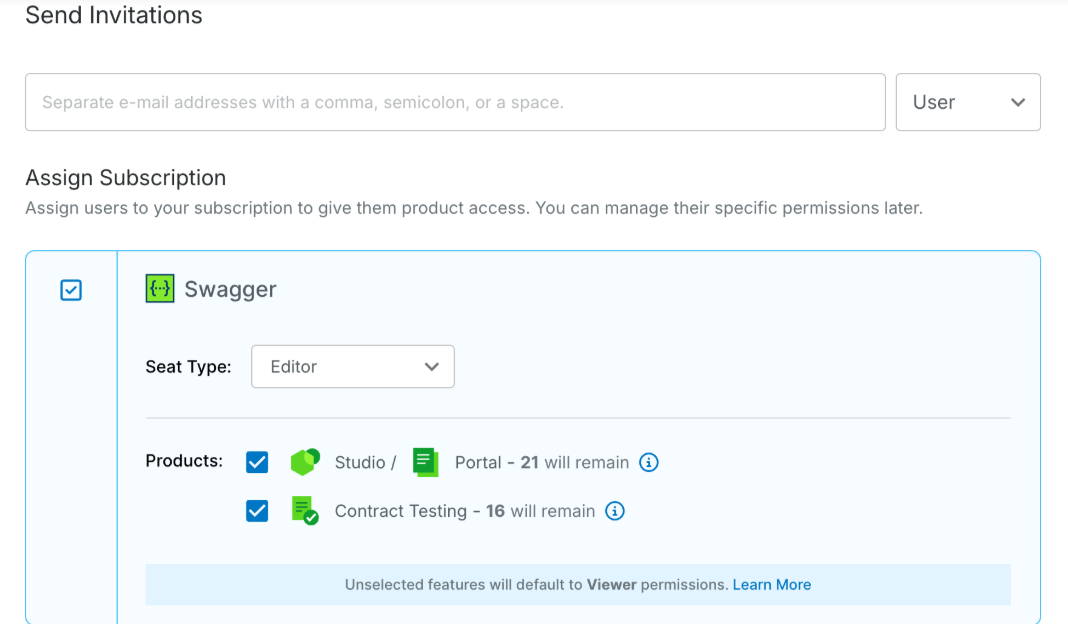
Select the seat type, Viewer or Editor, from the Seat Type list.
Note
By default, all Swagger products have Viewer access. When you select an Editor seat for one Swagger product, all other Swagger products automatically receive Viewer access.
Select the checkbox next to the Product type. For example, Swagger Studio.
(Optional) If the checkbox is disabled, click Buy Now or Buy More to purchase seats. Contact Sales to upgrade your subscription.
Note
If there are no seats available, you can only invite users for those products that have the required subscriptions and seats.
Not enough seats means that the number of user licenses (seats) you have purchased or allocated is less than the number of users who need access to the selected Swagger product (Example, Studio, Portal).
Click Send Invitation to invite users. Invitees will receive an email and must accept the invitation to join the organization.
Before a user accepts the invite, you can remove the invitation. To do so, navigate to the user details page and click . For more information, see Managing Members.
A summary page confirms that the invitation has been sent. Click Set Granular Permissions link to navigate to the respective feature or permission page to access and manage specific roles and permissions for that feature.
To remove a member, click the ellipsis button next to the member you want to remove.
(Optional) Select Update Admin Role to remove the admin role permissions for the selected member. You must have a valid subscription to access the products your organization is subscribed to.