Managing Members
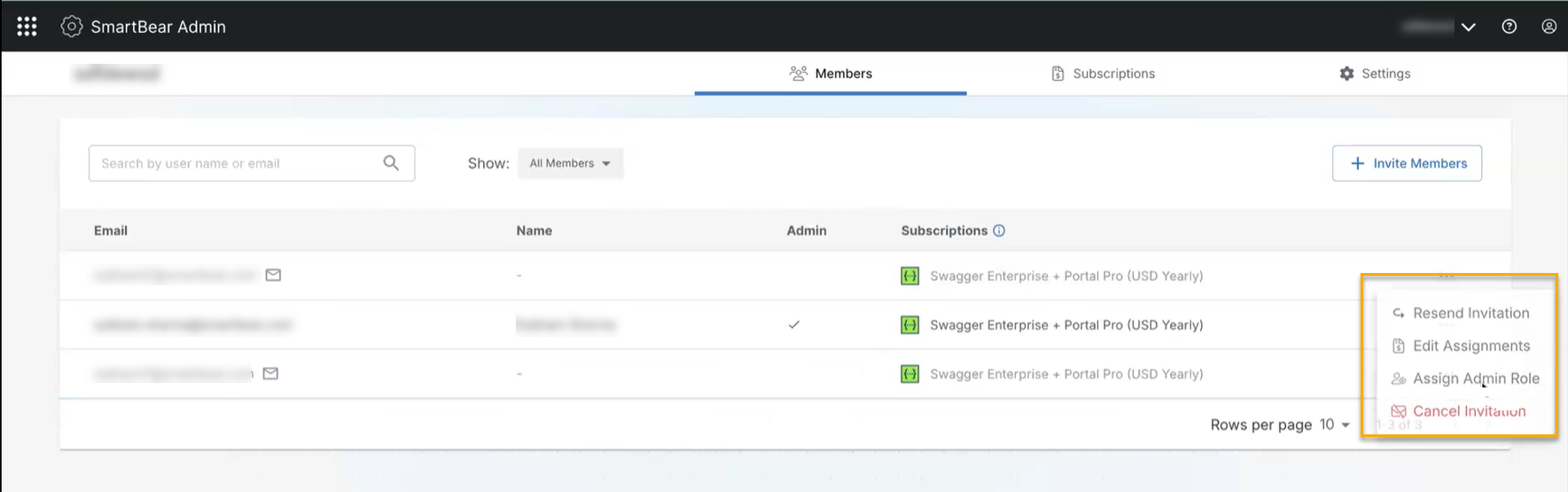
On the Members page, you can search for members by username or email ID to view their details. Click the ellipsis button next to the respective member to make the required changes. You can also click on the member email ID to view the details and make the required edits, such as removing members, managing subscriptions, assigning, and unassigning the Admin role.
Tip
Click Cancel Invitation if you want to cancel an invitation before a user accepts it by removing the invitation. The user will see an error when they try to accept the invitation in their email.
Click Resend Invitation to a user if they did not receive the original invitation. The system sends a new invitation email to the user's registered email address with an updated link.
Viewing Member Details
On the Members page, click the email ID of the member.
The member details page appears.
Click Remove member if you want to remove a member from the organization.
Verify the Organization Admin status (Yes or No) displayed next to the member details.
(optional) Click Change Admin Role to update the member’s administrator status.
Navigate to Subscriptions to view the products assigned to the member. Click Manage to modify the member’s subscription access. See Subscriptions to manage your subscriptions.
Review the listed Swagger products, subscription details, and the seat type for modular plans.
Editing and Managing Member Assignments
Note
Depending on your plan, you may see an option for an Editor or Viewer Seat Type. The Seat Type determines what roles and permissions you can grant to an organization member in the appropriate products.
Viewer Seat - read access or below.
Editor Seat - edit access or below.
Click the ellipsis button next to the member you want to edit.
Select Edit Assignments option to view or change the member’s Subscription Assignments.
The Edit Subscriptions Assignment dialog box appears. You can view the selected member subscription details, including the associated plans, member details, and subscription end dates.
Select the check box next to the subscription and edit the required details. If you want to remove the member's subscription, you can clear the check box.
Click Confirm to save the updated subscription.
Note
Only active subscriptions can be assigned to members of the organization.
Assigning and Unassigning Admin Role
Click the ellipsis button next to the member you want to edit.
Select Assign Admin Role.
The Assign Admin Role dialog box appears.
Click Assign to assign the user as an admin.
The user will now be an administrator.
(Optional) To unassign the user as an admin, click Unassign Admin Role to remove the admin role permissions for the selected member.
The Unassign Admin Role dialog box appears.
Click Unassign to unassign the user as an admin.
Note
If you are the only remaining administrator in any SmartBear organization, assign another user as an administrator before deleting your SmartBear account. For more information, refer to Deleting Your Account. For information about assigning administrator privileges to a member, see Permissions and Roles.
Removing Members
Click the ellipsis button next to the member you want to edit.
Click Remove Member to remove the selected member.
The Remove Member dialog box appears.
Click Yes, Remove to confirm the removal of the member.
This removes the member access to the organization and revokes all access to all associated subscriptions and products.
Bulk Actions
Bulk actions let you update multiple members in one operation. Select the members on the Members tab, and then use the toolbar that appears above the table to do the following:
Bulk assign subscription - You can assign a subscription to multiple members at once, or change their seat type and product assignments. The dialog box shows the seats used for each product, and the selected members get access when you confirm.
Bulk resend subscription - You can resend the invitation email to multiple invited members in one action.
Bulk role change - You can assign or remove the Admin role for multiple members in one action.
Bulk remove members - You can remove multiple members from the organization in one action. Removed members lose access, as with an individual removal, and their seats become available to reassign.
Bulk unlock subscriptions - You can resolve locked subscriptions for multiple members at once by switching them to Editor seats, reassigning the available seats, unassigning them from locked products, or removing the subscription. All selected members must be locked.
Note
A toolbar button is unavailable when the action does not apply to every selected member.
To perform a bulk action on members, do the following:
On the Members tab, select the checkbox next to each member you want to change. To select every member on the page, select the checkbox in the table header.
Note
An envelope icon marks members who have been invited but have not accepted the invitation yet. A lock icon in the Subscriptions column marks a locked subscription.
On the toolbar, click the button for the action you want:
Edit Subscription - Displays the Edit Subscription Assignments dialog box. Turn on the subscription, select the Editor or Viewer seat type, and select the products to assign. The dialog box shows the seats used for each product and the selected members that already have access. A product with no available seats shows a red seat usage bar. Unselected products default to Viewer permissions. The button is unavailable if you cannot edit the subscriptions of one or more selected members, for example, if a selected member has a locked subscription.
Assign Admin Role - Displays the Assign Admin Role dialog box, which lists the selected members. Click Assign. The button is unavailable if one or more selected members already have the Admin role.
Unassign Admin Role - Displays the Unassign Admin Role dialog box, which lists the selected members. Click Unassign. The button is unavailable if one or more selected members do not have the Admin role.
Remove Member - Displays the Remove members from the Organization dialog box, which lists the selected members and the effects of removal. Click Remove. The button is unavailable if the selection includes members managed by System for Cross-domain Identity Management (SCIM), or if removing a member would leave the organization without an administrator.
Unlock subscriptions - Displays the Unlock Subscription dialog box. The available options depend on the seat type of the selected members and on the subscription. See Unlock Subscription options below. The button is unavailable if one or more selected members are not locked.
Switch to Editor seats - Use this option for members with Viewer seats. Select the products to assign. The dialog box shows the seats each product uses, how many seats will remain, and a warning that lists which selected members will get access.
Re-assign Viewer seats - Use this option for members with Viewer seats. SmartBear Admin assigns the available Viewer seats to the selected members.
Unassign from locked products - Use this option for members with Editor seats. SmartBear Admin removes the selected members from the locked products. If a member has no other product assignments, SmartBear Admin removes the member’s subscription completely.
Unlock licenses - Use this option for subscriptions without products. SmartBear Admin assigns the available licenses to the selected members.
Remove subscription - Use this option for any selected members. SmartBear Admin removes the subscription from the selected members.
Resend Invitation - Resends the invitation email to the selected members. The button is unavailable if one or more selected members cannot be reinvited.
In the dialog box that appears, select the options you want, and then click Confirm.