
Sharing Test Cases
Zephyr allows users to share test cases across multiple projects and test repositories. You can share test cases from releases to other projects in the system, and from the global test repository.
For example, while working on a release, you can share test cases in the global test repository, so there is no need to rewrite them from scratch.
Best Practices
Test case sharing allows users to use various test repositories and reuse test cases across all projects and releases to maximize the efficiency of their testing activities by reducing the time spent on writing like test cases. Users can simply create test cases that are default templates and share those test cases, which can be used in different projects or releases. For example, a test manager can create a test case to be used as a template in the global test repository. The testers working in their project can reuse the test case in their releases.
Important
-
Only normal projects can be marked as shared to allow the sharing of test cases. Isolated and Restricted projects cannot be marked as Shared.
-
A project or release cannot be deleted if it contains a shared test case or if a test case is shared from it across another project or release.
-
A project cannot be unshared if it contains a shared test case or if a test case is shared from it across another project or release.
-
When cloning a release that contains a shared test case to an unshared project, the cloned test case will be independent.
-
When cloning a release containing a shared test to a shared project, the source test case link will remain the same, and all test cases will be copied.
-
Sharing test cases across multiple projects does not create a direct copy of the shared test case (we recommend copying test cases if you want a direct copy). Sharing essentially points to the shared test case in the original project.
-
If a shared test case changes in the project, the version will be updated, but will NOT sync with the other project. If a user needs the updated version, they must manually update it when viewing the test case.
-
Changing the version of a test case can be done by editing the individual test case and clicking Use this Version.
Share test cases
To share a test case, perform the following steps:
-
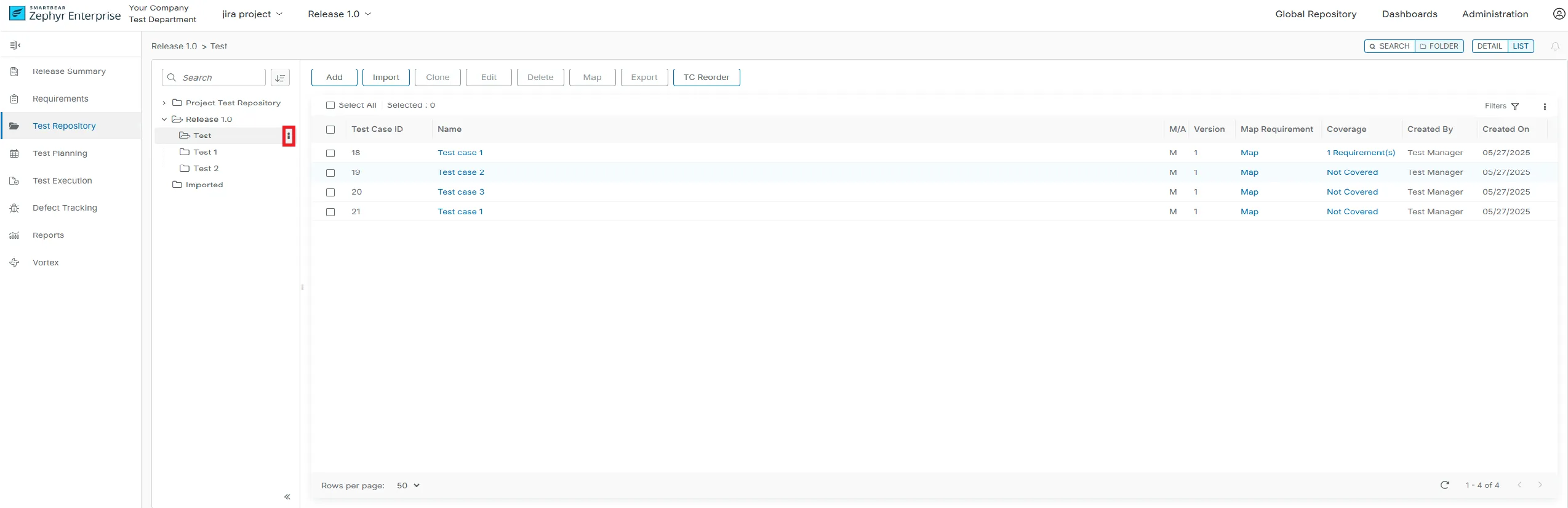
Click the button below on the folder you want to share a test case with.
-
Click Share Testcases.
A dialog will open with your local test repository on the left and other available test repositories on the right.
-
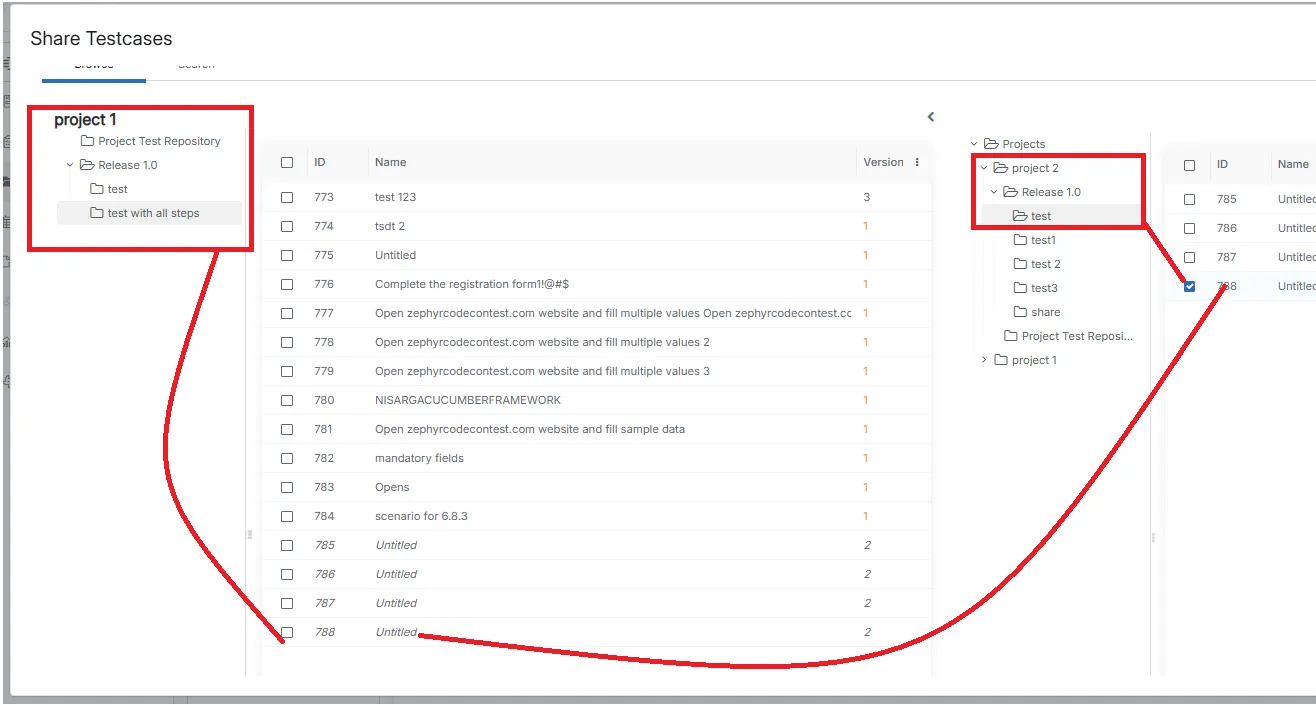
Navigate through the available test repositories on the right, select the test case you need, and drag it to the destination folder in your test repository. Select the Enable Drag and Drop Notifications checkbox in the Miscellaneous dialog box to enable drag and drop notifications. For more information, refer to Advanced the section.
The drag-and-drop notification appears whenever test cases or folders are moved, copied, or shared across different levels. This includes actions such as:
-
Moving items from the Project Test Case Repository level to the Release level.
-
Moving items in the Release level.
-
Moving items in the Import level.
-
Moving items from the Import level to the Project Test Case Repository level.
-
Moving items from the Import level to the Release level.
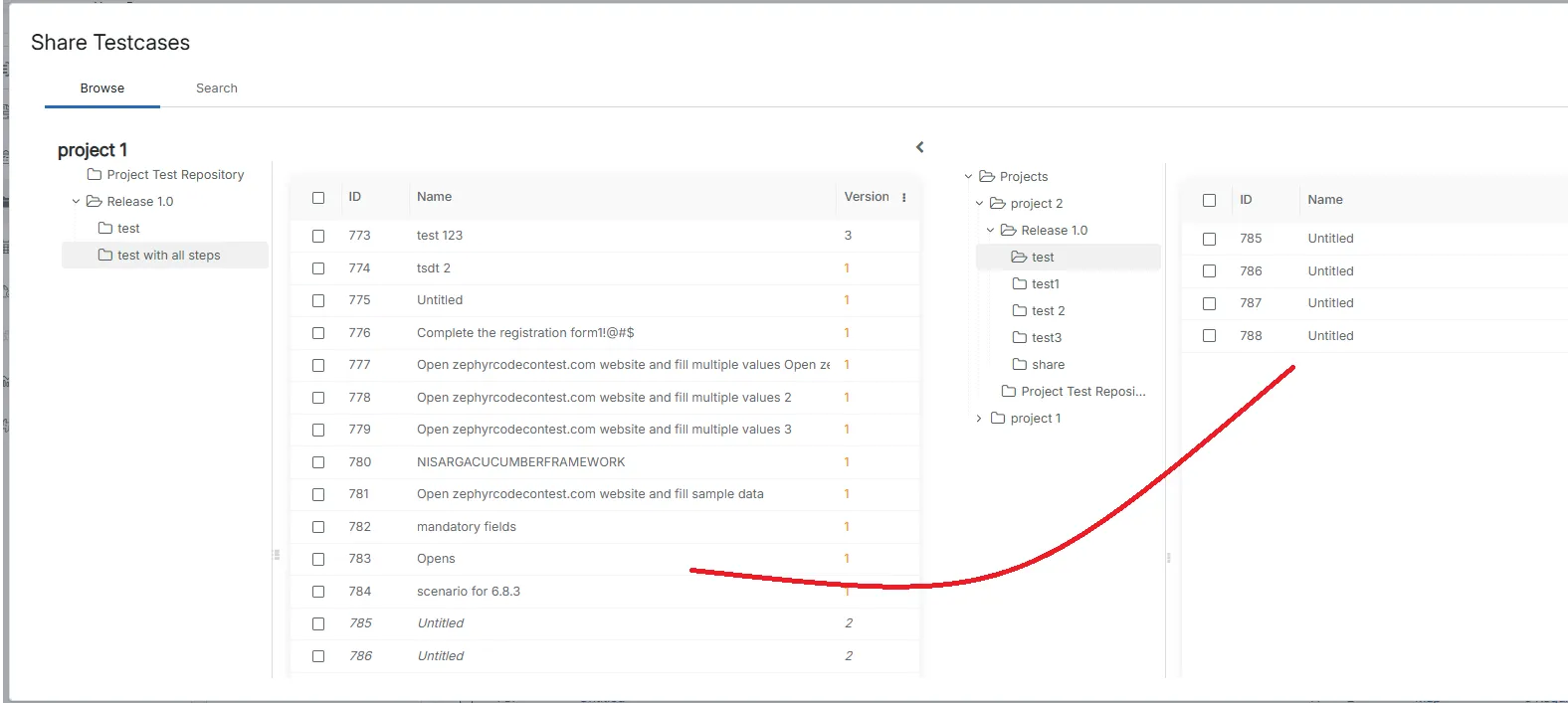
The shared test case will appear on the left of your current test repository.
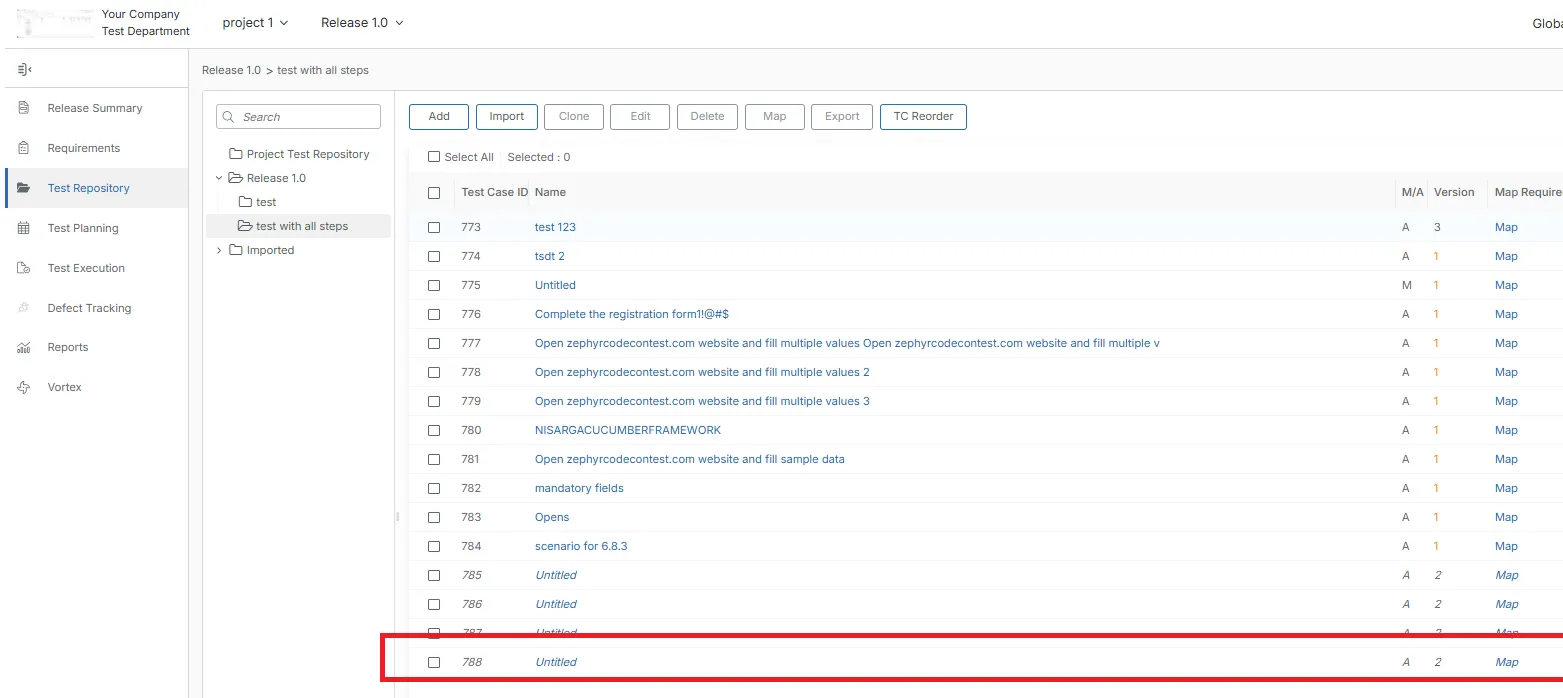
Now, when you close the Share Testcases dialog, you will see the shared test case in your current release’s list of test cases.
In the Share Testcases dialog, you can also search for test cases you want to share. To do that, switch to the Search tab, specify the project and release from which you want to share test cases, enter a ZQL query, and click Go.
-
Map shared test cases.
If a shared test case is mapped to a requirement in another release and you want it to be mapped to that requirement in your current release, there is no need to map it from scratch. You can map it automatically by adding the required information to your current release. Here is how you can do that.
Suppose you have Release 1.0 with the test case “ test 1 ” mapped to the “ Req1 ” requirement, and have shared the test case with the above. You also want to map the test case to Req1 in Release 2.0.
-
Navigate to Requirements , and in the Project Requirements repository, select the folder containing the requirements of the needed release (in our case, Release 1.0).
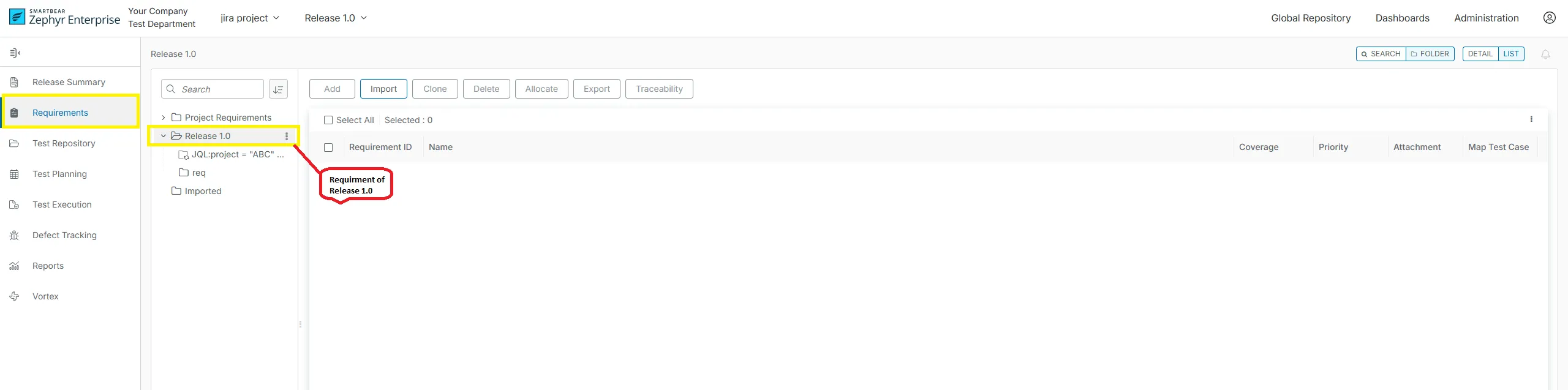
-
Select the requirement to which the shared test case is mapped in Release 1.0 and click Allocate to add the requirement to your current release (Release 2.0 in our example).
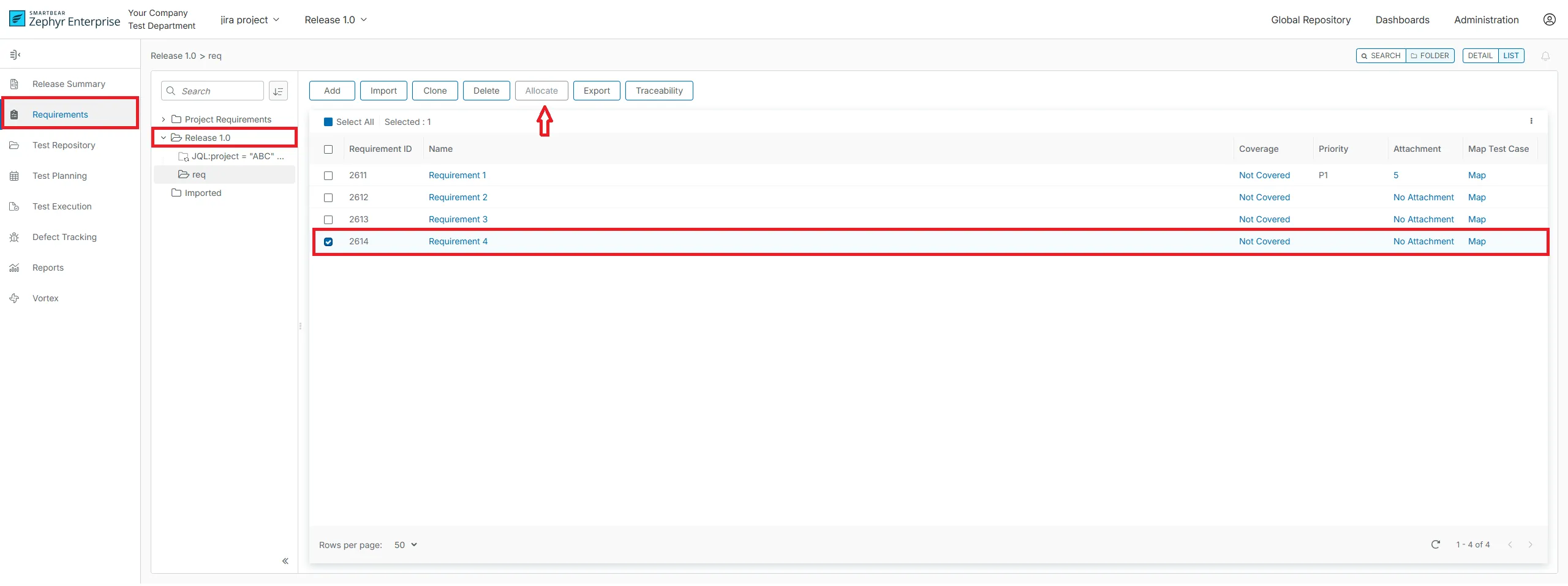
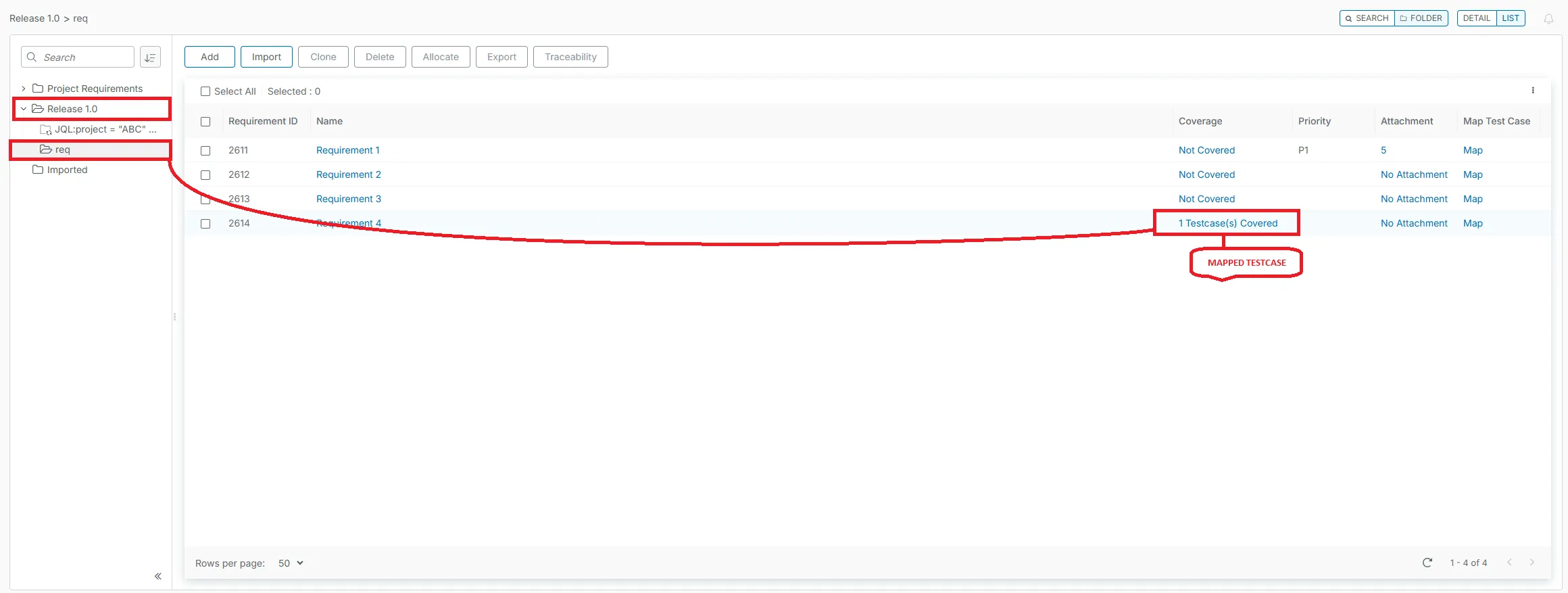
The requirement will appear among the requirements of your current release and will be automatically mapped to the shared test case.
If you switch to the Test Repositorynow, you will see that the shared test case is mapped to the requirement.
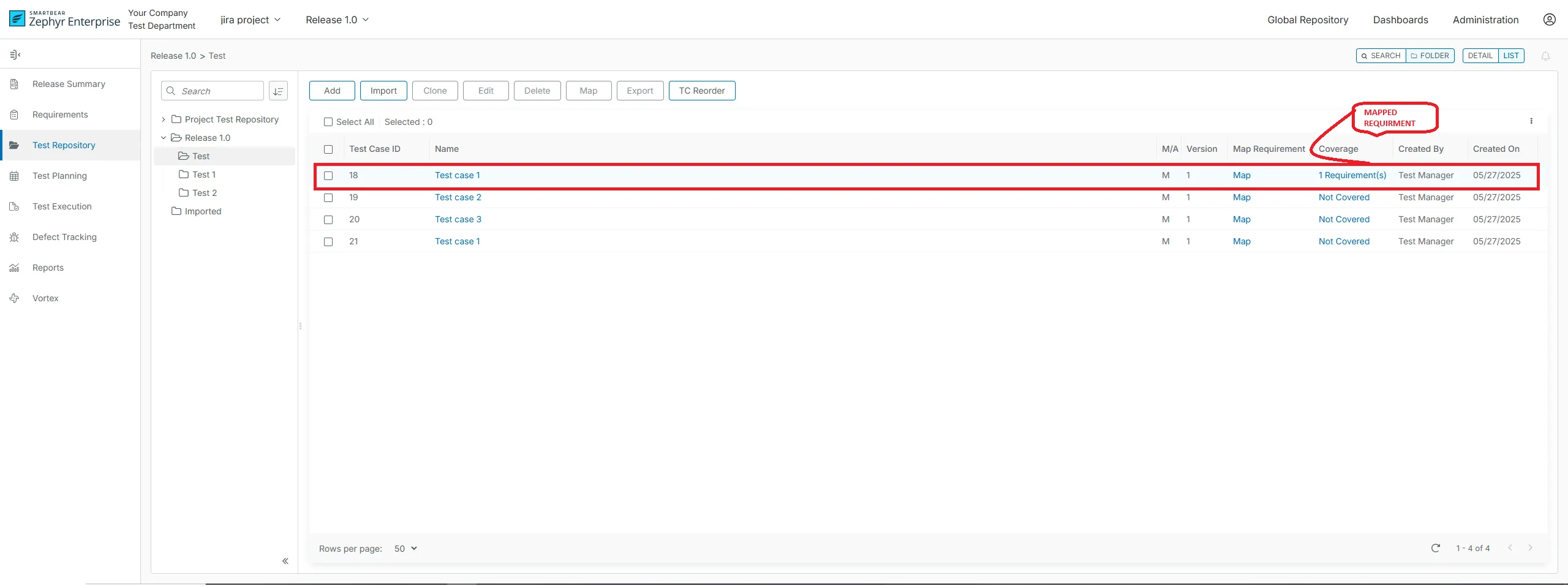
Deleting a requirement or test case removes the mapping as well.
Additional Notes
There are two ways to share test cases from the global test repository.
-
You can share single or multiple test cases: select the needed test cases and drag and drop them to your test repository.
-
You can share an entire folder of test cases: select a folder and drag and drop it to your test repository.
The IDs of the shared test cases will remain the same. Users can distinguish shared test cases from the other ones in the test repository by the italicized test case name.