
Adding a Folder in Test Repository
Adding Folders
-
Click on the
 button on the folder that you want to create a folder for.
-
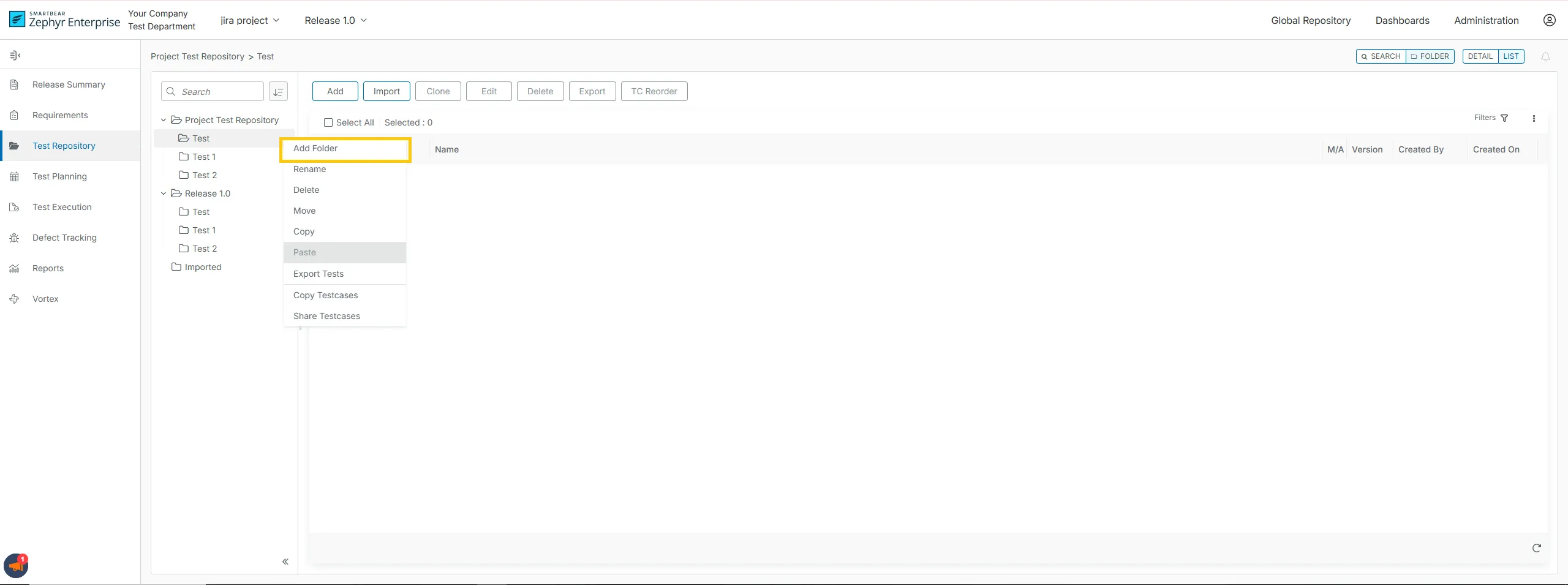
Click Add Folder at the top of the list. The context menu has the following items:
-
Add Folder - Creates a sub-folder under the currently selected folder.
-
Rename - Edit the label of the selected test tree folder.
-
Delete - Deletes the folder. Delete will remove the folder completely in both release and global. This action is not reversible.
-
Copy - Select the folder and contents to be copied to a new location.
-
Paste - Copy the previously selected folder.
-
Export Tests - Create an export of tests in the folder and all sub-folders.
-
Copy Testcases - Copy test cases to another project or release.
-
Share Testcases - Share test cases with another project or release.
You can move or copy any folder to another folder in the tree of test cases. To move a folder, just drag and drop it to the needed folder. To copy it, hold the Ctrl key while dragging and dropping the folder to another folder.
-
-
Fill in the mandatory fields for creating a folder: Name is a mandatory field while Description is an optional field
-
Name - The name of the folder
-
Description - A body of text describing the folder
-
-
After filling in the fields, click on the Create button to finalize any changes and create the folder.