Exporting Test Cases
You can export test cases in one of the supported formats:
-
PDF
-
HTML
-
Word
To export test cases, do the following:
-
Click Test Repository in the menu on the left, click a folder in the tree of test cases, select the check box next to each test case you want to export, and click Export:
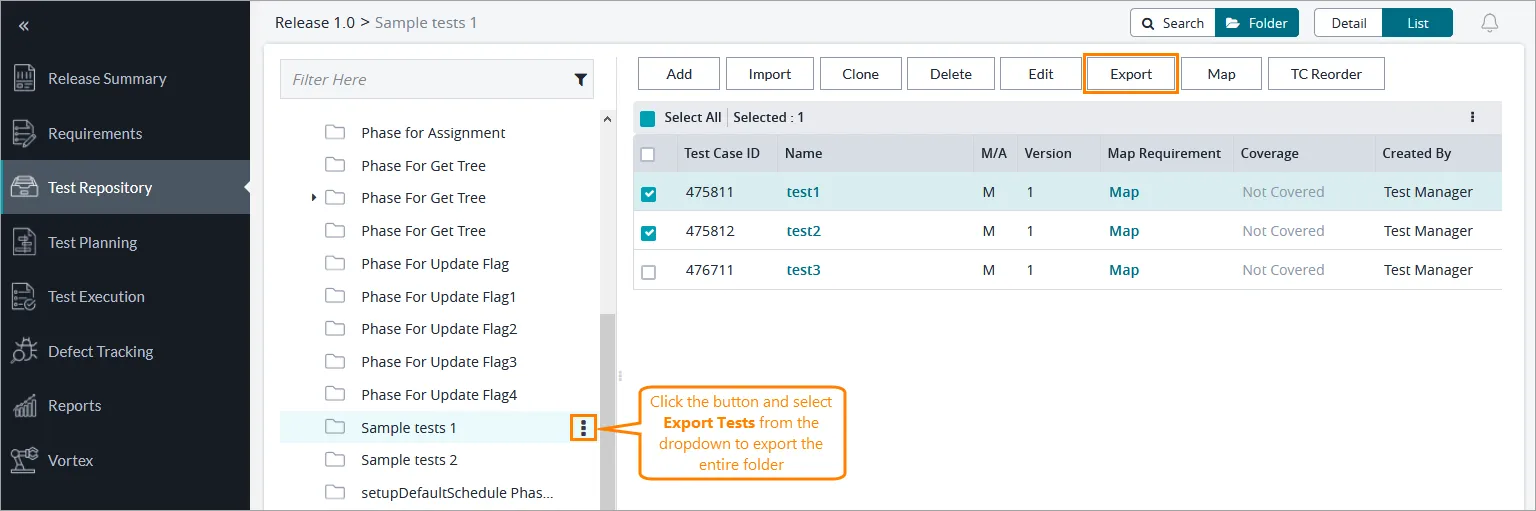
If you want to export an entire folder or release, simply click the
 button next to the folder and then select Export Tests from the dropdown menu.
-
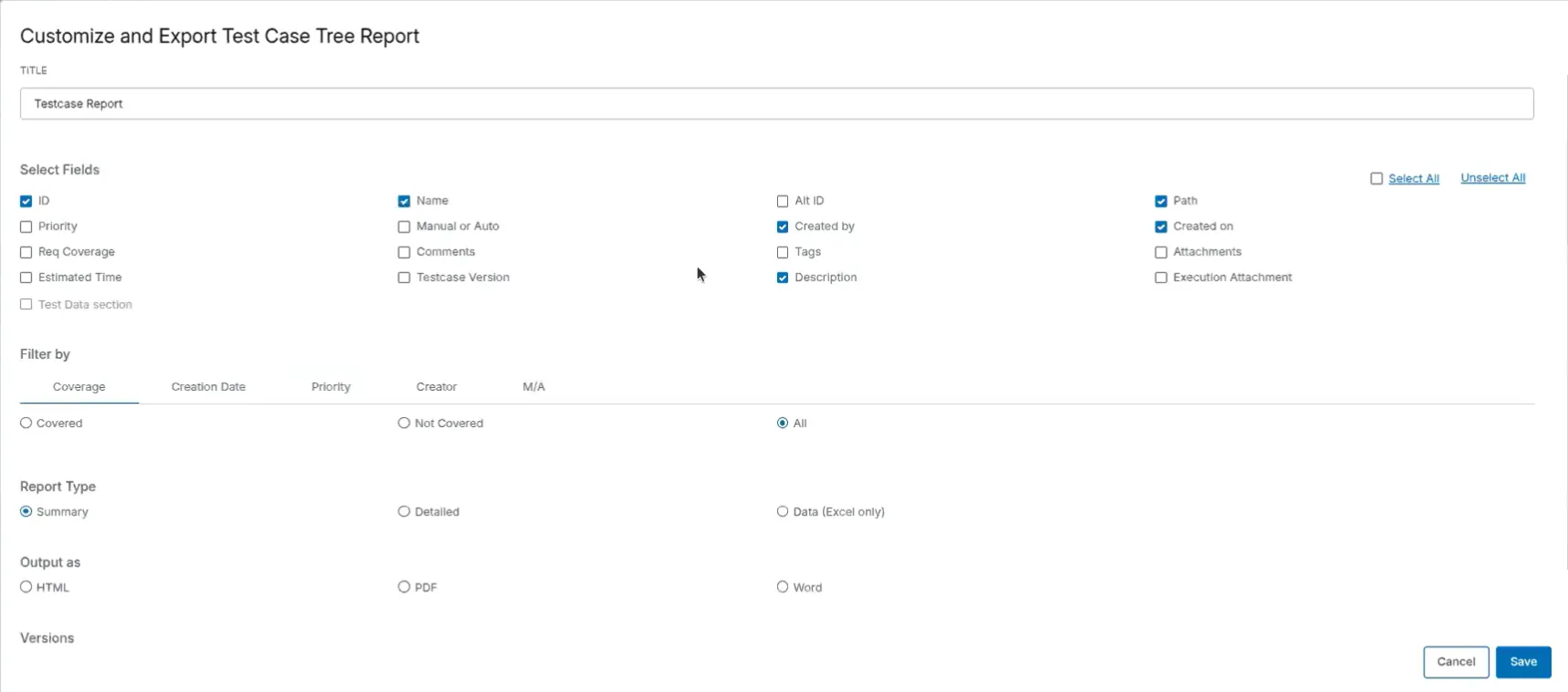
In the subsequent dialog, select the options whose values you want to export and specify the report type, the output file, and a title for your report.
To enable and select the parameter Test Data Section option. You must select the Report type as Detailed.
-
The maximum number of rows in exported Excel sheets is 1,048,575.
-
If a file is attached to your test case, the exported file will contain a clickable link to the attachment.
-
The default name of the exported report is Testcase Report.
-
-
Once done, click Save, and then Download in the Download File dialog box.