
Artemis Setup on Windows
Steps to Run
NSSM (Non-Sucking Service Manager) is a tool that allows you to create and manage services on Windows.
-
Open a command prompt with administrator privileges.
-
Navigate to the directory where NSSM was extracted (up to win64/win32).
-
Run the following command to install Artemis application as a service:
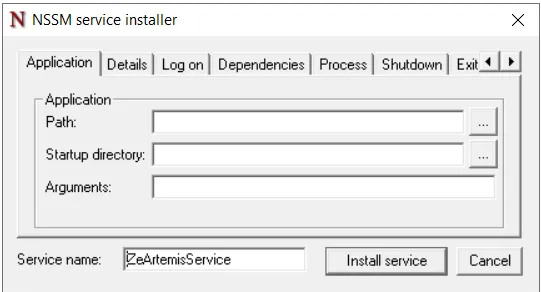
nssm install ZeArtemisServiceA GUI dialog for NSSM will open. Configure the service as follows.
-
Navigate to your Java executable (
java.exe), it is typically located inC:\Program Files\Java\jre\bin\java.exeorC:\Program Files\Java\jdk\bin\java.exe, depending on your Java installation. -
Set this to the directory containing Artemis .jar file which is
ZEPHYR_HOME\artemis\target. -
Type this in the “Arguments” field:
-jar -DzeArtemisConfigPath="C:\Program Files\Zephyr\artemis" ze-artemis-service-<VERSION>.jarHere,
-DzeArtemisConfigPathdefines the location of the artemis.properties. In place of <VERSION> inze-artemis-service-<VERSION>.jarin the above command, replace with version found in theZEPHYR_HOME/artemis/targetdirectory. -
You can optionally set a description for your service.
-
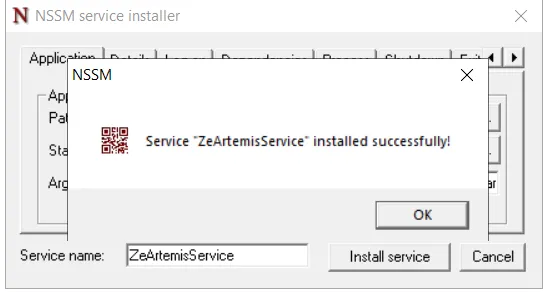
Click the “Install Service” button.
-
To start the service, open the Services manager (
services.msc), find your service (ZeArtemisService), and start it. -
To stop the service, use the Services manager or run
nssm stop ZeArtemisServicefrom the command line. -
Check the service status in the Services manager to ensure it starts and stops correctly.
-
You can also check logs (usually in the application’s directory) for any issues.
-
Log files are generated in the startup directory given in GUI window.
-
Adding/editing arguments in the application running as service:
-
If the service is already installed using NSSM, it should appear in the list in services.
-
Prompt enter the below command to edit:
nssm edit ZeArtemisService
-
-
Click on the “Edit service” button to modify the service settings.
-
If your service is already running, you might need to restart it for the changes to take effect.