Zephyr On-Premise Rollback Process
In the below scenarios, Zephyr will rollback, and the upgrade will fail:
-
When the Zephyr server is not stopped, and user directly runs the upgrade process
-
When Zephyr is configured with Tomcat VisualVM memory configuration and then the Zephyr server stopped and the user performs an upgrade process
Once Zephyr is rolled back, all the files inside the Zephyr Installation directory will be removed, and In the database ITCC, the DIVERSION is still present.
To restore the attachments in the database, the upgrade is completed for a rollback so that the database will be there, and we won’t need to restore it. Users will have to go and replace the backup Zephyr data folder.
Steps to upgrade or install Zephyr when Zephyr is rolled back
-
Open command prompt as Administrator
-
Change the working folder to the folder where the Zephyr installer is located. For example:
cd C:\installers -
Type the following command (replacing zephyr_<installer_version>.exe with the file name of the Zephyr installer) and press Enter:
zephyr_<installer_version>.exe -VzSkipStartupData=true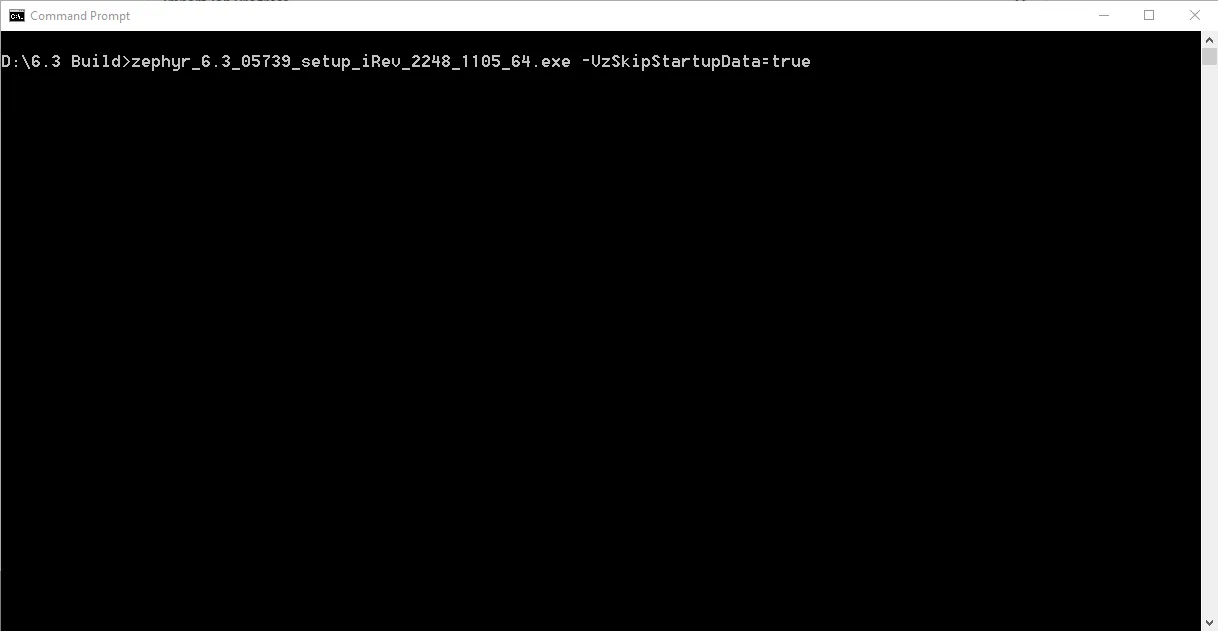
-
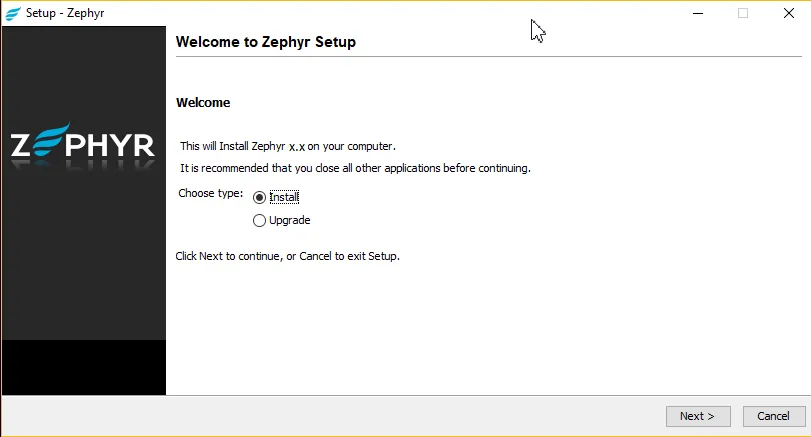
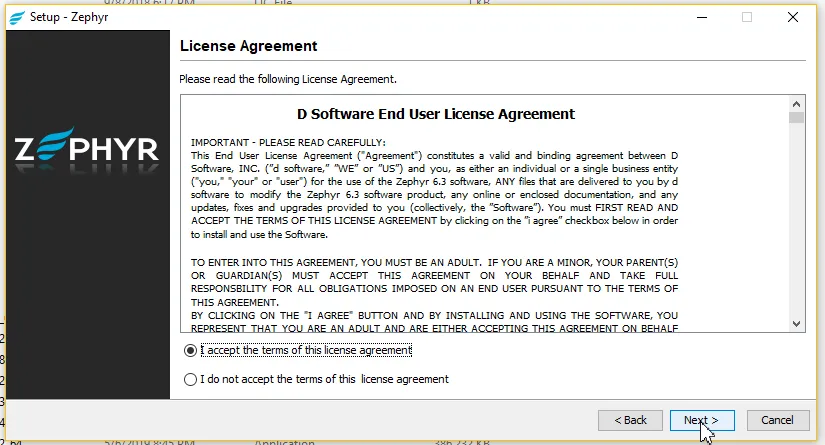
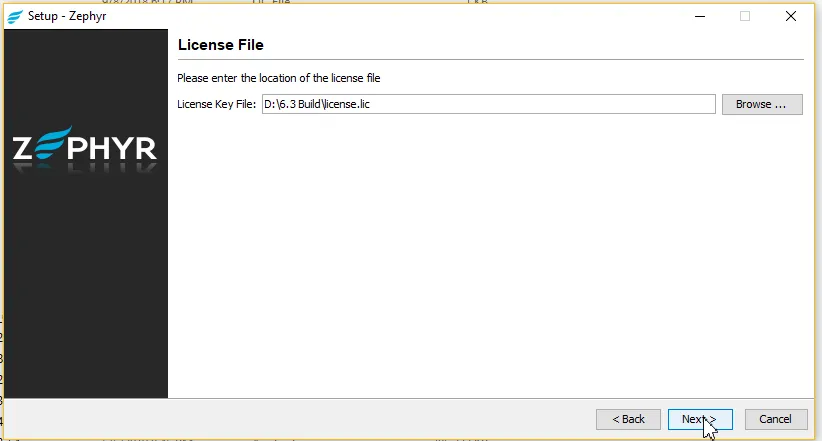
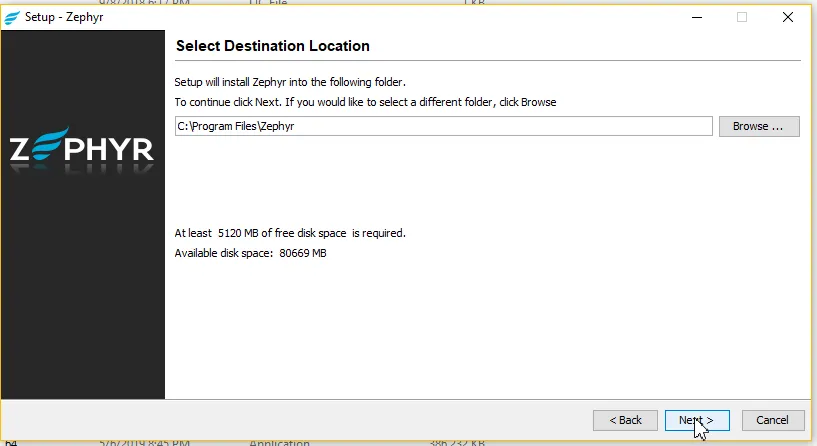
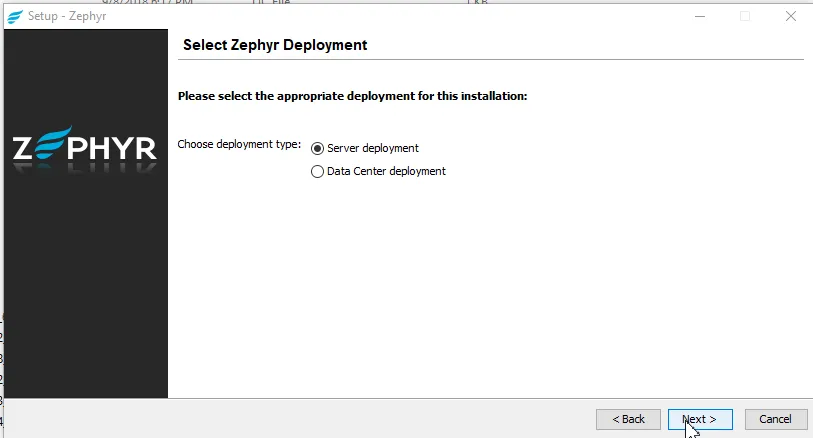
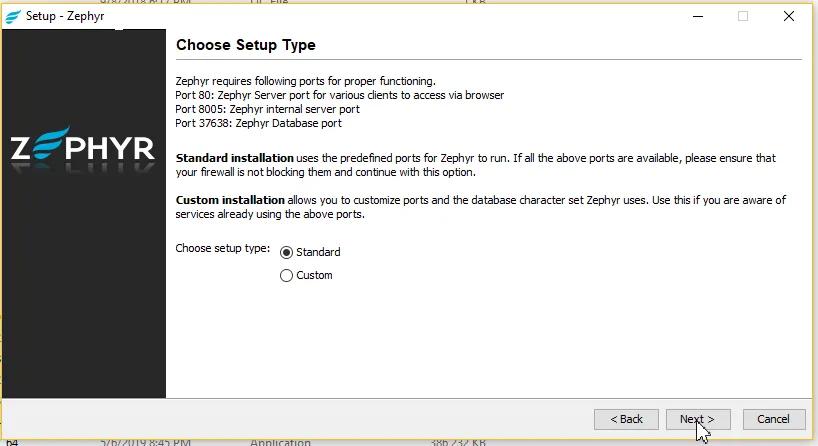
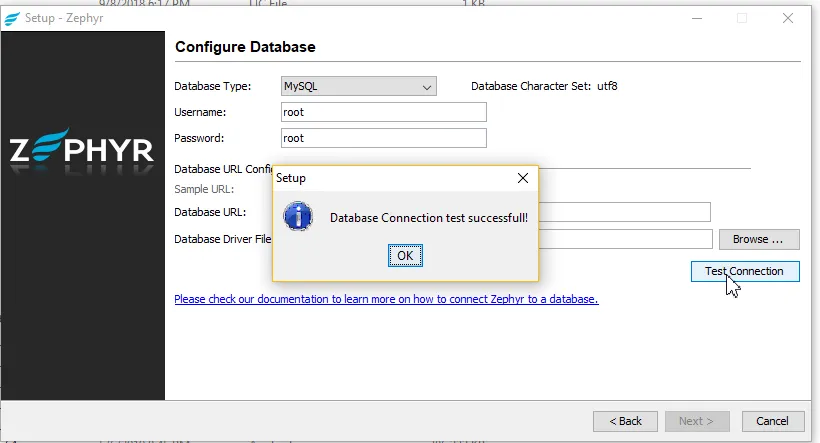
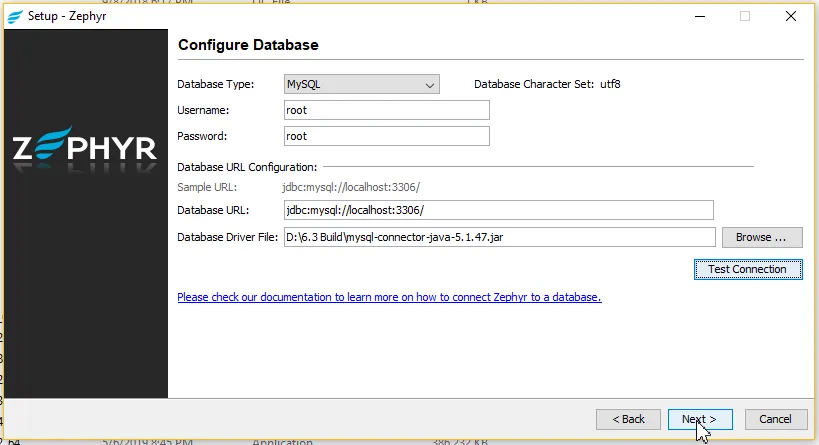
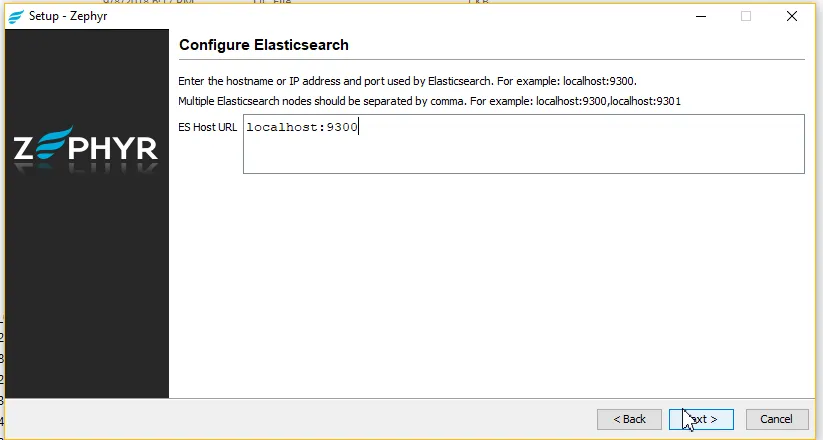
This will open the installation wizard in GUI mode. Complete the installation process, providing the exact database details as before the upgrade. View and ensure all requirements appearing on the screen are available on the system, then click Next.