Executing Tests
Executing a test means providing a high-level status on what happened when the test was “run” or “executed” and doing some follow-up actions on that. Examples include filing a new bug, linking an existing one, attaching screenshots, or making notes, etc.
Here are some different ways where you can execute tests.
- Ad-hoc executions: Create a test and execute it right away in an ad hoc manner
- Create Test Cycle(s): Execute multiple test cases as a part of a test cycle
- Search for Test Executions: Execute from the resulting search result set
Ad-hoc Execution from the Issue Page
Tests can be executed in an Ad hoc manner from the “Execute” button found in the toolbar of every issue. Again, if a test is being executed outside of a Test Cycle, then it is termed to be executed in an “Ad hoc” fashion (which is the default cycle in every version to start with).
Selecting ‘Execute’ will take you into the Execution Page, where details about the execution can be entered.
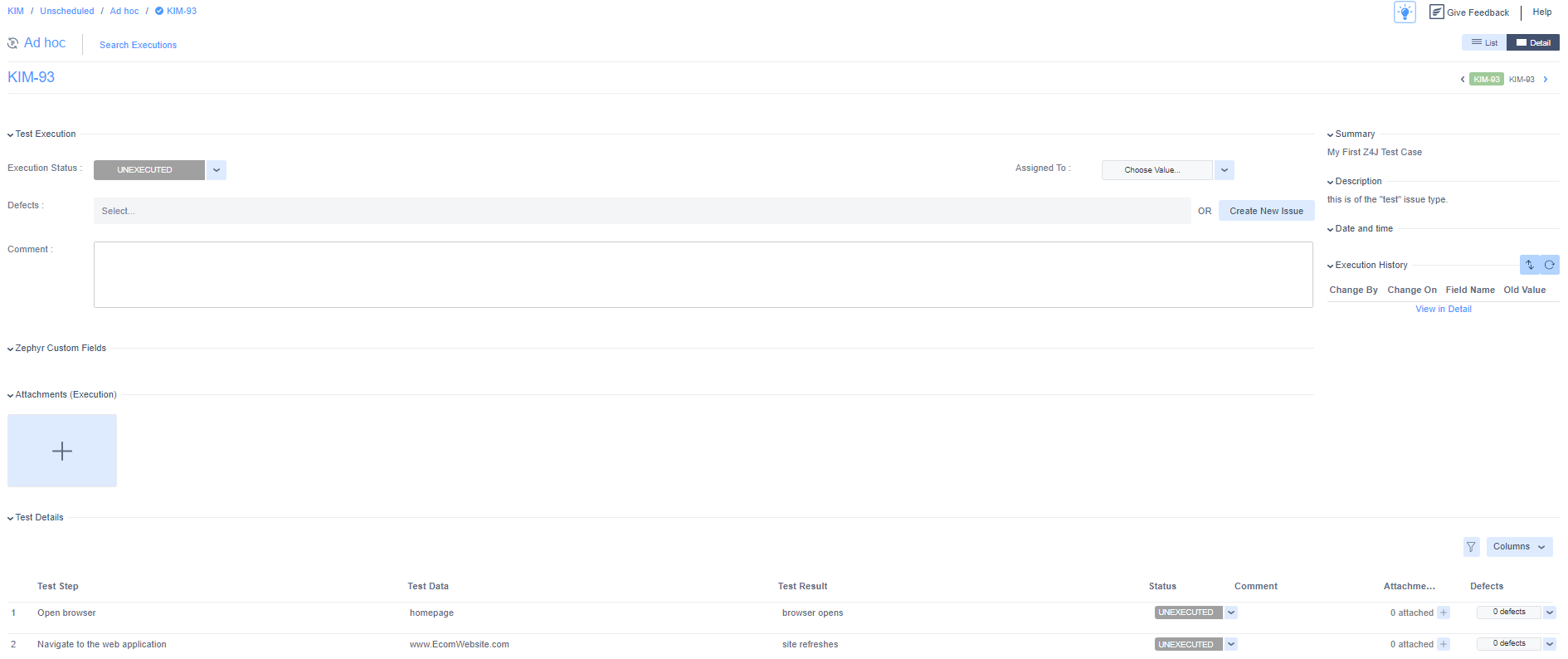
Users can update execution statuses and link/raise defects at both the test case & step level. Testers may also add additional comments, attachments, and notes to the test execution.
Note: The Execution Status of the overall test is NOT automatically modified based on the status of the individual test steps. You will still have to set the Execution Status of overall test manually.
Execute Multiple Test Cases as a Part of a Test Cycle
In the Test Cycles section, you saw how users could add in test cases into a collection called ‘Test Cycle’. Using the ‘execute’ button from the issue screen, users can decide to execute a single test case as a part of a specified version & cycle. This will take the testers back into the Execution page as before.
Additionally, you can choose to execute your tests from within the Test Summary page by selecting the ‘E’ button within your desired cycle. Once again, this will navigate you into the Execution page.
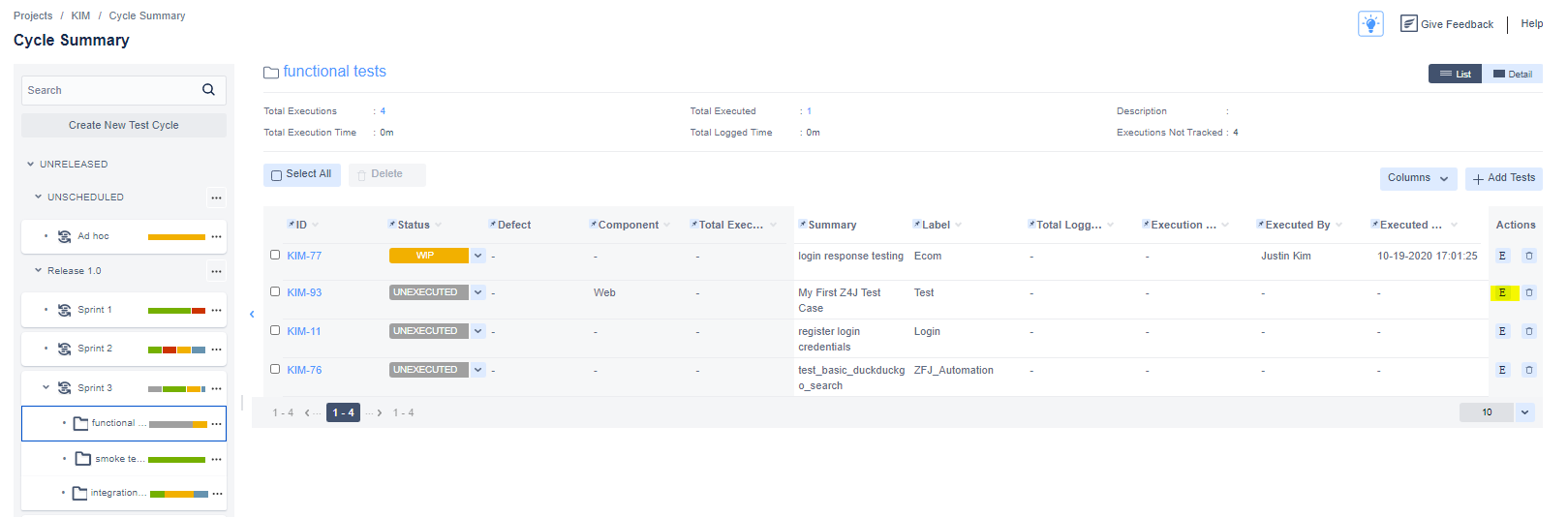
Once done entering the execution details, click anywhere else to automatically save your information. You can then decide (based on how you got to this execution screen) whether you want to return to the test or return to the test cycle.
When a new defect is created this way (or an existing one is associated to this test execution), a remote link is created in that defect under the “Links” section. It shows the test with a link to this execution, the test cycle it was a part of and its current test execution status. Users can view the defect remote issue linking associated with both the test case level as well as the individual test step.
Execute from Search Test Executions
Using the basic search functionality, users can filter out test executions from various projects, versions, and cycles. You can also choose to view tests executions from multiple projects by selecting the project dropdown and using the ‘All Projects’ option. You can toggle to an advanced search mode using the ‘advanced’ hyperlink to the right and utilize the Zephyr Query Language (ZQL) to filter out your desired test executions. The keywords and operators available within ZQL can be viewed here
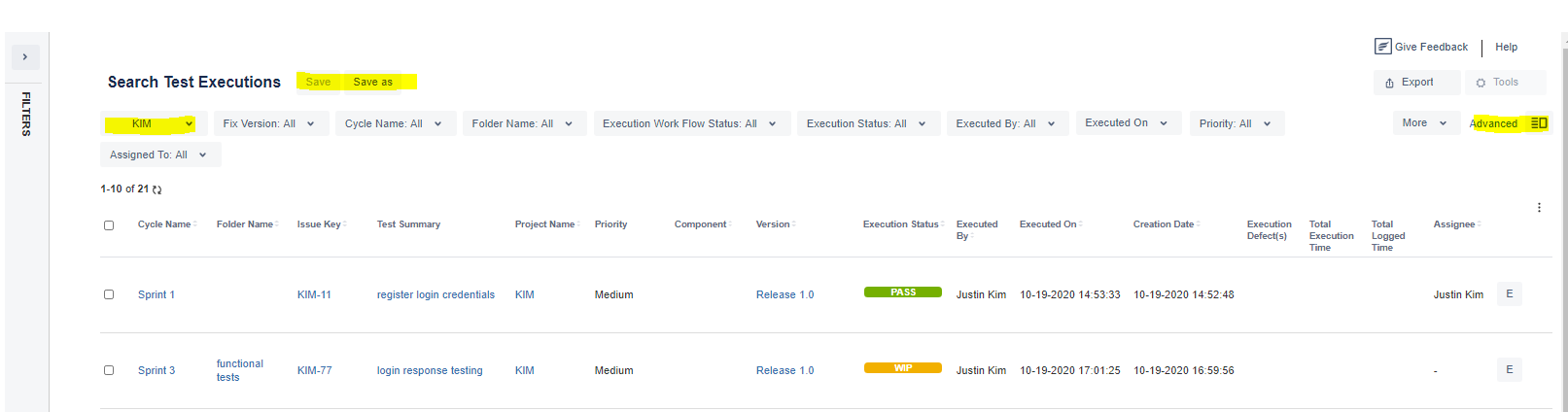
Within the list view shown above, users can choose to execute the tests by selecting the ‘E’ option. Otherwise, using the columnar toggle button in the top right, users can toggle over to the details view, where your tests can directly update the step level details of the pertinent test execution.
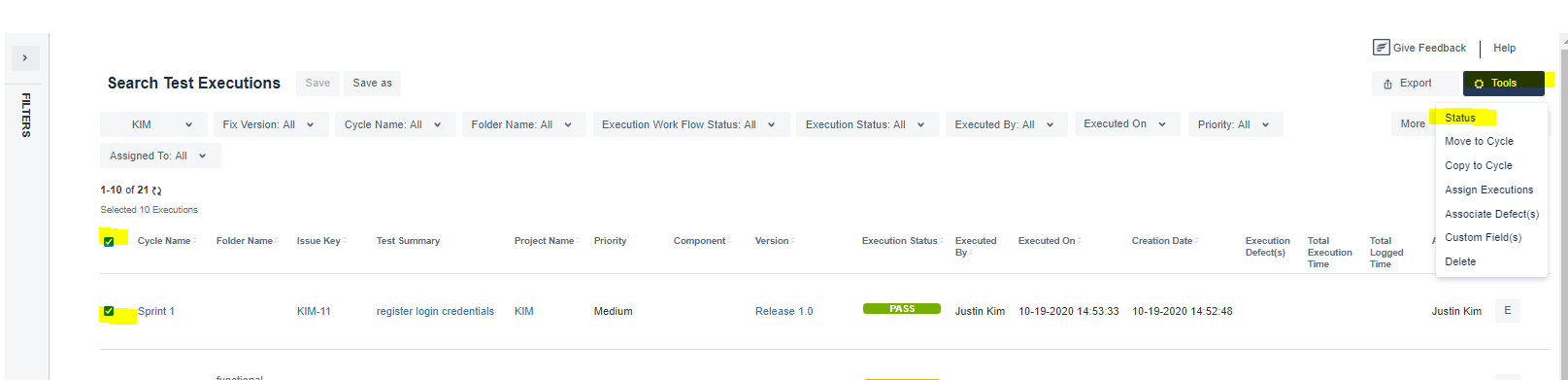
Once again, bulk operations (such as bulk status update) can be performed by multi-selecting the test executions, and by selecting the ‘Tools’ option in the top right-hand side.