Test Repositories
In Zephyr, test cases are stored within Test Repositories. To promote sharing and reusing of test cases, you can store test cases at 3 levels within Zephyr.
-
Global Test Repository: The Global Test Repository feature allows your Zephyr instance to have a centralized location to house all test cases. This provides users the ability to create template/default test cases within the global repository which can then be reused within individual projects and releases.
Users can copy or share a test case from the global test repository and place the copy of the test case to either the project test case repository or the release test case repository. Reusing test cases from the global test repository is easily completed by utilizing the simplicity of Zephyr’s drag-and-drop feature.
-
Project Test Repository: The Project Repository is a test case repository that is displayed for all the releases. Every project will have its own project repository that is visible across the entire project. Project repository test cases can be shared within a single project across the releases.
-
Release Test Repository: The Release Test Repository is a test case repository for test cases specific to that particular release. This means test cases stored at a release level cannot be accessed by other releases in the project, nor by other projects in Zephyr.
Adding and Editing Test Cases
Within the Test Repository you’ll be able to add new Test Cases and have access to an array of modification capabilities. Here you can add, edit, clone, or delete Test Cases. You’ll also have the capability to modify a variety of Test Case fields and include tags, allowing users to search for fields in the future and become a more robust filter. You can create custom fields in the ‘Customizations’ section in the Administration tab. All custom fields that a user creates will then be visible in the Test Details tab.
Mapping Requirements to a Test Case
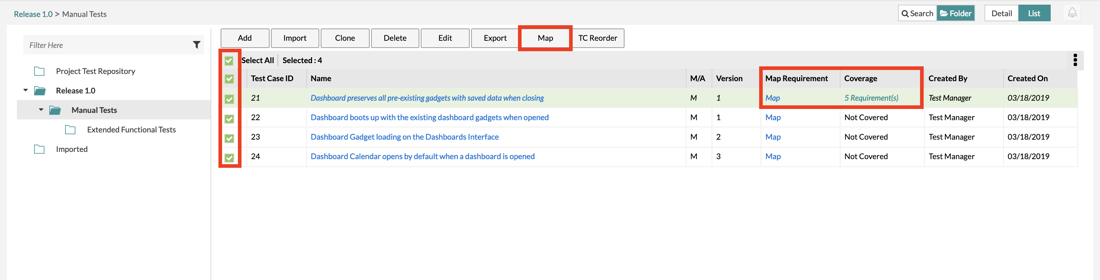
To map a test case to the relevant requirement that it’s covering, simply click on the map button/link, which will prompt you with a new pop up window of the requirements repository. This establishes what is commonly called “test coverage”. You can also bulk map your test cases to multiple requirements by multi-selecting the test cases you’re interested in and using the toolbar map option located above.