Exporting APIs from Stoplight
Export your resources from Stoplight before migrating them to your Swagger Studio instance. Stoplight allows you to generate an export of either OpenAPI definitions or projects.
Important
When exporting APIs, always choose the Bundled References option. To learn more, see the Stoplight documentation.
Export a project
You can export an entire project from the Design Editor (edit mode). The generated file is a snapshot of project contents. Downloading projects resolves $refs in API and JSON schema files. This type of export displays references to component library models in the APIs.
To export a project, perform the following steps:
Select the project to download on the workspace sidebar.
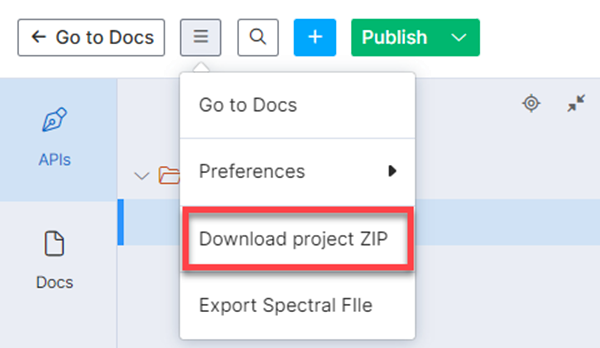
Click Edit.
Select Download project Zip in the menu.
Export APIs from documentation
Expand the relevant project on the workspace sidebar.
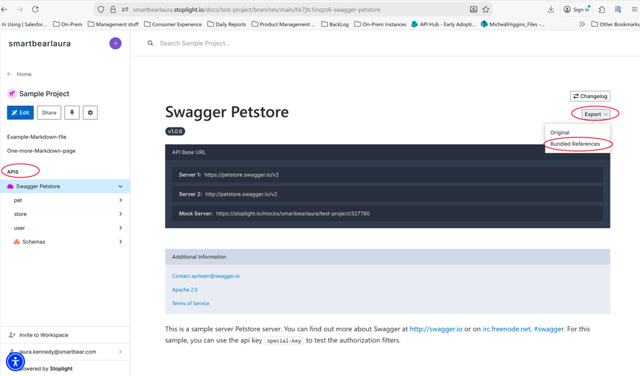
Select the API you want to download.
Click Export.
Click Bundled References.
Export APIs with Explorer
Click Explore on the workspace sidebar.
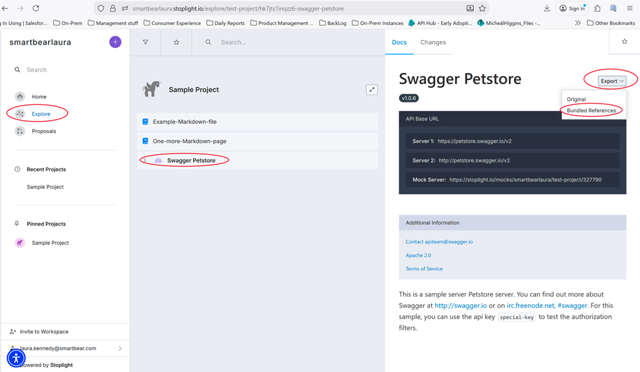
Expand the relevant project.
Select the API you want to download.
Click Export.
Click Bundled References.
Export APIs from Studio
To export APIs from Studio, perform the following steps:
Log in to your workspace.
Select a project and click Edit.
Open the Files or APIs tab.
Right-click on the
.yamlor.jsonfile you want to download. Click Export.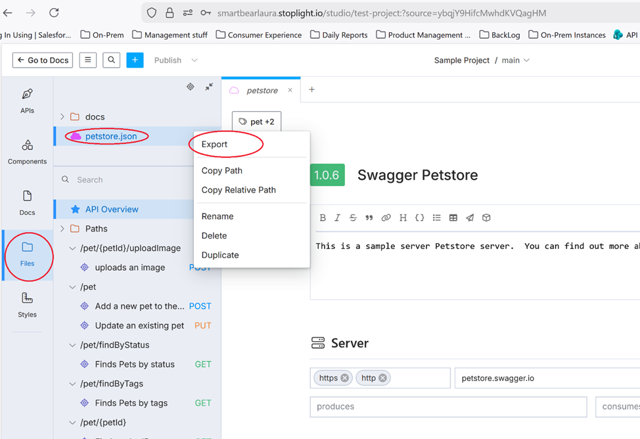
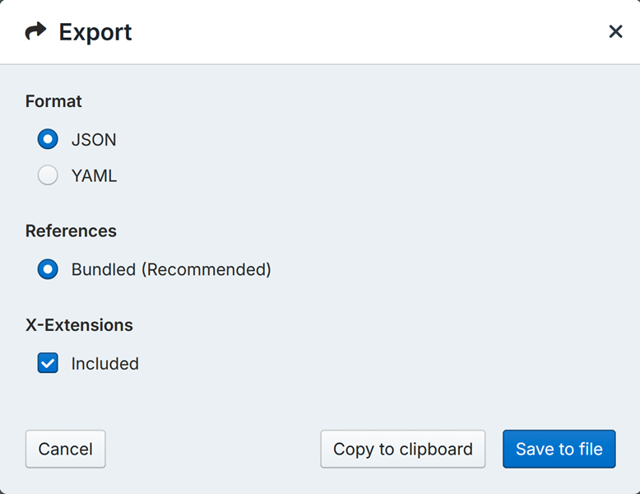
Select the export format:
.yamlor.json.Ensure the Bundled References option is selected.
Select to include or exclude X-Extensions.
Depending on your preferred outcome, click Copy to clipboard or Save to file.
Stoplight Catalog API
Note
Swagger Studio does not support JSON schemas.
The Catalog API requires your workspace to be on the Pro Team or Enterprise plan. For details on how to use the Catalog API, refer to Catalog API Overview.
SCM repositories
API definitions are already stored in an SCM system and can be imported directly into Swagger Studio.
Tip
For more information on exporting projects or files, refer to the Stoplight documentation.