AI Agents
Swagger features AI-powered agents that allow you to automate common API tasks and guide you through complex workflows. These agents act as intelligent assistants, helping you to design, govern, and document your APIs.
Unlike traditional AI chatbots that only respond to questions, agents can take real actions, such as scanning API definitions across your organization, applying governance fixes, generating portal documentation, and more. Each agent includes specialized skills, targeted to performing specific tasks.
Agents are powered by large language models (LLMs) and are able to read and write Swagger resources. They work within your organization's boundaries and always ask for confirmation before applying changes.
What can agents do?
Agents in Swagger can perform the following actions:
Scan all API definitions in your organization for governance rule violations
Apply standardization fixes to the issues you select and save corrected definitions as new versions
Generate developer portal documentation from an API definition
Answer questions about your APIs, governance rules, and Swagger features
Provide context-aware help when you are editing a specific API definition
Setup
Enable AI agents in Swagger Studio
As an organization administrator, you can choose whether to enable AI agents for your organization. Note that this feature is inactive by default. Once you enable it, an AI agents widget is displayed on the top bar of Swagger Studio, and the Governance Agent button appears under the code editor.
To configure this setting, perform the following steps:
Go to Organization Settings.
In the AI Features section, toggle Work with Agent on.
Onboarding
To start working with AI agents for the first time, complete an onboarding by authorizing a connection to an MCP server. This allows you to configure all available agents in a single step.
To complete the onboarding, do the following:
Click Work with Agents on the top toolbar.

Alternatively, click the Governance Agent widget displayed under the code editor.
The SmartBear Agents widget opens, displaying the onboarding screen.
Click Connect under Authorize agents access.
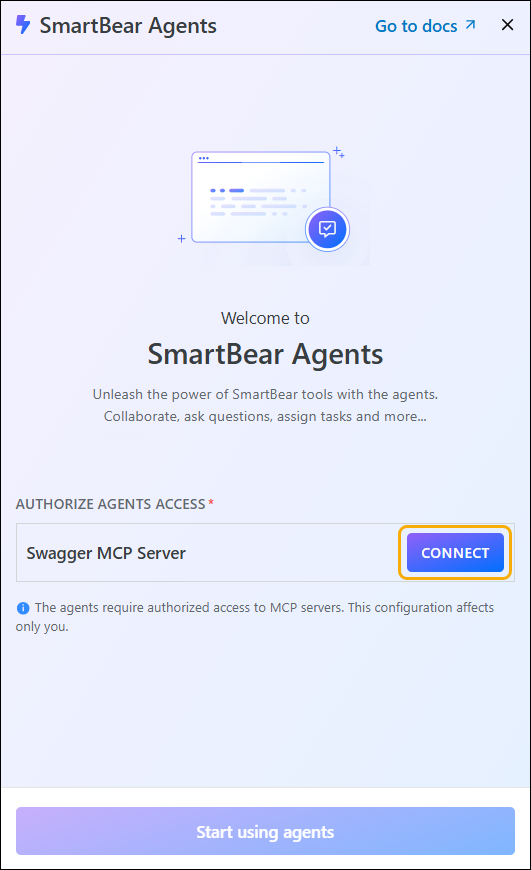
Authorize the access to the selected MCP server.
Click Start using agents.
After a successful authorization, the available agents are displayed in the SmartBear Agents widget.
Manage agent settings
After configuring agents in Swagger Studio, you can adjust their settings in the SmartBear Agents widget.
Click Work with Agents on the top toolbar.
Select the settings icon.
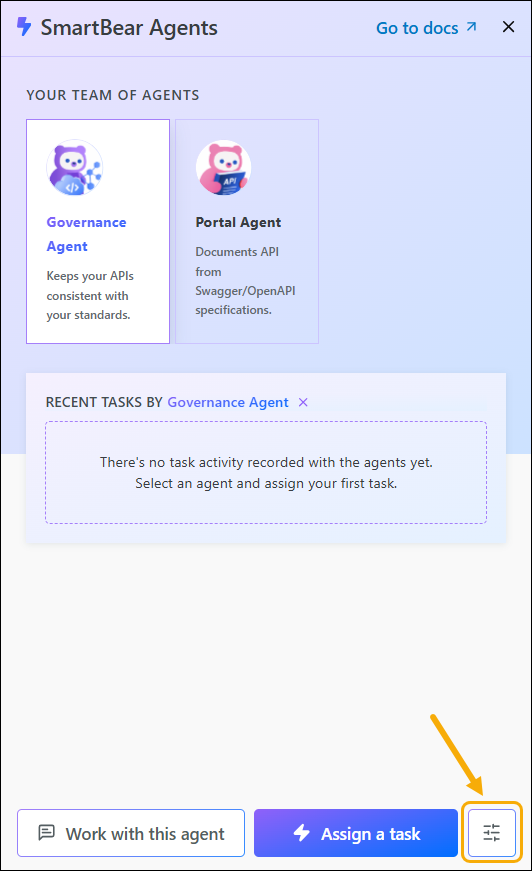
Depending on the type of setting you want to manage, navigate to the relevant tab:
In the System prompt tab, enter a prompt detailing your preferred working style with agents.
In the Tools tab, modify the MCP server connection by clicking Disconnect and authorizing an updated connection.
Two ways to interact
There are two ways in which you can interact with an AI agent: by chatting with it or by assigning it a specific task.
Use Chat mode to ask the agent exploratory questions, request ad-hoc assistance, or engage in an iterative discussion.
Use Task mode to request a structured, repeatable action based on one of the agent's pre-built skills.
Refer to the following examples for guidance on when to use each mode:
Scenario | Recommended mode |
|---|---|
You are not sure what an agent can do | Chat |
You want to explore or discuss API issues | Chat |
You want to ask follow-up questions after a task | Chat (Select the Discuss results option) |
You want to run a specific, repeatable operation | Task |
You know exactly which skill to use | Task |
Work with an agent
Chat mode
To interact with an agent in chat mode, do the following:
Click Work with Agents on the top toolbar.
The SmartBear Agents widget opens, displaying the available agents.
Select the agent you want to work with from the widget.
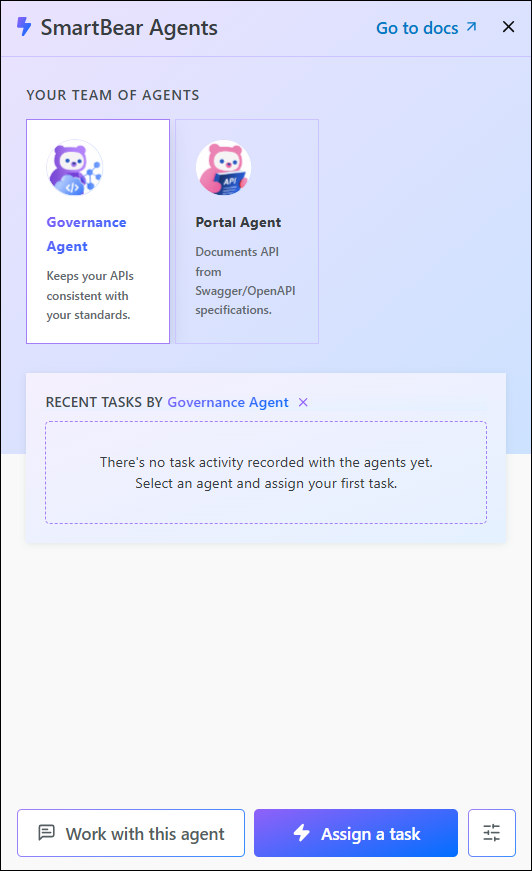
Click Work with this Agent.
Start the conversation in one of the following ways:
Select one of the conversation starters displayed in the chat tab. Conversation starters are sample prompts that illustrate what the agent can do. Selecting a starter sends it to the agent as your first message.
Enter your own prompt in the available input field.
Tip
An agent can perform actions across the whole organization's resources or only limited to specific API definitions. When instructing an agent, specify what resources you want the agent to work on. Note that unclear scope may lead to slower or less accurate results.
Continue the conversation - the agent remembers the full context of the current session. Before responding, the agent may automatically run tools in the background, such as retrieving an API definition or validating governance rules. When this occurs, a brief status indicator appears while the tools are running.
Tip
Your chat history remains available for the duration of your session, allowing you to revisit previous messages and any tool results referenced by the agent. To start a new chat session, for example when switching to a new topic or API, click Reset at the top of the widget.
Alternatively, you can also initiate an interaction directly with the Governance Agent in chat mode by following these steps:
Click the Governance Agent widget displayed under the code editor.
The SmartBear Agents widget launches directly into the Governance Agent chat tab. The initial user prompt is already pre-populated.
Continue the conversation with the agent in the chat tab.
Note
In this scenario, the agent uses the corresponding API as context for its further actions.
Task mode
To interact with an agent in task mode, do the following:
Click Work with Agents on the top toolbar.
The SmartBear Agents widget opens, displaying the available agents.
Select the agent you want to work with from the widget.
Click Assign a task.
Choose a skill from the Skill dropdown. Each option shows the skill name and a short description of what it does.
Specify any required arguments.
Note
Some skills require additional details before they can run. For example, a skill that generates documentation for a single API needs to know which API to use.
After you select a skill, any required argument fields appear automatically. You must specify all arguments before submitting your request.
(Optional.) Provide further guidance for the agent, such as the expected context for its operations or any background information it does not already have, in the Instructions field.
Tip
An agent can perform actions across the whole organization's resources or only limited to specific API definitions. When instructing an agent, specify what resources you want the agent to work on. Note that unclear scope may lead to slower or less accurate results.
Click Run now.
Task history
Every task you assign is automatically saved and accessible in the Recent tasks section of the SmartBear Agents widget. It lets you review what the agent did, check the results of past runs, and continue working from a completed task.
On any completed task, click Discuss results to open a chat with the task result pre-loaded as context. You can then ask follow-up questions, request additional changes, or explore the results further without re-running the task.
Select an agent
Swagger Studio provides two built-in AI agents, each focused on a specific area of the API lifecycle. Both agents are available through the Work with Agents option on the toolbar.
Governance Agent
The Governance Agent helps ensure that APIs across your organization follow predefined standards and governance rules. It can scan all API definitions in your organization for standardization issues, identify rule violations, and help apply fixes. The agent keeps scanning and fixing as separate steps, so you review the detected issues and decide which of them to fix. Note that the agent does not implement any changes unless you choose to proceed.
Note
You can access this agent directly through the widget displayed below the code editor or from the standard SmartBear Agents widget. When opened from the code editor, the Governance Agent uses the related API definition as context for its further activity.
You can use the following skills when working with the Governance Agent:
Scan APIs for Standardization Issues - Validates all APIs in your organization against the enabled governance rules and returns a list of detected issues, grouped by severity.
Fix Standardization Issues - Applies fixes to the governance issues you select and saves the corrected definitions as new versions of the corresponding APIs. The skill does not run its own scan. It works only on the issues that the agent passes to it from the preceding scan.
Governance Rules Reference - Provides background knowledge about all governance rules, OWASP standards, and how standardization works in Swagger Studio. The agent uses this to make smarter decisions when fixing issues.
Scan and fix governance issues
The Governance Agent separates scanning from fixing. After a scan, the agent shows you every detected issue and waits for you to choose which of them to fix. This lets you review the findings first, fix issues in stages across different releases, or handle individual issues case by case.
The agent works through the following steps:
Scan. The agent validates the APIs in scope against the enabled governance rules and collects all detected issues.
Present. The agent lists the detected issues in the chat, grouped by severity, with enough context for you to decide on each one.
Select. You tell the agent which issues to fix. You can select a single issue, a group of issues, or all of them.
Fix. The agent applies fixes to your selection only and saves each corrected definition as a new version of the API.
To fix a selected set of governance issues, do the following:
Click Work with Agents on the top toolbar, select the Governance Agent, and click Work with this Agent. To work on the API you currently have open in the editor, click the Governance Agent widget displayed under the code editor instead. The agent then uses that API as context.
Ask the agent to scan the APIs you want to check, for example, "Scan the Payments API 3.0 for standardization issues." The agent returns the detected issues, grouped by severity.
Review the list of detected issues, and decide which you want to resolve now.
Ask the agent to fix the issues you selected, for example: "Fix issues 1, 4, and 5." or "Fix all errors, and leave the warnings."
Confirm the action when the agent asks you to. The agent applies the fixes to the selected issues and saves each corrected definition as a new version of the corresponding API.
(Optional.) Ask the agent to scan the API again to check which issues remain.
Portal Agent
The Portal Agent allows you to generate developer portal documentation directly from an API definition. It retrieves a definition, applies a standardized documentation template, and saves the content as a draft in your developer portal. This helps teams move from API design to documentation faster while still allowing you to review and approve content before publishing.
You can use the following skill when working with the Portal Agent:
Create Portal Documentation - generates formatted developer portal documentation based on the selected API definition. The agent saves the content as a draft in your developer portal product and returns a link to the draft page, allowing you to review and edit the content before you decide to publish it. If you ask the agent to publish the page, it confirms the action with you, publishes the page, and returns the URL of the live page.