Swagger Studio Code Editor
Swagger Studio provides an in-browser code editor that allows you to work with OpenAPI, AsyncAPI and Model Context Protocol (MCP) definitions definitions in YAML format. You can write, edit, and preview API definitions in real time, with support for multiple specification versions.
Note
Alternatively, you can use Swagger Studio extension for Visual Studio Code to create, edit, and validate API definitions and domains. For more information, see Visual Studio Marketplace.
OpenAPI, AsyncAPI, and MCP definitions are stored in the YAML format. You can also import or paste JSON and edit it directly, or convert it to YAML. Note that you can download your AsyncAPI definitions in both formats, YAML and JSON. MCP can be downloaded in unresolved JSON and YAML formats.
In addition to the code editor, also includes form editor for selected OpenAPI specifications. The form editor allows you to edit API metadata and operations with no OpenAPI syntax required.
Supported specifications
Swagger Studio code editor supports the following specifications:
OpenAPI 2.0
OpenAPI 3.0 (with some limitations)
OpenAPI 3.1 (with some limitations)
OpenAPI 3.2 (with some limitations)
AsyncAPI 2.x.x
AsyncAPI 3.0.0 (with some limitations)
Model Context Protocol (MCP) (with some limitations)
Overview
Swagger Studio features a split-view interface with the code editor on the left and interactive API documentation on the right. This layout allows you to write and preview your API definitions in real time.
For MCP definitions, the panel on the right displays the definition according to its native MCP structure.
The code editor supports the following features:
Autocomplete for specification keywords
Syntax highlighting
Code folding
Search and replace
Keyboard shortcuts
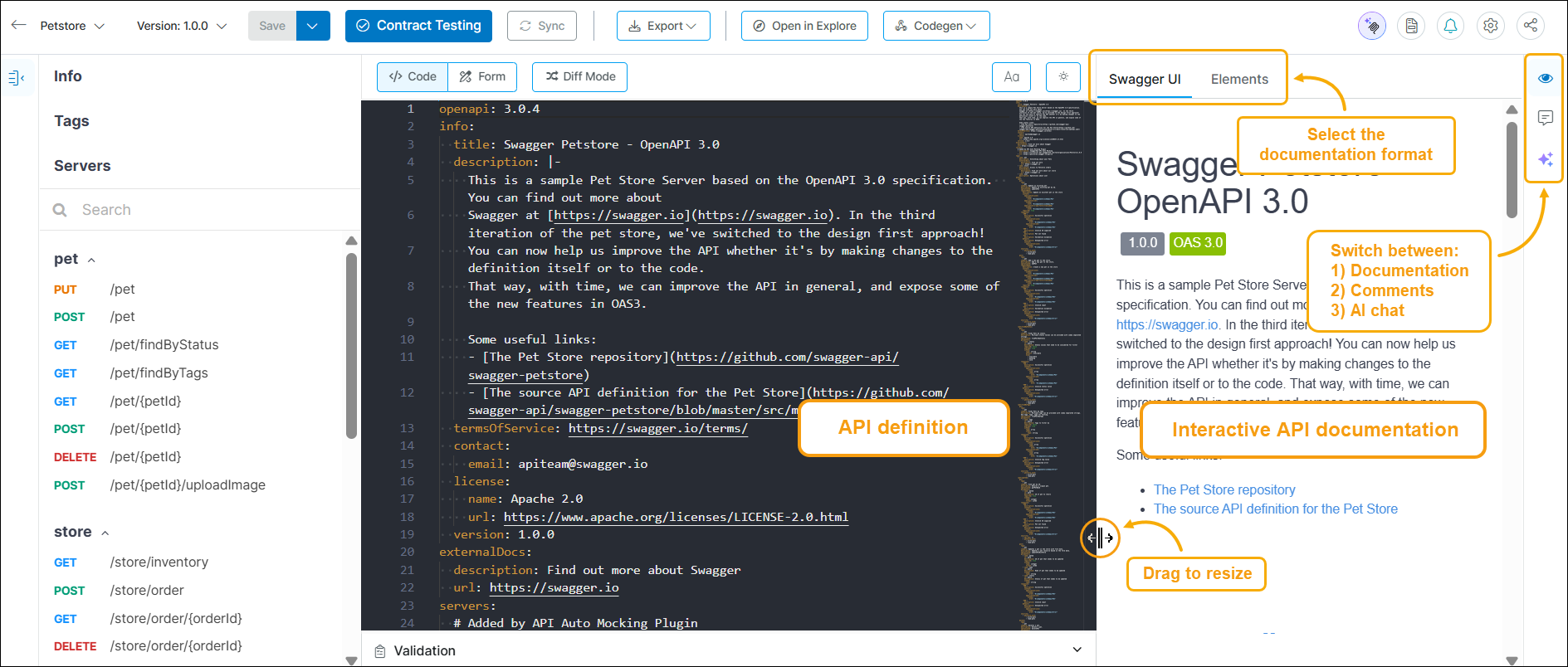
The interactive API documentation updates automatically as you type. It helps you visualize your API and make live API calls directly from your browser. You can preview your API documentation in either Swagger UI or Elements format by selecting the corresponding tab in the right-hand panel.
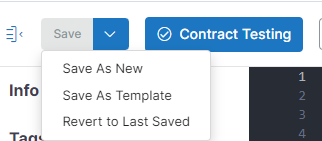
Use Diff Mode to compare your current edits with the last saved version of the API. Select Revert to Last Saved to undo your changes.
Important
When working on the same API along with other collaborators, keep in mind that Swagger Studio does not support simultaneous editing. Changes are not merged; they are overwritten by the user who saves them last. Make sure to coordinate your editing sessions with other collaborators.
Open the Recent Org APIs dropdown menu next to the last breadcrumb to view the five most recent API definitions you accessed in the code editor. Each listed entry includes the API name and version number. Select an API from the list to open it in the editor. To view all recently accessed APIs, click All Recents at the top right of the dropdown.
Tip
The Recent Org APIs list is limited to the currently selected organization. To view recent APIs from another organization, switch organizations in the top right menu.
Syntax validation
As you type, Swagger Studio automatically validates your API definition and highlights issues such as syntax errors, unresolved references, or unused definitions. To view the list of issues, expand the validation bar at the bottom of the editor.
Click an error message to view the corresponding line in the editor.
Swagger Studio uses lazy loading for domain references, which may affect how domain-related errors appear in APIs. See Lazy Loading to learn how to validate both the API and its referenced domains.
If your organization uses API Governance, the editor will display style issues and rule violations for OpenAPI and AsyncAPI 2.x.x definitions, based on your organization's guidelines.
Swagger Studio code editor supports Spectral validation, allowing you to check your definition in real time against predefined rulesets. The error list below the editor displays detected issues, grouped by rule and filterable by severity.
Info Panel: manage API and integrations
Click the API name in the header area to open the Info Panel, where you can manage your API. Depending on your role (owner or collaborator), on the Details tab you can:
 Fork or delete the API.
 Transfer ownership.
 Delete the API.
 Rename the API.
 Compare and merge the API.
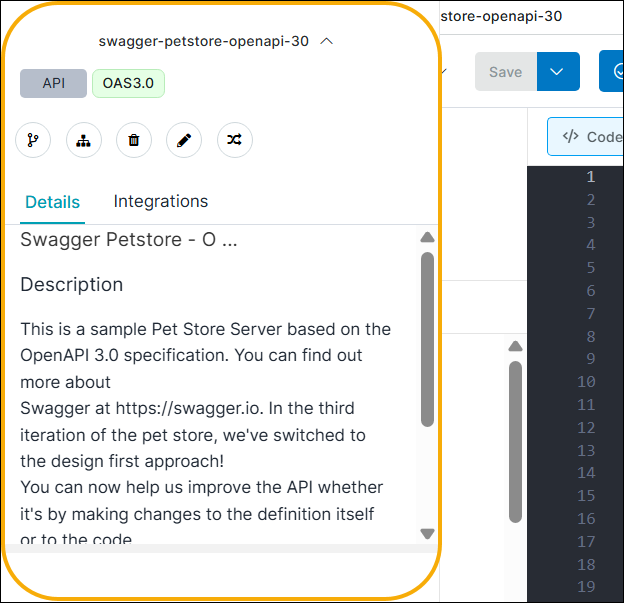
On the Integrations tab of the Info Panel, you can configure integrations for your API and view its metadata such as:
Owner: The owner of the API.
Created By: The name of the user who created the API.
Last Saved: The last saved timestamp.
Created: The date of creation.
Note
The Created By information is available only for API and domain versions created in Swagger Studio after November 26, 2019. For earlier versions, refer to the audit logs.
Version selector
If your API has multiple versions, you can switch between them using the dropdown menu next to the version number in the header.
Editor options
You can customize your editing experience by:
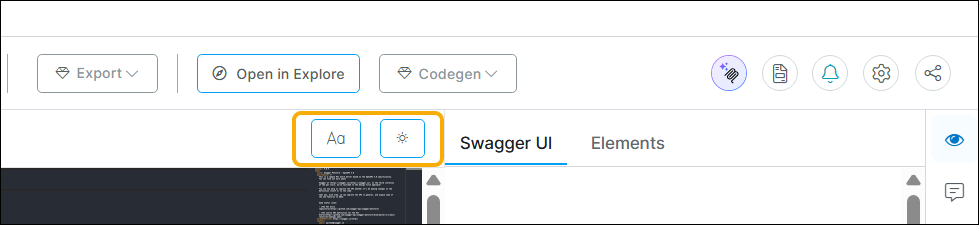
Adjusting the editor font size.
Switching between dark and light themes.
These preferences are saved in your browser and retained across sessions.
Source control integration
If your API is connected to a source control system (for example, GitHub), click the Sync Management button to generate code and push changes directly to the configured repository branches.
Note
The legacy GitHub Push option is still available but deprecated. Use GitHub Sync for current integrations.
Export options
Swagger Studio allows you to export API or domain definitions in multiple formats. To do so, click Export and choose the resource type you want to generate:
Download API/Domain: YAML or JSON.
Client SDK: Generates a client SDK in the selected language.
Server Stub: Generates a server stub in the selected language.
Documentation: Generates documentation in the selected format.
Codegen Options: Customize code generation options for stubs and SDKs.
Contract Testing
If Swagger Studio is configured for the current API, you can select Contract Testing on the toolbar to check compatibility between your API definition and the expected contract.
Note
This feature is available only for OpenAPI definitions up to version 3.0. It is not supported for OpenAPI 3.1, AsyncAPI, or MCP.
Code generation
Swagger Studio allows you to generate code using the Codegen functionality. It fully supports OpenAPI 2.0 and OpenAPI 3.0 definitions. Support for OpenAPI 3.1 is currently in beta and is limited.
Learn more in Generate Code.
Miscellaneous
The code editor toolbar also includes the following options:
 View Documentation
Click to view interactive documentation for this API in a new browser tab.
 Enable/Disable Notifications
Click to subscribe to or unsubscribe from email notifications regarding changes to the API.
 Share & Collaborate
Click to invite other users to collaborate on this API.
Keyboard shortcuts
The Swagger Studio editor supports the following keyboard shortcuts for faster editing:
Find/replace
Action | Windows/Linux | Mac |
|---|---|---|
Find dialog | Ctrl + F | Command + F |
Replace dialog | Ctrl + H | Command + Option + F |
Editing
Action | Windows/Linux | Mac |
|---|---|---|
Show the auto-completion list | Ctrl + Space | Ctrl + Space |
Comment out or uncomment the current line | Ctrl + / | Command + / |
Delete the current line | Ctrl + D | Ctrl + D |
Undo | Ctrl + Z | Command + Z |
Redo | Ctrl + Y, Ctrl + Shift + Z | Command + Shift + Z |
Indent selection | Tab | Tab |
Outdent selection | Shift + Tab | Shift + Tab |
Select all | Ctrl + A | Command + A |