Swagger Studio UI Overview
Swagger Studio lets you create, edit, and host OpenAPI and AsyncAPI definitions, collaborate with your team, and integrate them with third-party services.
Anonymous users can browse and search the public API catalog. Logged-in users can also view private APIs as well as create and edit API definitions.
Swagger Studio homepage
After logging in to Swagger Studio, you are navigated to the homepage. It provides an overview of your recent activity in the current organization and quick access to the most common API design tasks.
Recent Org APIs
The Recent Org APIs section at the top of the page lists the three API definitions you opened most recently in the selected organization. Each entry includes API details and the date and time you last viewed the definition in the code editor.
Click an entry to open the API definition in the editor. To see the full list of recently accessed APIs, click All Recents in the top-right corner of the section.
Tip
The Recent Org APIs section is limited to the currently selected organization. To view recents from another organization, switch organizations in the top right menu.
Sidebar
The sidebar on the left allows you to change the scope of the displayed options:
Catalog – Navigates to Swagger Catalog, a centralized workspace for managing your organization's APIs.
My APIs – Lists all the public and private definitions you have access to, whether created by you or shared with you.
Organization APIs – Lists all the definitions in your organization that you have access to.
Domains – Lists all your accessible domains.
Templates – Lists all your accessible custom API templates.
Search – Search across all definitions in Swagger Studio. The search scope covers public and private definitions you have permission to access.
Governance – Allows you to create and manage your custom rulesets.
The sidebar also lists all the projects you are a member of. Select a project to view its definitions.
The sidebar can be expanded or collapsed for convenience.
Breadcrumbs
Breadcrumbs display at the top of the page to help you better understand your location within the system and easily navigate Swagger Studio. They indicate your current location by showing the path from higher-level sections to the page you are viewing. Note that breadcrumbs reflect the structure of the content you are accessing, not the navigation history. For example:
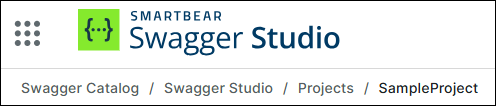
You can navigate between the content by clicking on a breadcrumb.
My APIs
The My APIs page lists all the APIs you have access to – public and private, created by you and shared with you. If you are new to Swagger Studio and have no APIs yet, the list will be empty, but it will change once you start creating APIs.
APIs and domains
There are three types of definitions on Swagger Studio – APIs, domains, and templates. APIs and domains have the corresponding label in the list.
A domain is a collection of shared components, such as model definitions and operation parameters, that can be used in different APIs. A template is used to facilitate API creation and can be selected in the Create New API dialog. Templates are predefined, although you can also create custom templates.
Public, private, published, and unpublished
Each API definition has a visibility status (Public or Private) and a publication status ( Published or Unpublished). These two types of labels describe different aspects of an API:
Public and Private indicate visibility. Public definitions are visible to any user, and private definitions are only visible to selected collaborators. See Public and Private APIs.
Published and Unpublished indicate maturity or completeness. Unpublished definitions are work in progress, while published definitions are not supposed to change and are ready for consumption. See Publishing an API.
Interact with the API list
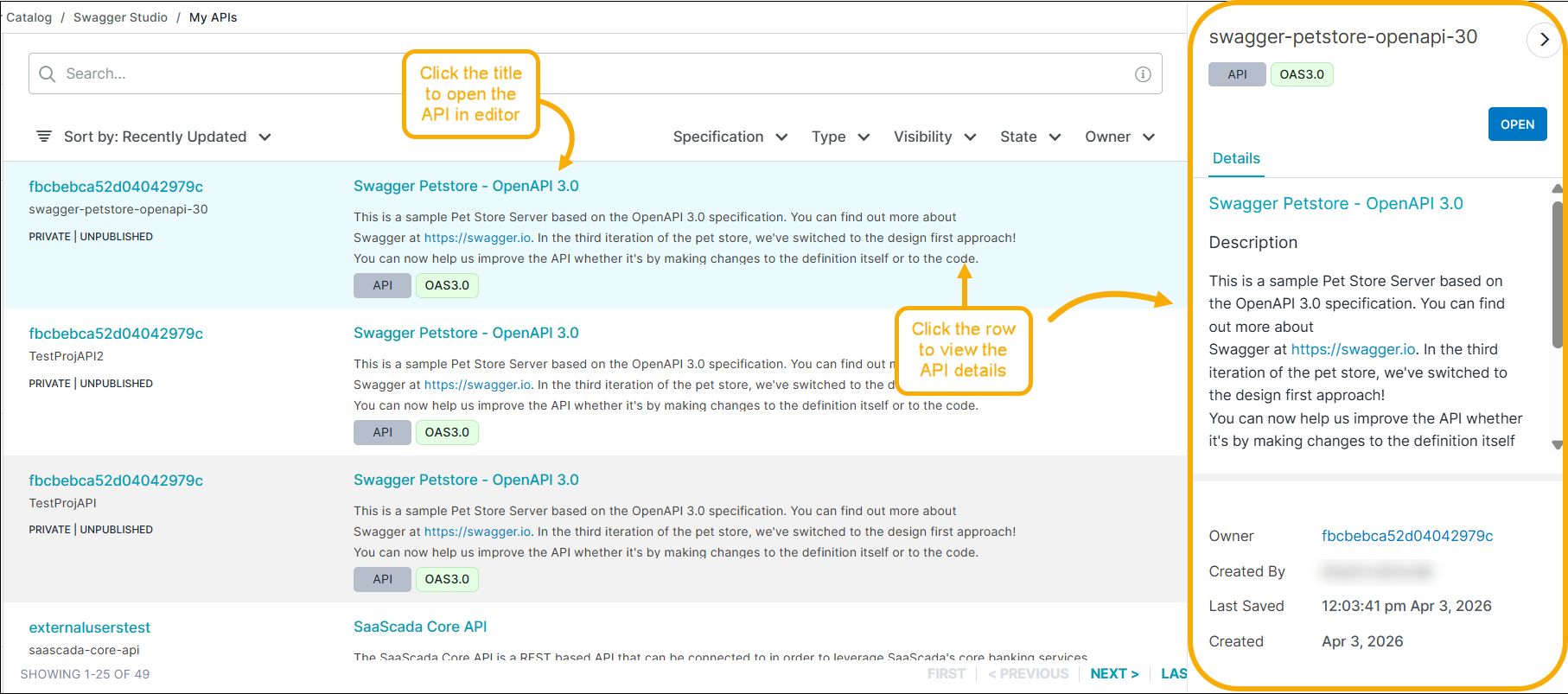
Click the API or domain title to open it.
Click the owner name to filter the definitions by that owner.
Sort and filter the displayed definitions, or use the corresponding search filters.
Click
 to copy the link to the API or domain. If you are the owner, the displayed dialog also lets you invite collaborators to this API or domain.
Click anywhere on the row to open the Details pane. The pane includes the full description, creation date, and last update date.
Create APIs
Use the Create New menu to create new APIs, domains and organizations.
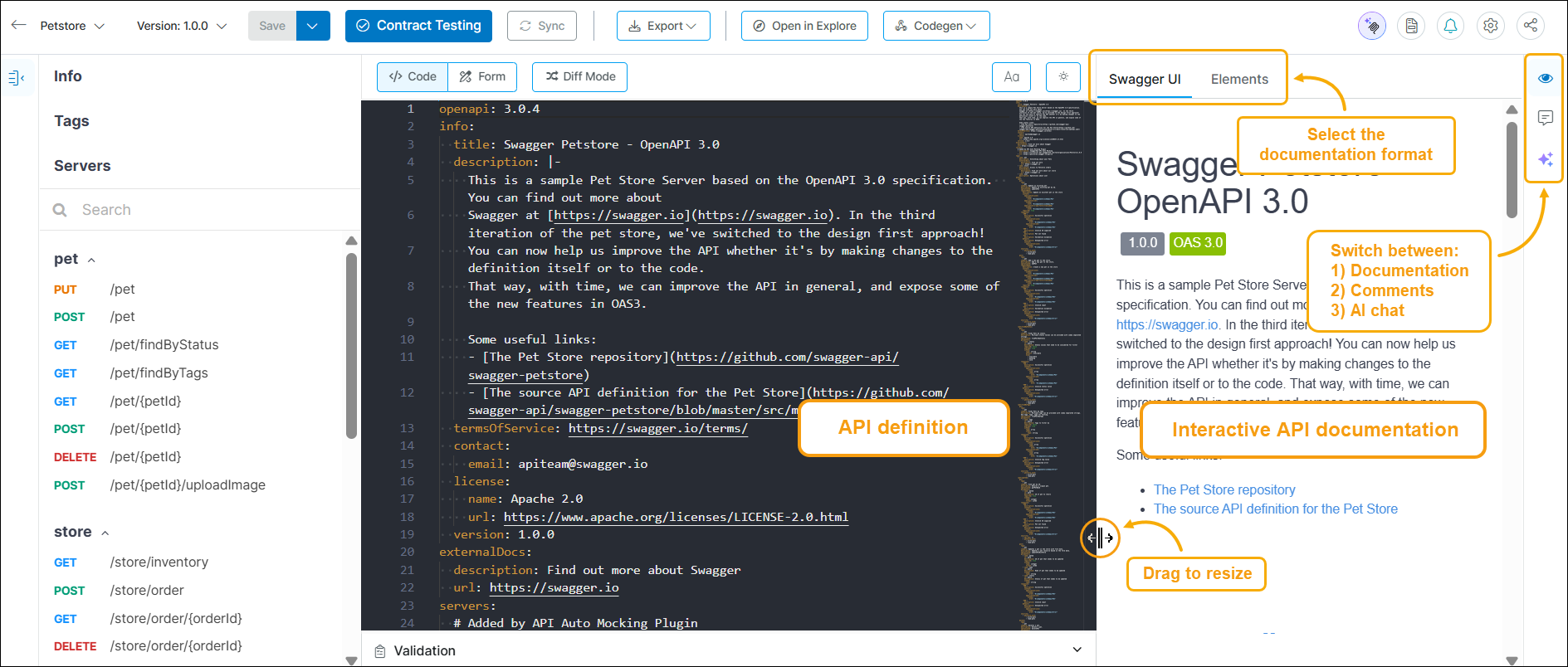
Once you create an API or domain, you can write its API definition in the Swagger Studio Editor. Here, you can preview the generated API documentation, test API calls, and configure integrations.
Organizations
The Organizations menu at the top right of the page lists all the organizations you created or joined. Organizations are groups of users working together on API definitions. A user can be a member of multiple organizations.
Select an organization to view all its APIs and domains that you have access to. If you are the organization owner, you can access the organization settings by clicking Organization Settings at the bottom of the sidebar. For more information on how to manage access to resources, refer to Managing Resource Access.
Search
The search page allows you to search for APIs and domains on Swagger Studio. The My APIs and organization pages also enable you to search definitions within the organizations you have access to.
Settings
The dropdown menu under your username lets you access your account settings. You can change your email or password, rename your account, manage your organizations, and so on. For more information, refer to Account Settings.