Spectral Style Guides
Create or import Spectral rulesets in Swagger Studio and execute them in your API definitions for easy linting and validation. This functionality ensures centralized and efficient control over API governance. The protocols that support Spectral rulesets are Swagger Studio are: OpenAPI 2.x, 3.x, and AsyncAPI.
SwaggerHub CLI enables you to upload and download Spectral style guides.
Import Spectral style guides
Supported formats
You can import Spectral rulesets to your Swagger Studio organization in the following formats:
YAML
JavaScript
JSON
Pre-bundled as a
.ziparchiveImportant
The
.ziparchive must contain a valid Spectral ruleset at the root and can reference other files and functions in the archive. Custom functions must be stored in a separate folder in the archive.
Import a ruleset
To import a Spectral ruleset, follow these steps:
Click Governance on the sidebar.
Select Import Style Guide under the Spectral Style Guides section.
In the Import Style Guide dialog, provide the name of the new ruleset. Depending on your preferred import method, enter a path or URL of the style guide file or click to select the file from your local device.
Click Import to upload the file.
The list of imported style guides appears under Spectral Style Guides.
Create and edit custom style guides
The Spectral Ruleset Editor allows you to create and edit Spectral rulesets directly from the Governance page. It supports the creation of single- and multi-file ruleset projects, adding or updating custom functions, and validation and publishing of the rulesets.
Overview of Spectral Ruleset Editor
Using the Spectral Ruleset Editor, you can edit your ruleset, validate it, and test it on sample API definitions. You can also manage the ruleset project's folder and file structure available in the editor's left panel.
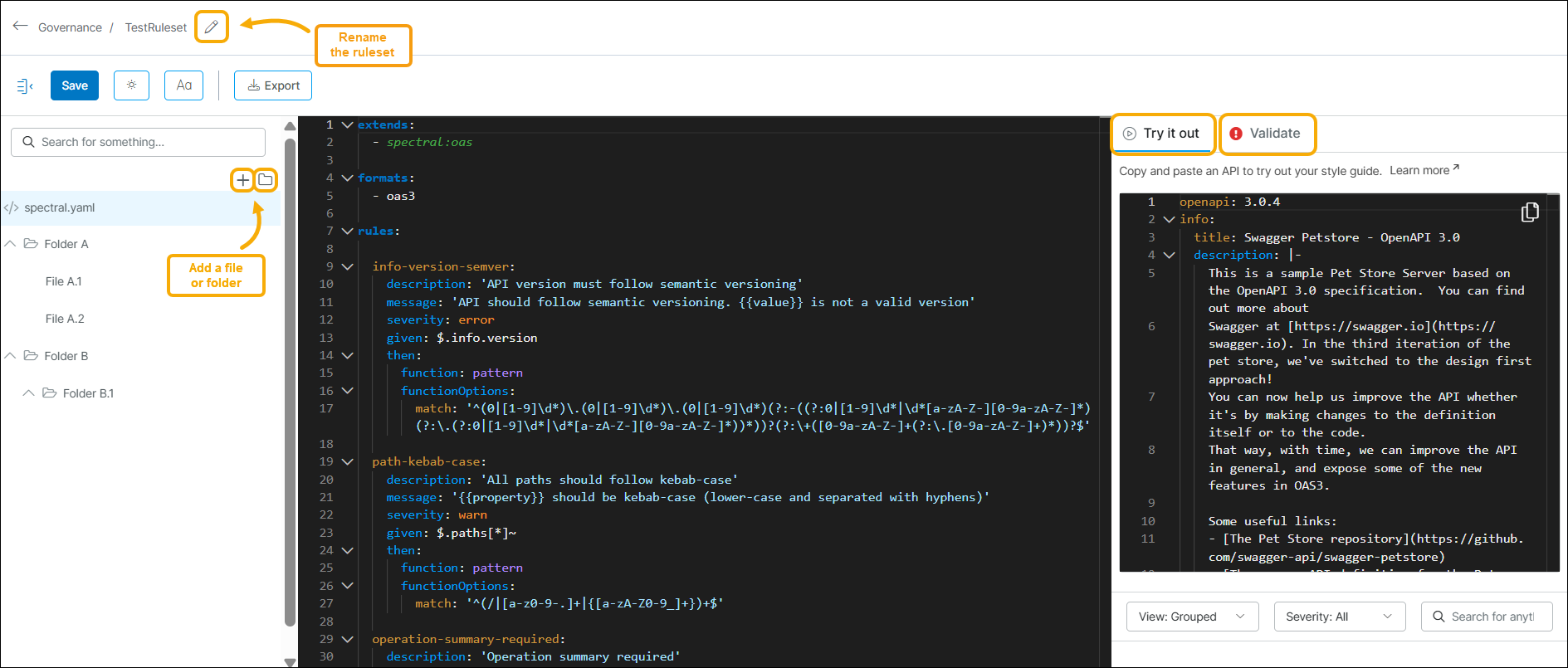
Click the + plus icon to add a new file to the last opened folder.
Click the
 folder icon to add a new folder.
Click the
 pencil icon to rename your ruleset.
Search for files or folders within your project by entering their name in the search bar.
To test your ruleset against a sample API definition, select the Try it Out tab in the right panel. Paste the API in the inline editor. Swagger Studio then runs the active ruleset against the provided definition and returns lint results in real time.
To validate your ruleset and ensure it follows Spectral standards, select the Validate tab in the right panel. Swagger Studio automatically checks your ruleset for errors and displays the list of detected issues.
Add a new ruleset
To create a new Spectral ruleset, follow these steps:
Click Governance on the sidebar.
Select Create New in the Spectral Style Guides section.
Enter the name of the new ruleset and click Save.
A new ruleset project is created and opens in the Spectral Ruleset Editor. The project is pre-populated with
spectral.yaml.(Optional.) After adding any further changes to the project in the Spectral Ruleset Editor, click Save to submit your work.
Edit a ruleset
To edit an existing ruleset, follow these steps:
Click Governance on the sidebar.
Expand the Spectral Style Guides section to display the list of your Spectral rulesets.
Select Edit next to the ruleset project you want to update.
The project opens in the Spectral Ruleset Editor.
Add your updates to the ruleset.
Click Save to submit the edits.
Manage style guides
You can manage your existing rulesets in the Spectral Style Guides section of the Governance page.

Click the
 copy icon to duplicate a ruleset.
Click the
 download icon to export a ruleset.
Click the
pencil icon to edit your ruleset in the Spectral Editor.Click the
 delete icon to remove a ruleset.
Assign style guides to projects
Organization owners can assign a Spectral style guide to a specific project so that the APIs in that project follow the rules defined for that project. A project-level style guide overrides the organization-level style guide. For details, see Assigning Style Guides to Projects.
Learn more about Spectral
You can find the open-source Spectral library here.
For detailed information about Spectral features and rulesets, refer to the Spectral documentation and best practices when creating API style guides.