
How to import an Entire Tree of Test Cases to Testcase release?
Steps
-
Login to Zephyr.
-
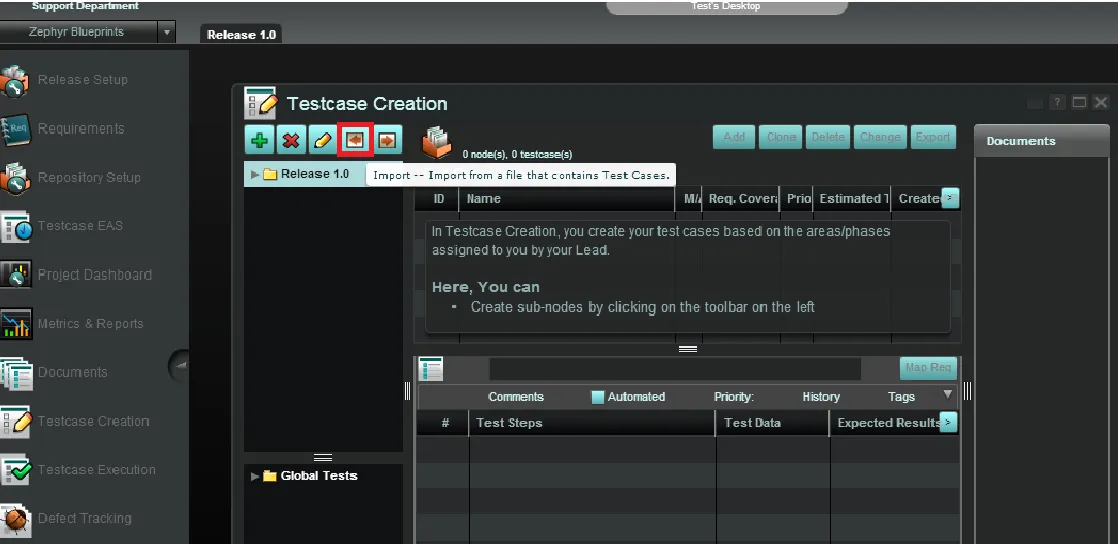
Select any project then click on the Testcase Creation module.
-
Select the release folder. Click on <- import icon.
-
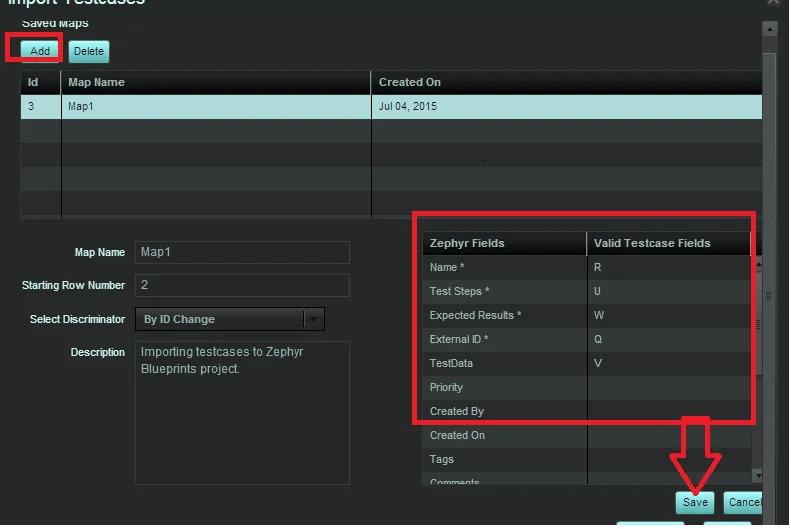
Add the map by entering the specified values to the available fields. Map the Zephyr fields with the valid Test case fields by entering the excel columns.
-
Steps to create Job.
- Create a new job with name having below pattern as marked in the screenshot below-
Job11[[column:N;token.start:1]] - Column N is an excel column, which contains hierarchy details. Please view the excel sheet as per the screenshot attached in the configuration section mentioned below.
- token.start is explained in the configurations section.
- Run the job. After executing the job successfully the imported tree is created directly under release ( and not in imported folder).
- Logout and login again. Please note that imported tree will not be pushed if you are not logging in again.
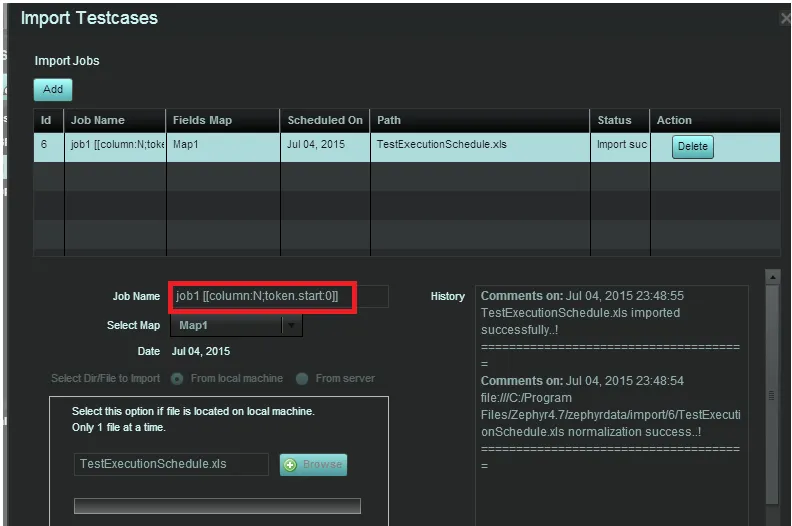
- Create a new job with name having below pattern as marked in the screenshot below-
-
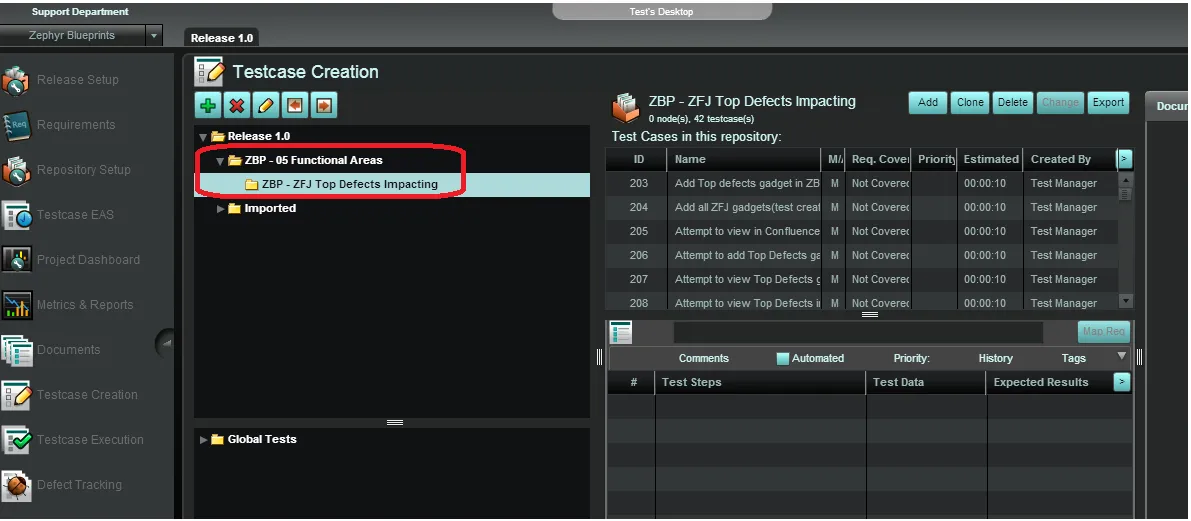
Now navigate back to the release folder. Here you can view the testcases imported in a tree structured format.
Configurations
-> token.start is the level of hierarchy from which we want to import the tree.
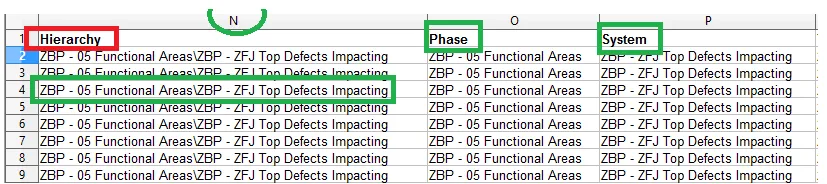
Ex :
- Consider if the tree is phase1\system1\subsystem1
- If token.start is 0, then imported tree hierarchy would be phase\system1\subsystems1.
- If token.start is 1 then imported tree will be system1\subsystem1.
- Default hierarchy path separator is “\” (given in Java as \\). It splits it as a string, not as regular expressions. It can be customized by setting “testcase.tree.seperator” property in jdbc properties.