
Attaching Files in Test Steps
You can attach files to a step in three ways.
-
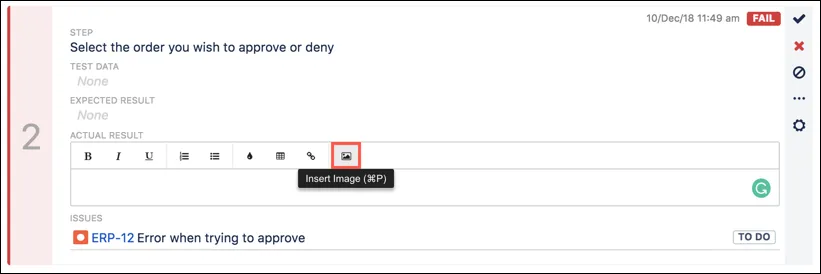
Click Insert Image in the Actual Result section. This attaches the actual image to the step rather than the file (which requires a click to open and view).
-
Click the cog icon to attach files to the step.
-
Drag-and-drop an image file onto the test step.
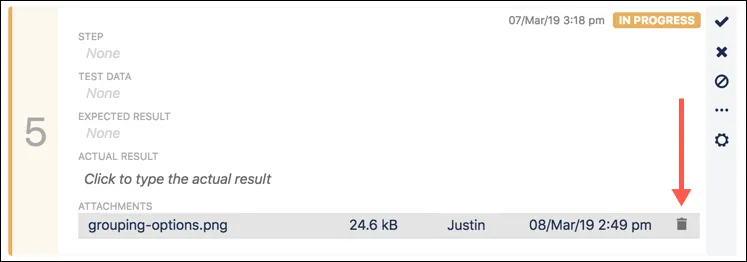
You can remove an image file by hovering over it and clicking Delete.
Please note, the following content is for the new experience of Zephyr Cloud. For documentation on the legacy experience of Zephyr Squad Cloud, please visit thelegacy Zephyr Squad Cloud docs. If you are unsure of your version, check the guide orcontact our support team.