
Fix Your Test when AI Step Fails
Update the prompt manually by writing
-
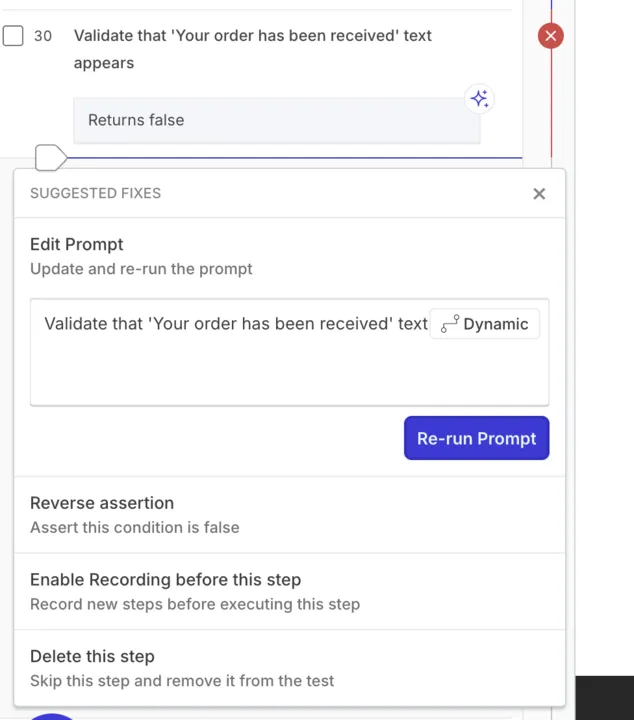
Once your test failed due to one of the steps, go to the test step on the left side. The incorrectly processed prompt will be marked.
-
Edit your step in the text field.
-
After you correct the prompt, click Re-run prompt.
Record performing the step
All the changes made to your test steps in Reflect are automatically synced back to Zephyr as you click Save in Reflect. Just refresh the Zephyr Test Script page to review them
-
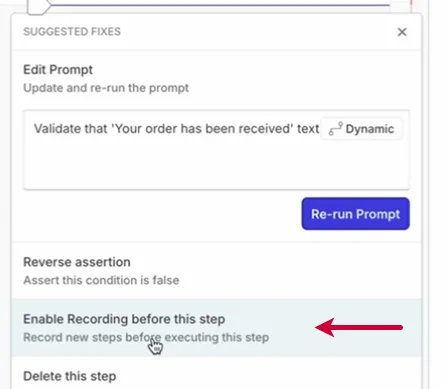
Choose Enable Recording before this step option from the suggested fixes:
-
Interact with your application to provide the correct test step.
-
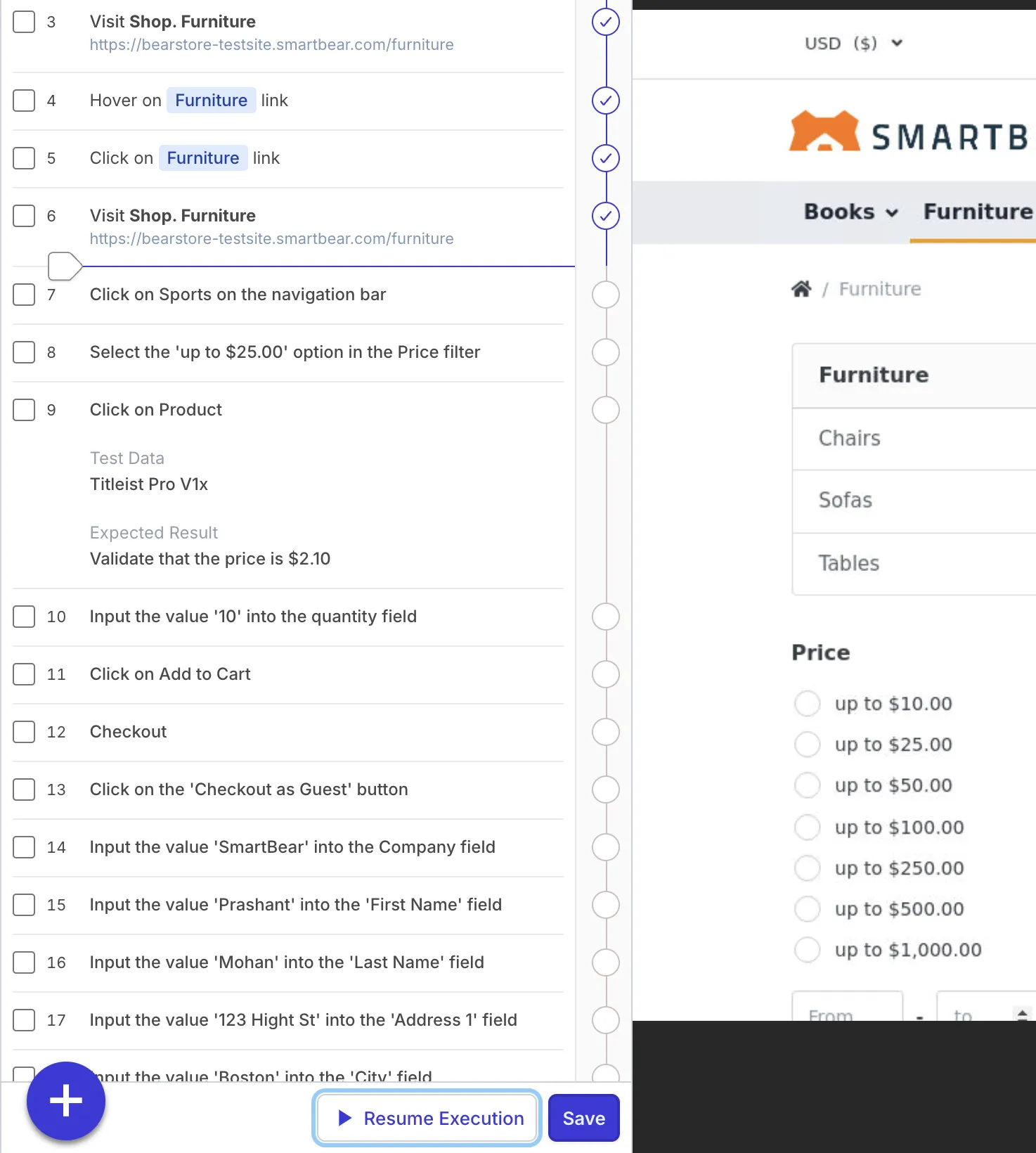
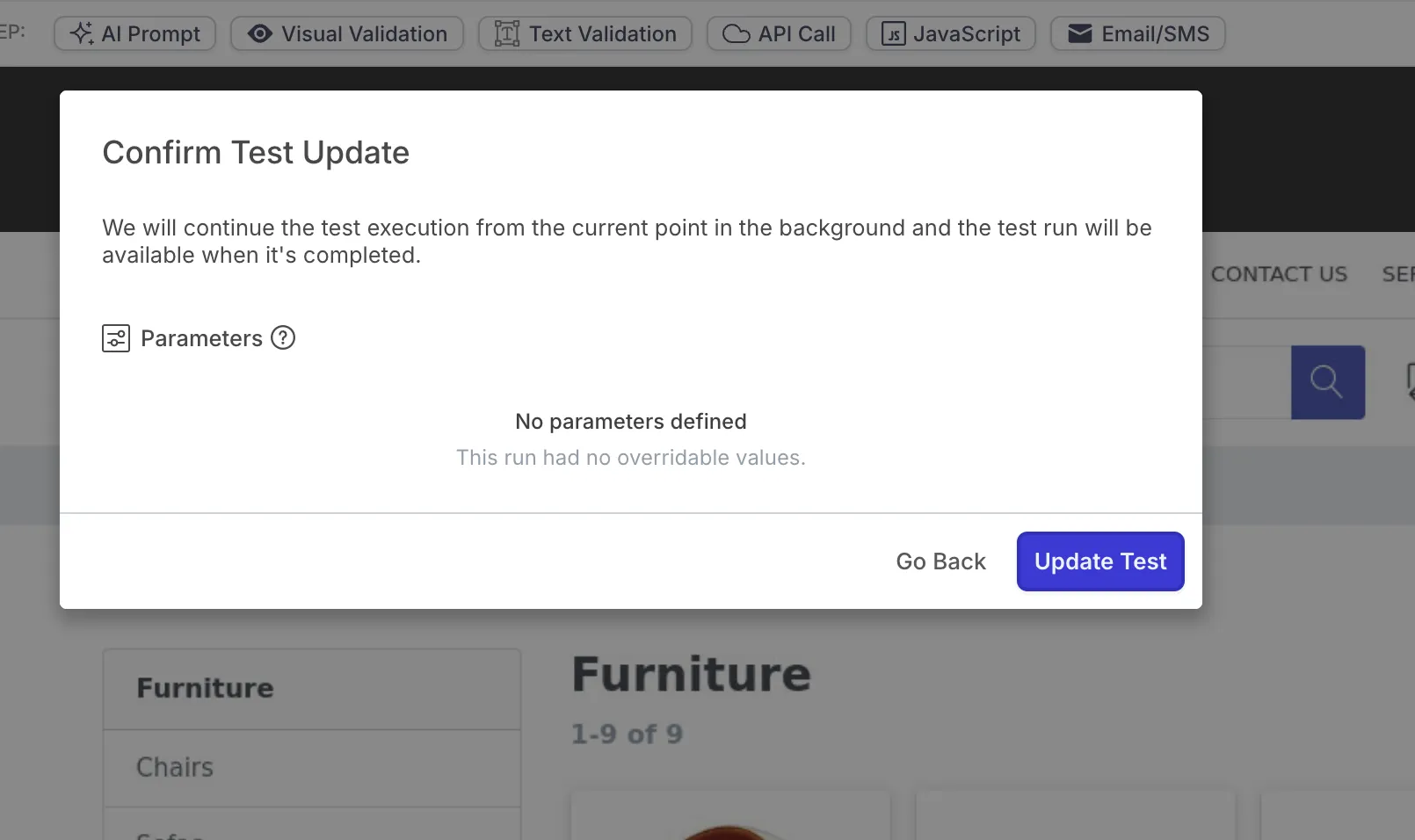
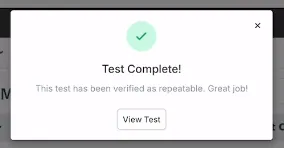
Save the updates by clicking Save at the bottom of the test step list and Update Test when the modal appears.
-
4. Once you performed the test step, click Resume Execution. Now your test is executed correctly.
Please note, the following content is for the new experience of Zephyr Cloud. For documentation on the legacy experience of Zephyr Squad Cloud, please visit thelegacy Zephyr Squad Cloud docs. If you are unsure of your version, check the guide orcontact our support team.