Manage an Organization in Swagger Studio
Accounts typically have only one organization, which is created during the account setup.
Edit organization details
An organization owner or administrator can manage the organization: edit its details or rename it.
To access all configuration options related to your organization:
Select Organization Settings on the sidebar.
Click Manage Organization.
You are redirected to the SmartBear Admin panel.
For detailed instructions regarding the management of your organization, refer to this documentation.
Organization ownership
An organization owner is a user who can manage the organization: modify member permissions, create and manage teams and projects, edit organization details; and so on. Note that these actions can also be performed by a SmartBear admin.
While there may be multiple owners of an organization, each organization needs to have at least one. This means it is impossible to remove a user if they are the single owner of an organization.
Each owner needs to have a license assigned in SmartBear Admin.
Add and delete organization members
A SmartBear admin can add or delete members and assign or delete their licenses.
A user must have a license assigned to obtain access to all of the organization's resources. An unlicensed user can only be granted access to a specific API or domain as a collaborator.
To manage user access to the organization:
Click the top left
 icon to open the app switcher.
Select SmartBear Admin.
You are redirected to the SmartBear Admin panel.
For detailed instructions regarding adding members to an organization, refer to this documentation.
Manage member roles
An organization member is a user who has been assigned a license in SmartBear Admin.
Additionally, in order for a user to access their organization's resources, they need to have a role assigned in Swagger Studio.
In order to assign or edit member roles:
Click Organization Settings on the sidebar.
Go to Permissions.
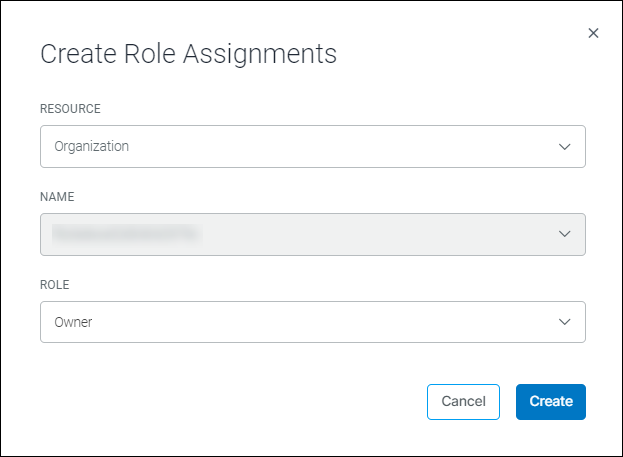
Select the checkbox next to the user you want to assign a role to, and click Create Role Assignment.
Choose the relevant organization and user role, and click Create: