Workflow Modes
Each workflow has three modes: Editor, Run, and Details. You can switch between modes at any time from the workflow toolbar.
Editor Mode
Editor mode is where you build and configure a workflow. To build a workflow, do the following:
Log in to BearQ.
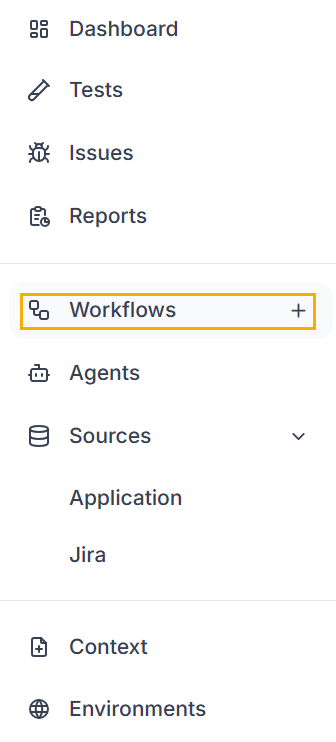
Click Workflows.
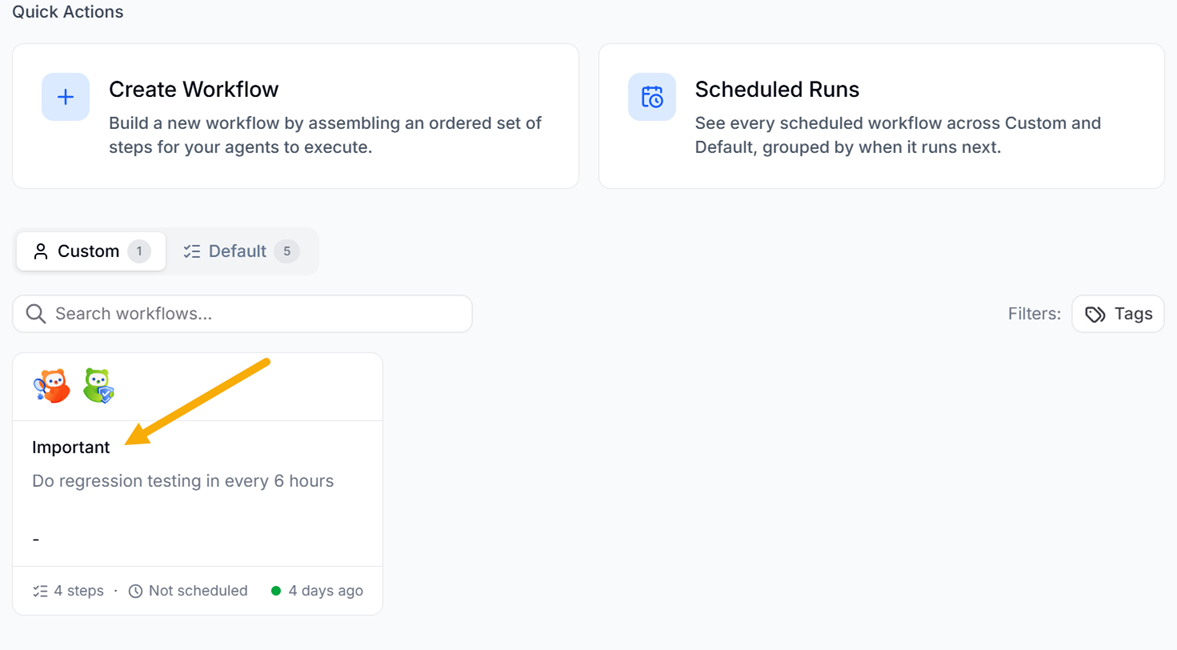
On the Workflows page, select any of the workflows.
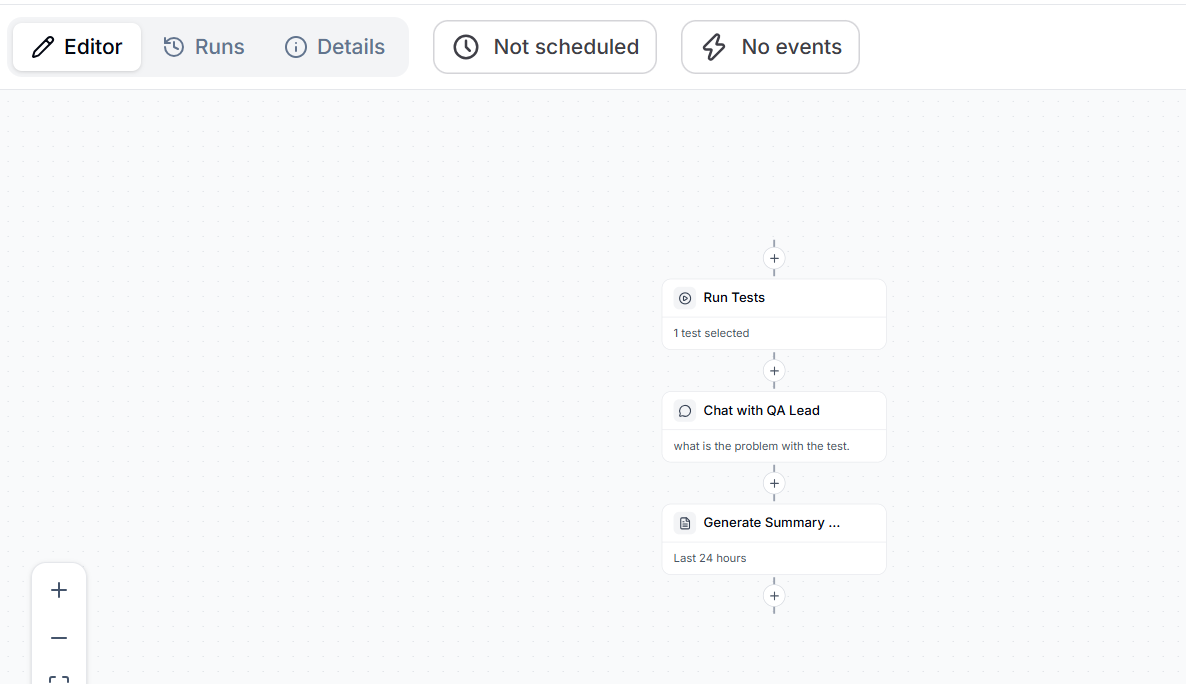
The pipeline appears in front of you. You can either make changes in the existing steps or add new ones.
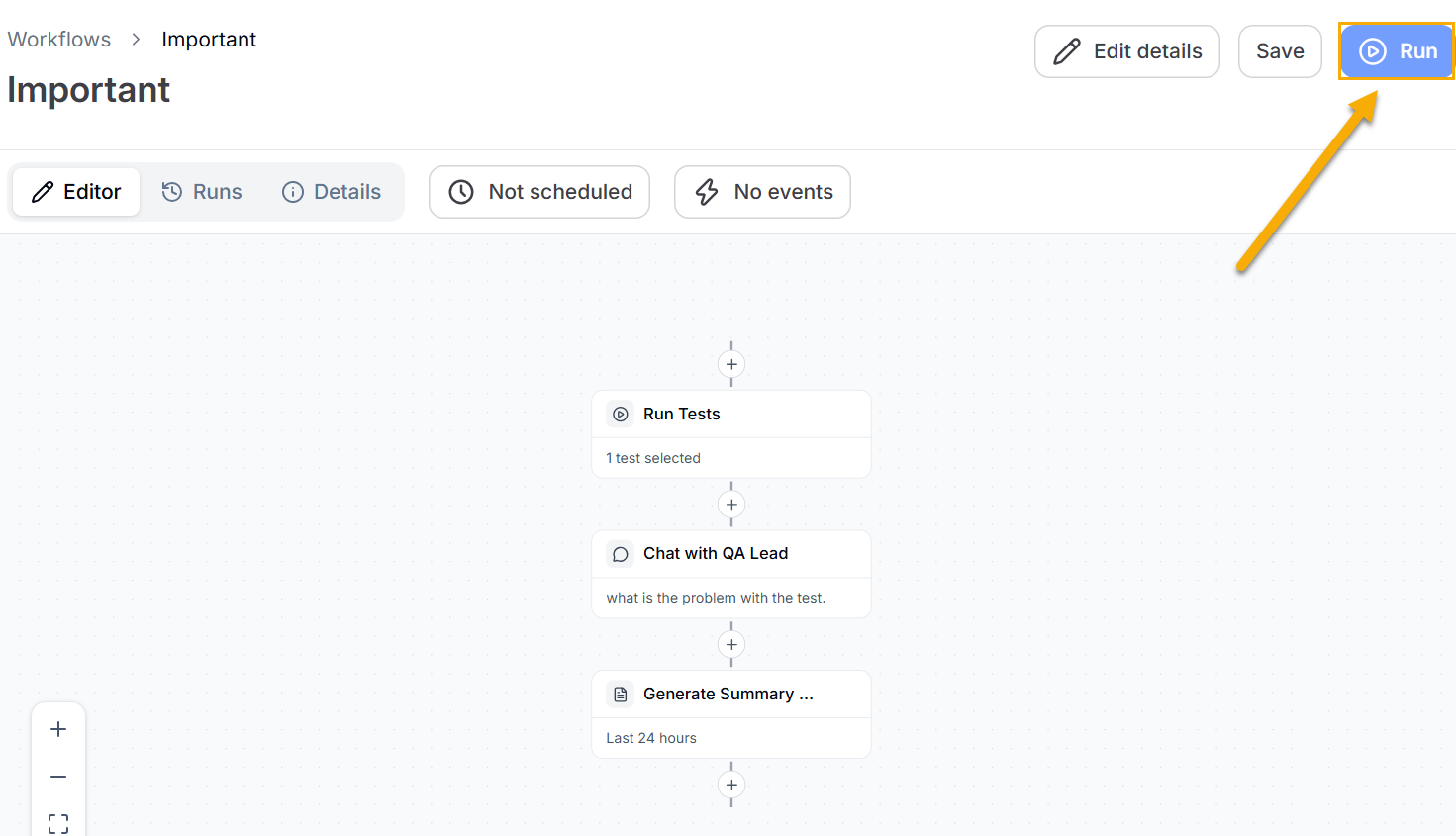
Click Save once all the changes are done.
Run Mode
Run mode shows the results of past workflow runs. To view run results, do the following:
Log in to BearQ.
Click Workflows.
Select any of the workflows.
Click Runs.
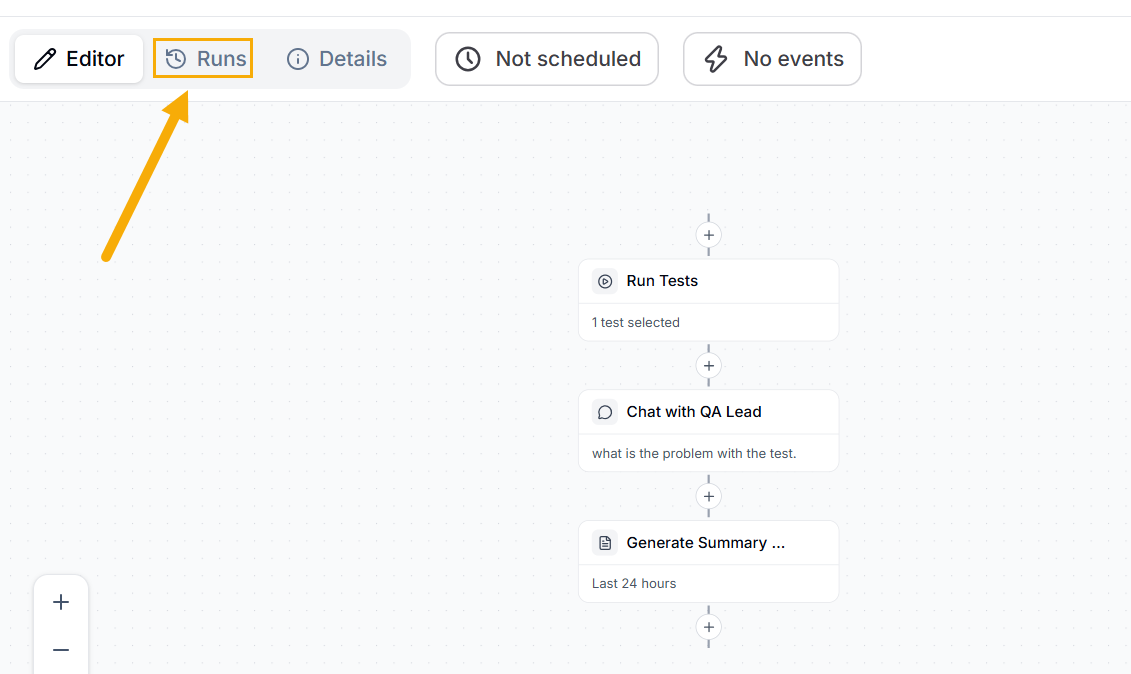
In the run selector at the top on the page, select a run from the list. The most recent run is selected by default. Each entry in the list indicates whether the workflow completed successfully.
Review the run summary, which includes the following:
Errors, if any, occurred during the run.
The number of assets generated, such as pages, endpoints, or test cases.
The percentage of tasks that passed or failed.
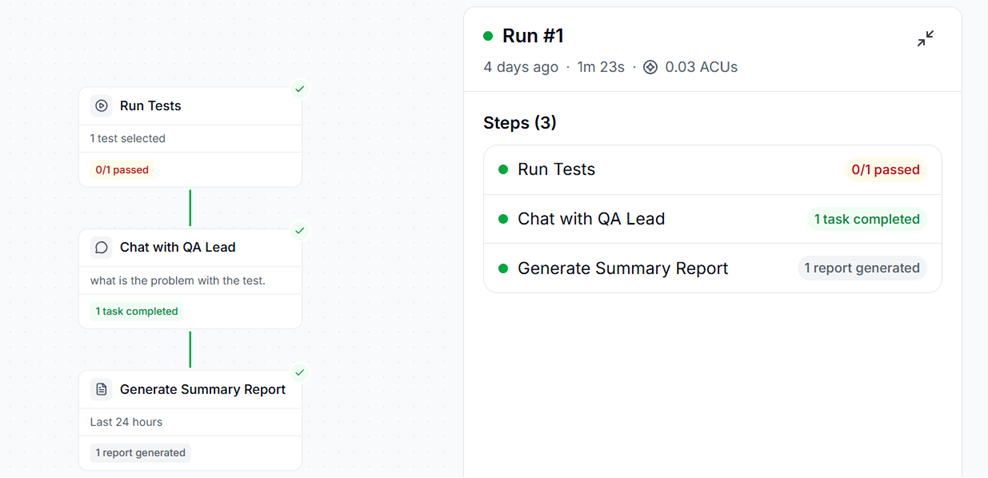
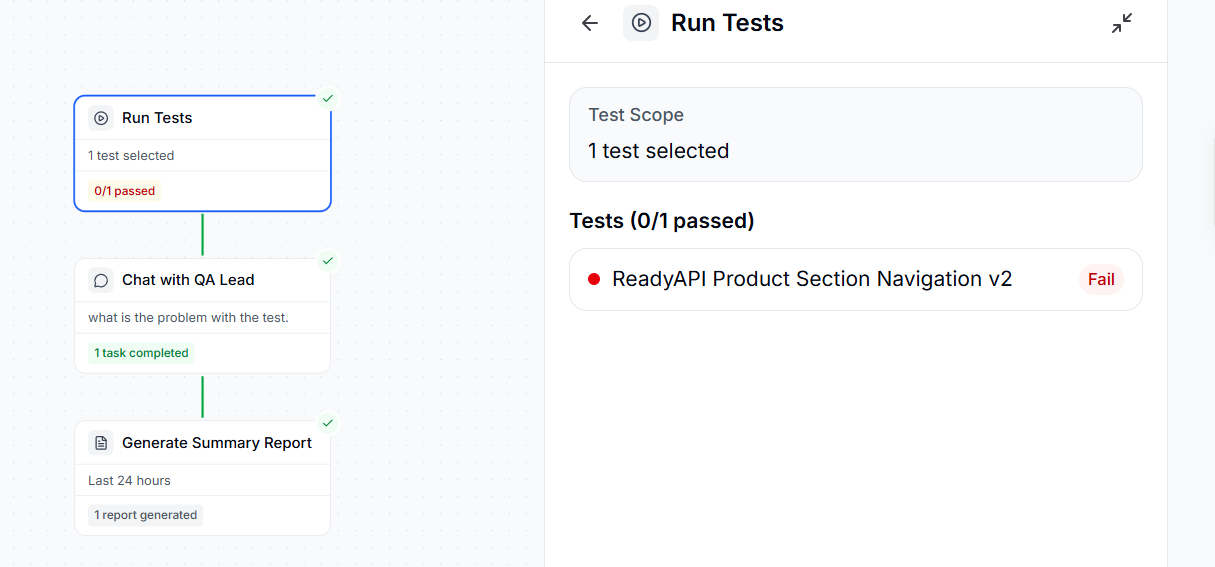
Click any task node to open its details. The task details show the following:
The task status, indicated by a colored dot.
Results produced by the task. If the task produced artifacts, for example, "2 pages, 2 endpoints produced."
Details Mode
Details mode shows the configuration information for the workflow. From Details mode, you can do the following without opening the editor:
Rename the workflow
Update the workflow description.
Schedule or update the workflow schedule. You must run a workflow at least once before you can schedule it.
Delete the workflow.
To delete a workflow from Details mode, do the following:
Note
Deleting a workflow permanently removes it and its run history. This action cannot be undone. You cannot delete default system workflows.
On the Workflows page, open the workflow you want to delete.
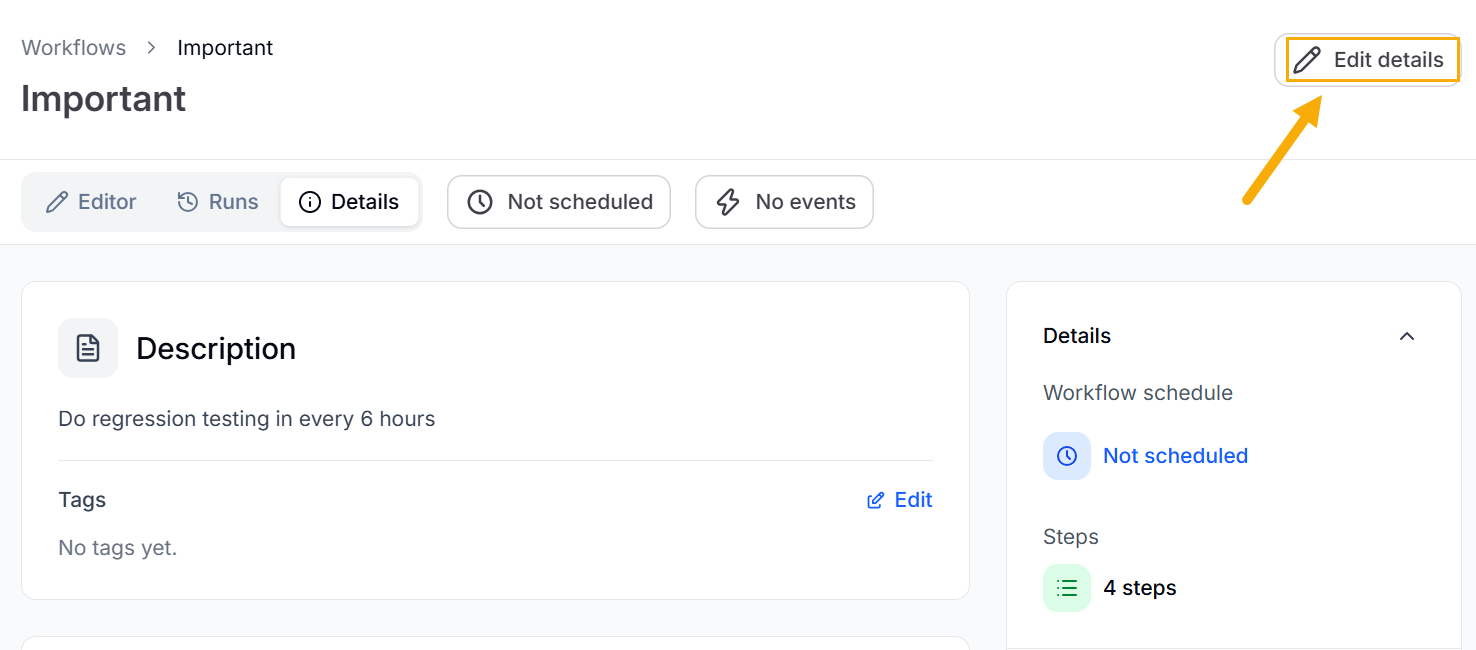
Select Details mode.
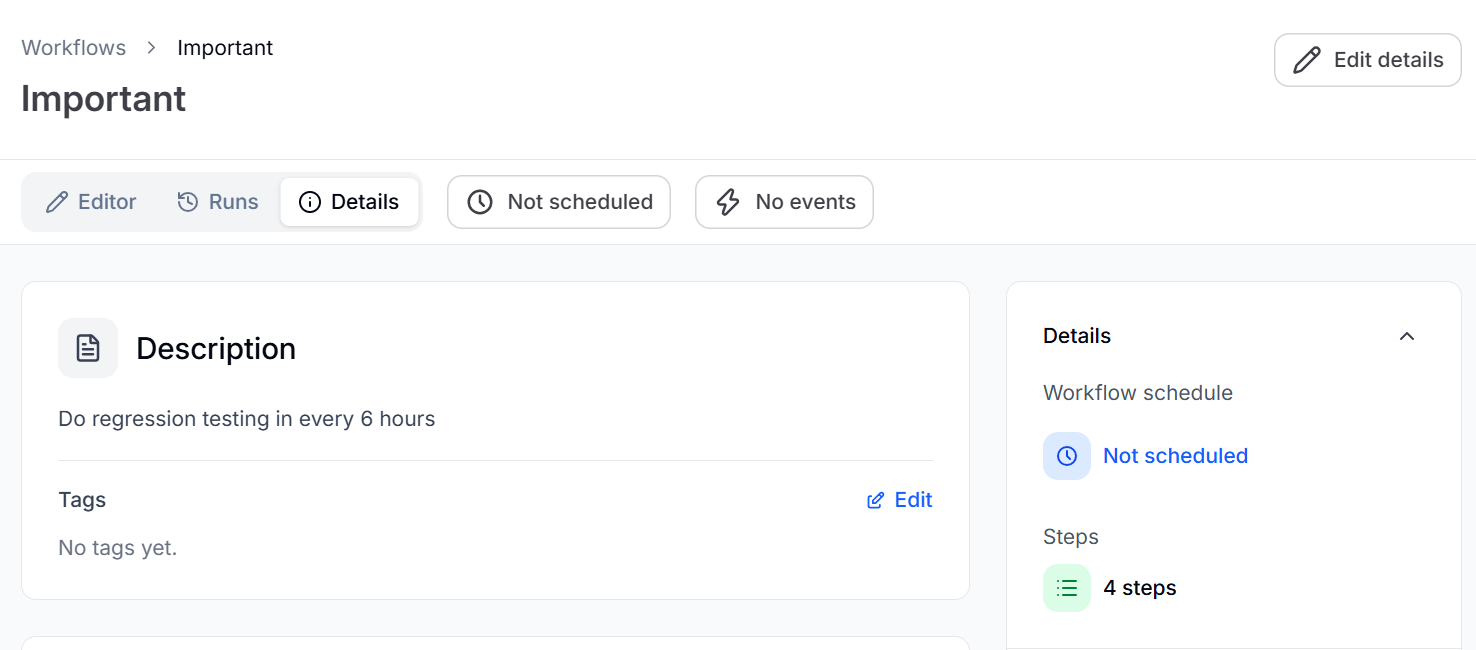
Click Edit Details.
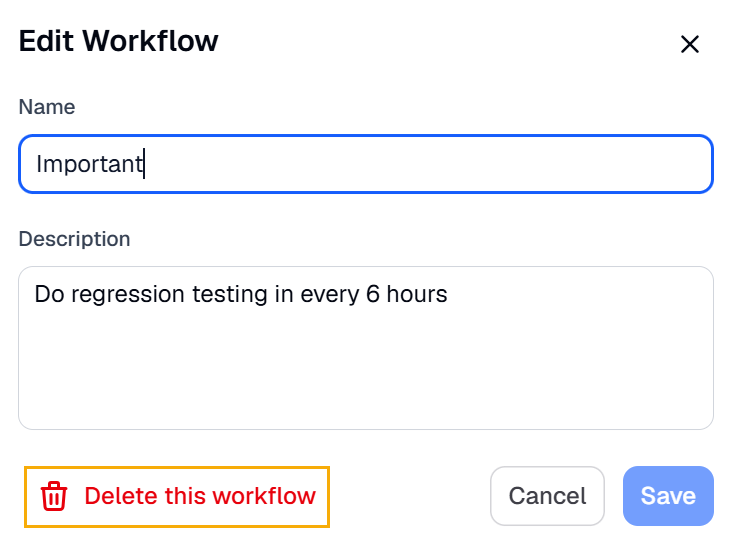
Select Delete this workflow.
Click Delete Workflow.
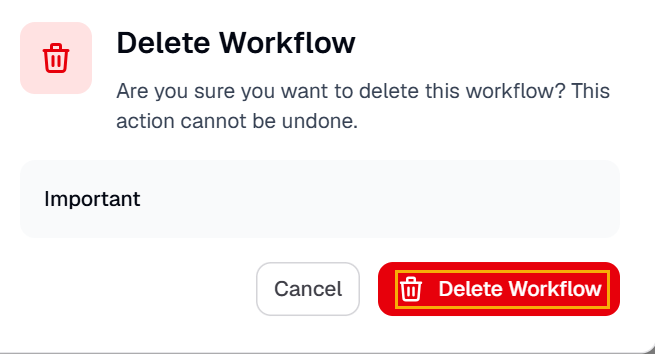
The workflow is now deleted.