Variables
Variables are the dynamic values in a BearQ test. Every value that BearQ generates, extracts, or looks up during a test run (a name, an age, a date, a file, or an environment) is a variable. In the test script, variables appear as blue-highlighted text. Each variable has a default value. The default is whatever BearQ would use if you do not override it. For example, a step that generates a realistic first name uses whatever name BearQ produces unless you replace it with a specific value at runtime.
Variables are always optional. Leaving a variable blank tells BearQ to use its default.
Types of Variables
BearQ determines the type of a variable from its default value. The following types are supported:
Type | Description |
|---|---|
String | Expressed as a simple string, which includes text, numbers, dates, etc. |
Environment | A BearQ environment that determines where the test runs. A test can contain multiple environment variables when the script switches between environments. |
File | A file from the BearQ library, used for upload steps or for verifying a file your application generates or downloads. |
How Variables Work
BearQ derives variables automatically from the test script. You do not define them manually. When BearQ authors or updates a test, it identifies every dynamic value in the script and exposes it as a variable with a default value.
A test can contain multiple variables of the same type. For example, a test that accesses two different environments contains two environment variables, each with its own default.
Overriding a variable at runtime
To run a test with specific values instead of the defaults, do the following:
Open the test you want to run.
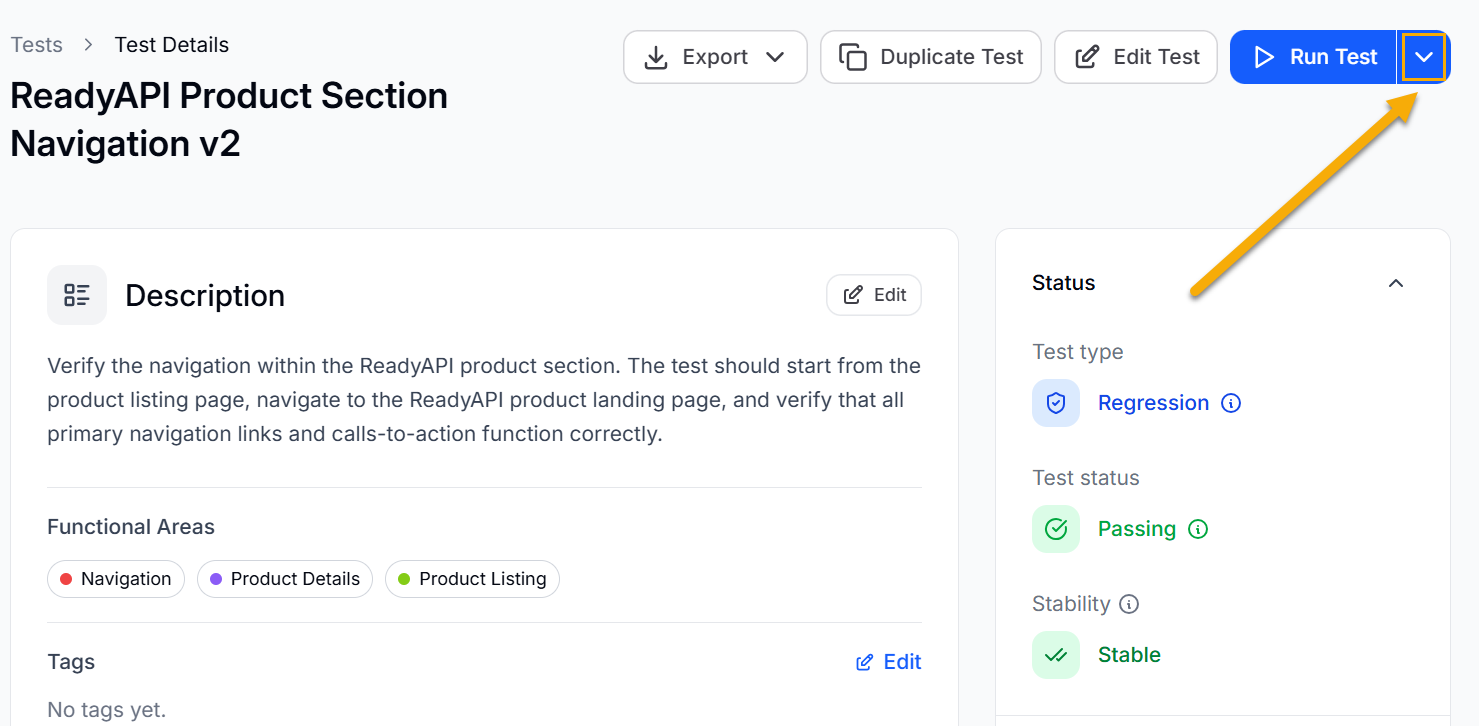
Click the downward-pointing button beside Run test.
Review the list of variables and their default values.
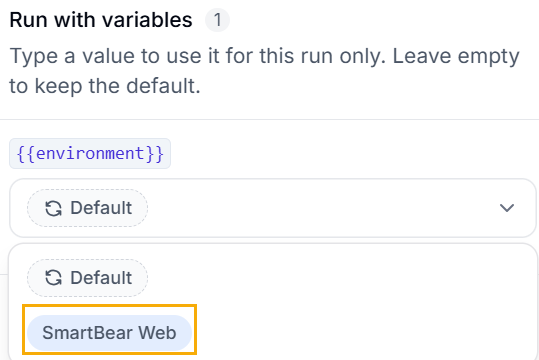
Enter a value in the box next to any variable you want to override. Leave the box empty to use the default.
For a file variable, select a file from the library or upload a new one.
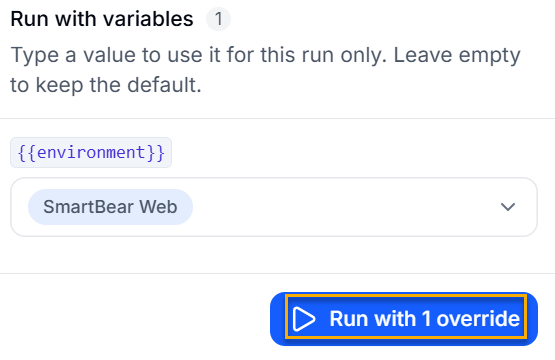
Click Run with 1 override to start the test with the overrides applied.
The variable values used in the run are recorded on the task details page so you can review exactly what inputs were used.
Environment Variables
Every test has at least one environment variable that determines where the test runs. Tests that switch between environments during execution have multiple environment variables. The first environment variable is shown in the test sidebar. Additional environment variables follow the same rules as other variables. Each has a default value that you can override at runtime. To change the environment for a run, select a different environment in the run modal before clicking Run.