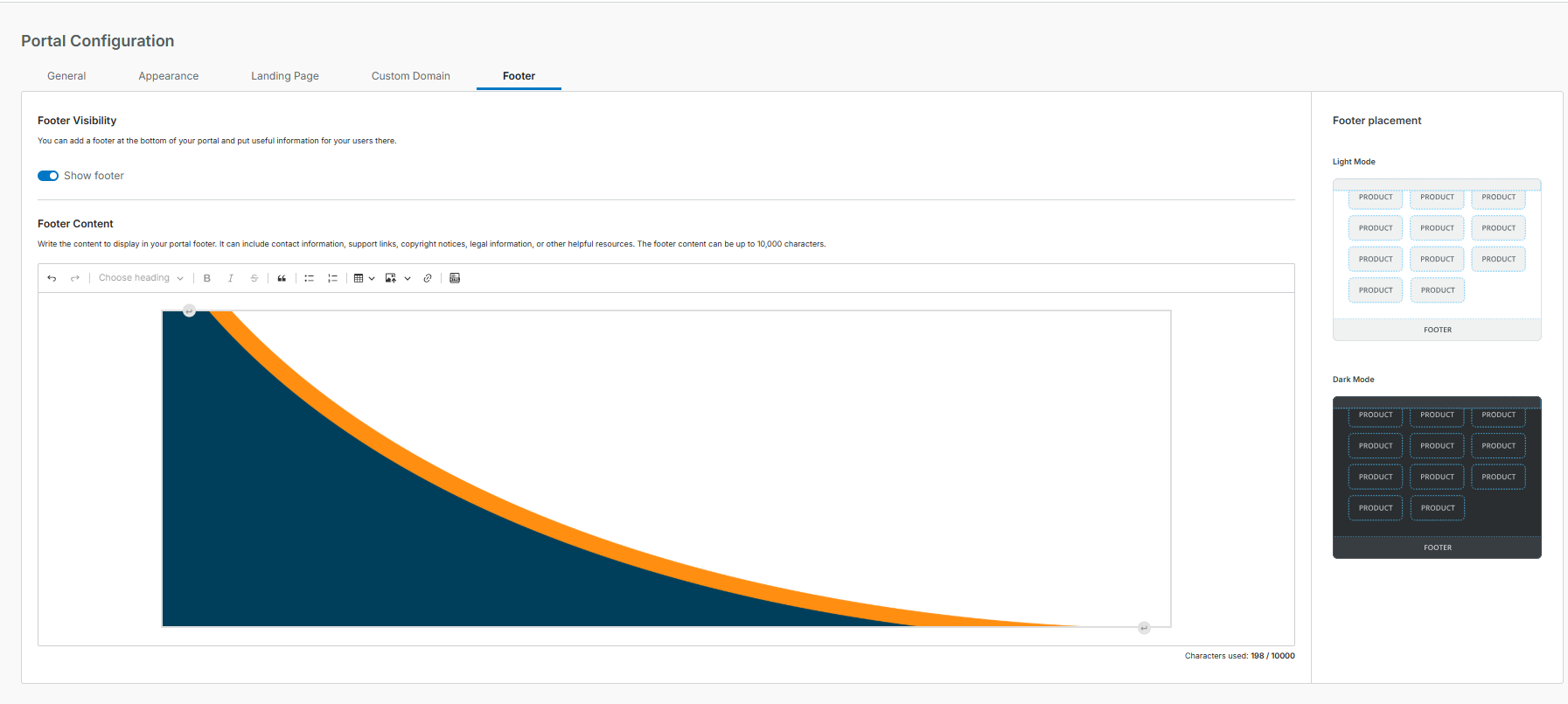
Footer Tab
In the Footer tab, you can customize a footer that is displayed at the bottom of your portal. You can use it to provide your users with helpful information, web links, images, or legal notes.
Visit the Consumer View documentation to see what the footer looks like in the Consumer View.
Footer placement
The wireframe below shows the location of the footer in the Consumer View.
 |
Footer Visibility
To switch the footer visibility, click the slider next to Show footer in the Footer Visibility section.
 |
Footer Content
Use the Footer Content editor to write the content to display in your portal footer. You can include contact information, support links, copyright notices, legal information, or other helpful resources. The footer content can be up to 10,000 characters.
The editor supports rich text formatting, including headings, bold, italic, strikethrough, blockquotes, bulleted and numbered lists, tables, images, links, and HTML snippets.
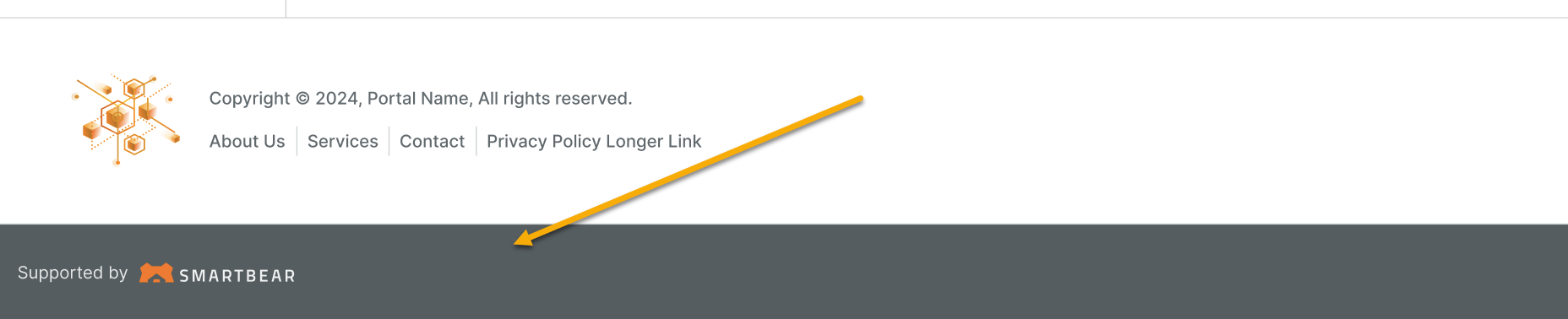
SmartBear Branding Bar
On certain plans, Portal displays an additional branding bar below the footer. Learn more about pricing.
The bar displays Supported by SmartBear text. The branding is added automatically and cannot be edited, moved, or removed. It is overlaid on the page and remains visible while viewing content.