Consumer View
This section explains the functions and layout of the consumer view. We recommend reading the topics in this section if you are new to Swagger Portal.
Log InPortal
To log into Portal with SmartBear ID:
Select the account button.
Select Log In.
You are logged into Portal.
Landing Page
The consumer view is the layout presented to visitors on your portal. When you open the consumer view, you see the portal landing page by default.
Products
In the context of Portal, it is a business solution made up from:
A collection of APIs.
A comprehensive documentation for the APIs.
Any other resources needed to integrate the APIs.
Products are shown as tiles on the landing page. Depending on their settings, products can be either:
Public products
Private products
Public Products
Public products are visible on your portal landing page. Each product is represented by a tile, with a title and a short description. Select a product tile to access its contents.
Private Products
Depending on their settings, private products are either visible or completely hidden on the landing page. A visible private product is indicated by a lock icon on the product tile.
To access a private product, ensure you have the following preconditions:
You are logged in with SmartBear ID. See the SmartBear ID Documentation.
You are a member of the connected Swagger Studio organization with one of the following organization-level or product-level roles:
Consumer
Designer
Owner
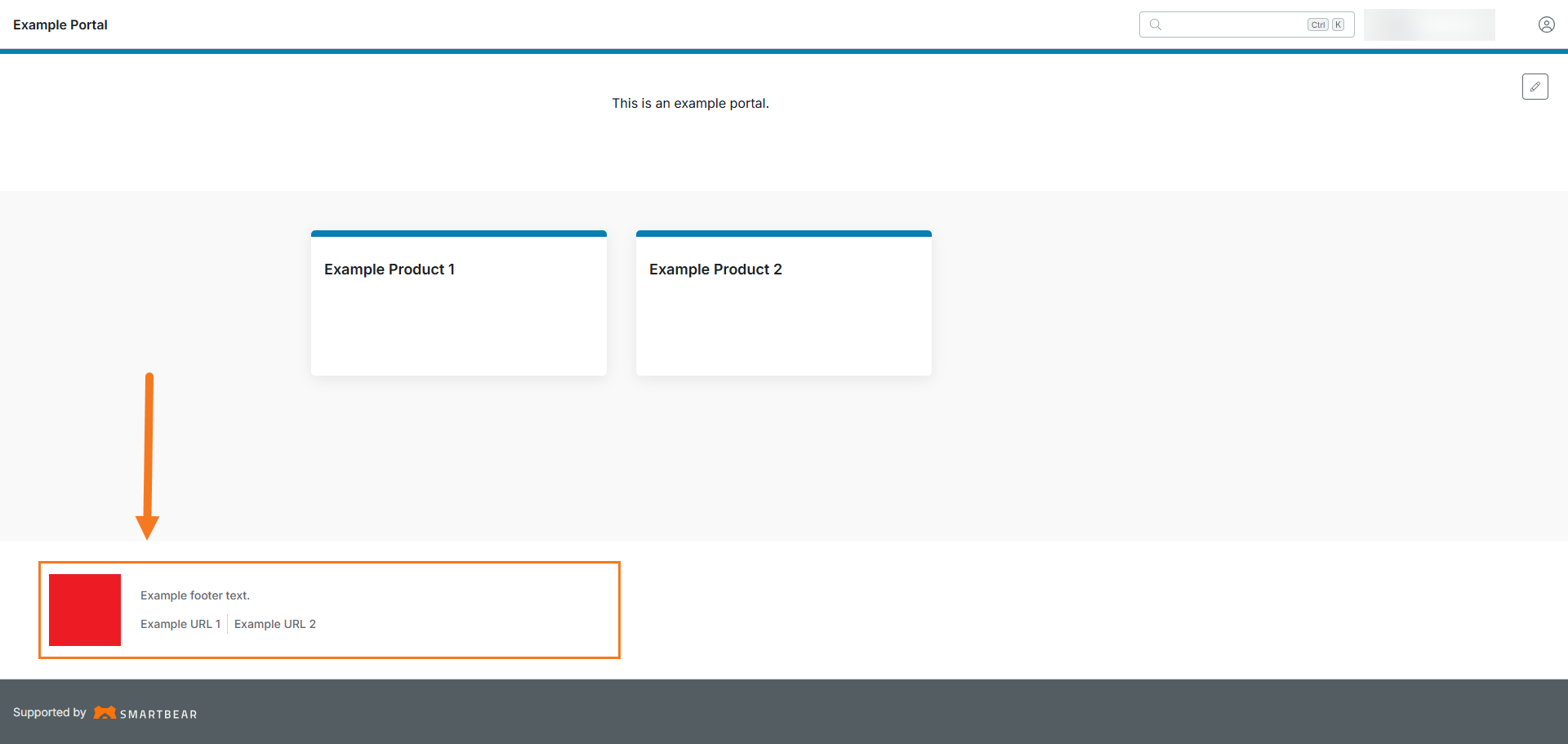
Footer
The footer is displayed at the bottom of your portal. See the Footer Tab documentation to learn how to customize the footer.
Request Access
You may only have access to some of the products on the Portal landing page. To request access for a product, make sure you are logged into your SBID account and then follow the steps below:
Select Request Access on the product tile on your landing page.
Add notes for the portal admin in a pop-up window (optional).
Select Confirm.
The Request Access button becomes disabled and displays a Request Access tooltip. Your portal admin receives an email with your request and will grant or deny access. You will receive an email notification when the admin has taken action.
Note
You may be asked to verify your email address first if it's not already verified. It is possible to request the verification email again under your profile.
When you return to the landing page, Portal checks whether your access has been granted:
If access has been granted, you can open the product.
If access is still pending, the Request Access button remains disabled.
Email Notifications
Portal sends the following emails during the access request process.
Request submitted - notification to the portal admin. When you submit a request, the portal admin receives an email with your name, email address, any note you included, and the name of the product you requested access to. The email includes a Manage Access Requests button that takes the admin to the access management panel.
Note
The admin can grant Consumer-level access only from Portal. Designer access must be managed in Swagger Studio.
Access granted - notification to you. When the admin grants your request, you receive an email confirming that you now have access to the product. The email includes an Open [Product Name] button that takes you directly to the product in Portal.
Access denied - notification to you. When the admin denies your request, you receive an email notifying you that access was not granted. The email includes an Open [Portal Name] Portal button that takes you to the portal landing page.
Consume API
Learn more about consuming API here.