Create Test Suites in QMetry from Reflect
When you run a Test Suite in Reflect, QMetry automatically creates a corresponding Test Suite and records execution results.
This integration allows teams to execute automated tests in Reflect while tracking Test Suite execution and results in QMetry.
Prerequisites
Before running a Reflect Test Suite, ensure that:
Reflect integration with QMetry is configured.
Reflect tests are mapped to QMetry Test Cases.
The API key user has permission in QMetry to:
Create Test Cases
Create Test Suites
Execute Test Cases
The target QMetry project has no mandatory Test Run UDFs.
If a Reflect test is not mapped to a QMetry Test Case, QMetry skips its execution during synchronization.
Note
If the target project has mandatory Test Run UDFs, QMetry blocks the execution import from Reflect. To change these fields to optional before you run the Test Suite, follow these steps:
Go to Customization and select Manage Fields.
Turn the Mandatory toggle off for each Test Run UDF.
Save the changes.
Run the Test Suite in Reflect again.
Create and Run a Reflect Test Suite
Create and run a Test Suite in Reflect to generate a corresponding Test Suite in QMetry.
To create and run a Test Suite in Reflect, perform these steps:
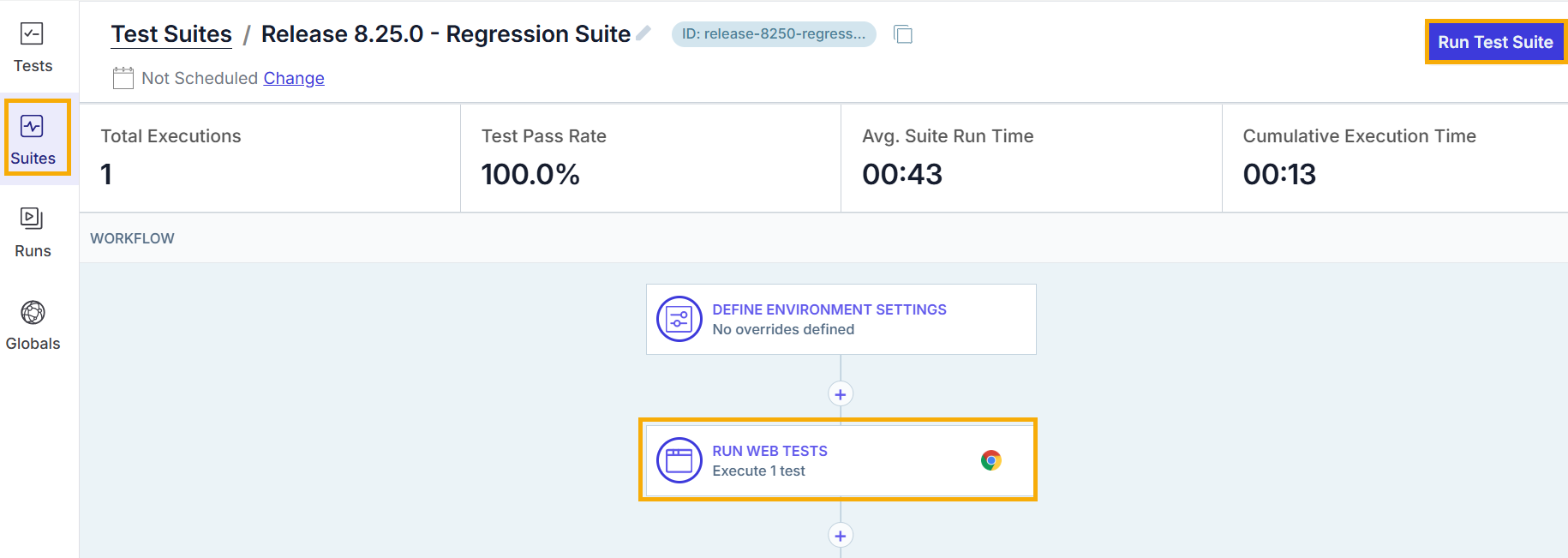
Sign in to Reflect.
Go to Suites.
Click Create Test Suite.
Enter the Suite name and then select Create Suite.
Select Run Web Tests.
Scroll to the Select Tests section.
Add the required tests from the Select Tests screen.
Select Save.
Click Run Test Suite to execute the tests.
When you create a Test Suite in Reflect, QMetry automatically creates a corresponding Test Suite.
The QMetry Test Suite:
Uses the same name as the Reflect Suite.
Includes a timestamp if Auto-append date and time is enabled in the integration settings.
Links all mapped QMetry test cases to the suite.
Contains a link to the Reflect suite in the description.
Identify Reflect-Created Test Suites
You can identify Test Suites created from Reflect using the Reflect Created indicator.
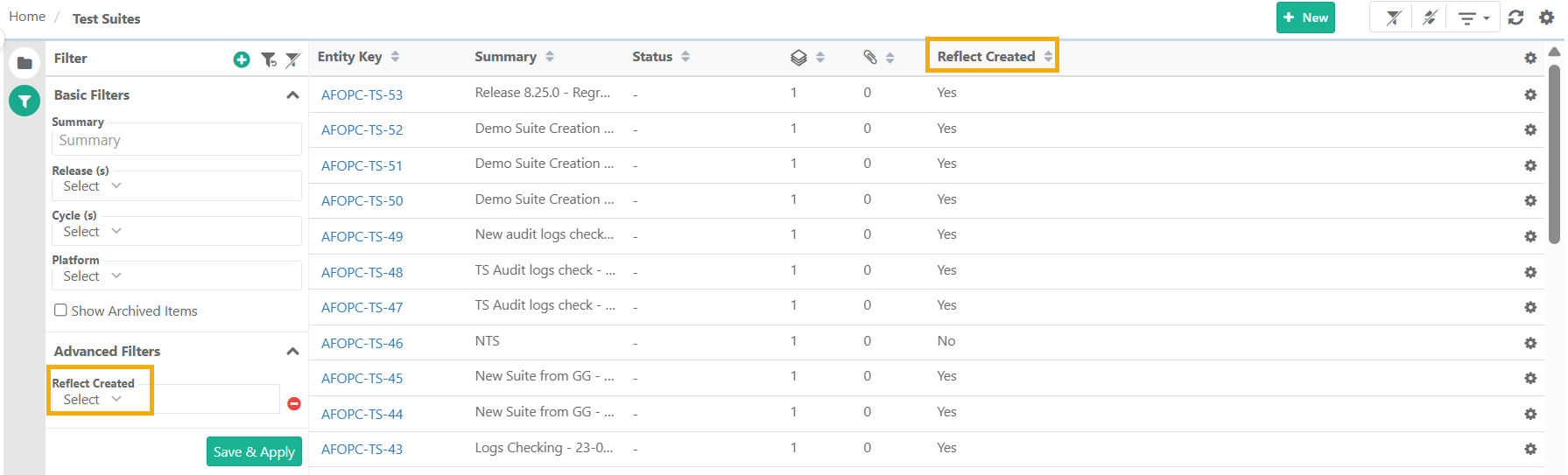 |
To identify Reflect-created Test Suites:
Go to Test Suites in QMetry.
Select Arrange Columns.
Select the Reflect Created column.
Use the Reflect Created advanced filter to view only automated Test Suite created from Reflect.
View Test Suite Execution Results
When you run a Test Suite in Reflect:
QMetry adds all mapped Test Cases to the corresponding Test Suite.
QMetry records execution results for each test step.
Execution details include:
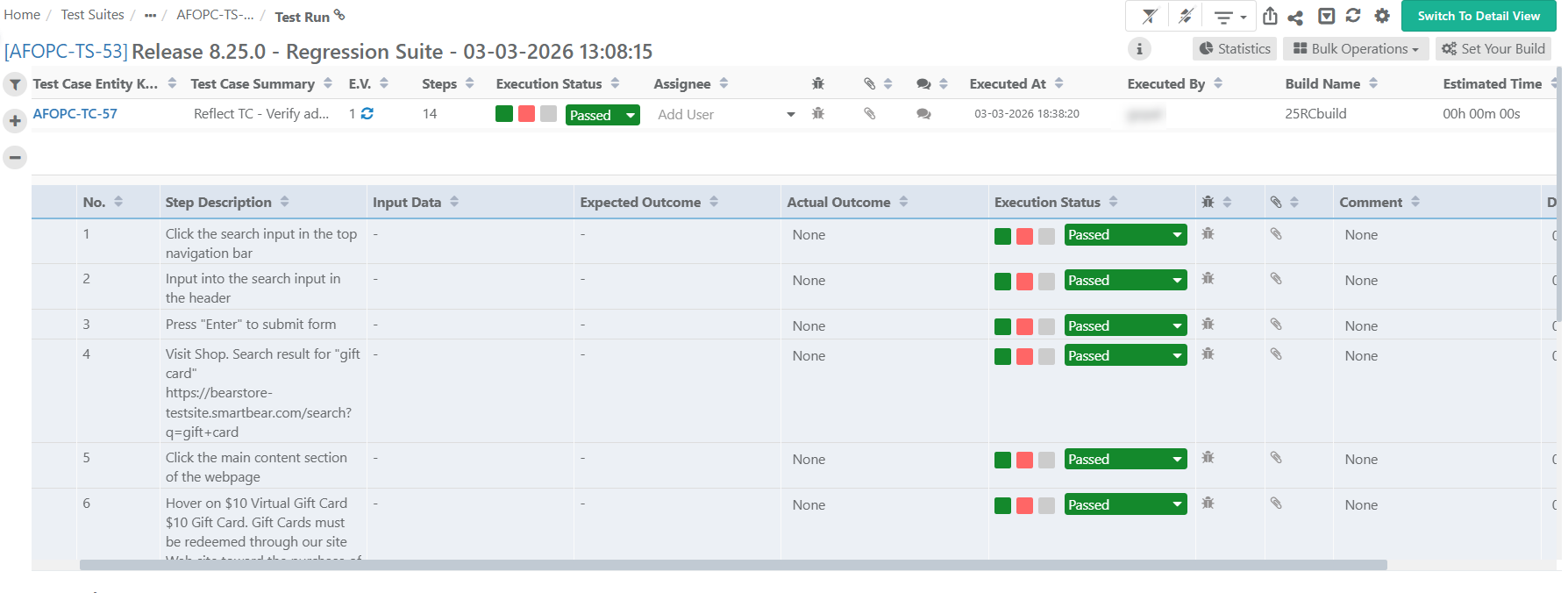 |
Execution status
Execution duration
Execution type (Automated)
Execution results are recorded at the test step level.
If all steps pass, the test case status is Passed.
If any step fails, the test case status is Failed.
You can track the test execution results from both Test Suite Module and Test Case Module Test Execution tab.
Re-running a Test Suite
Each time you rerun a Test Suite in Reflect, QMetry creates a new Test Suite.
Only Reflect tests mapped to QMetry Test Cases are synchronized. If a Reflect test is not mapped, QMetry skips its execution.
Note
QMetry checks for mandatory Test Run UDFs each time it creates a Test Suite, so a blocked import can affect every run.