
How to Use Capture Browser Extension with Gsuite SSO User?
Steps
-
Once After G suite User Successful Login
-
user need to generate API Token for G suite user as show below.
-
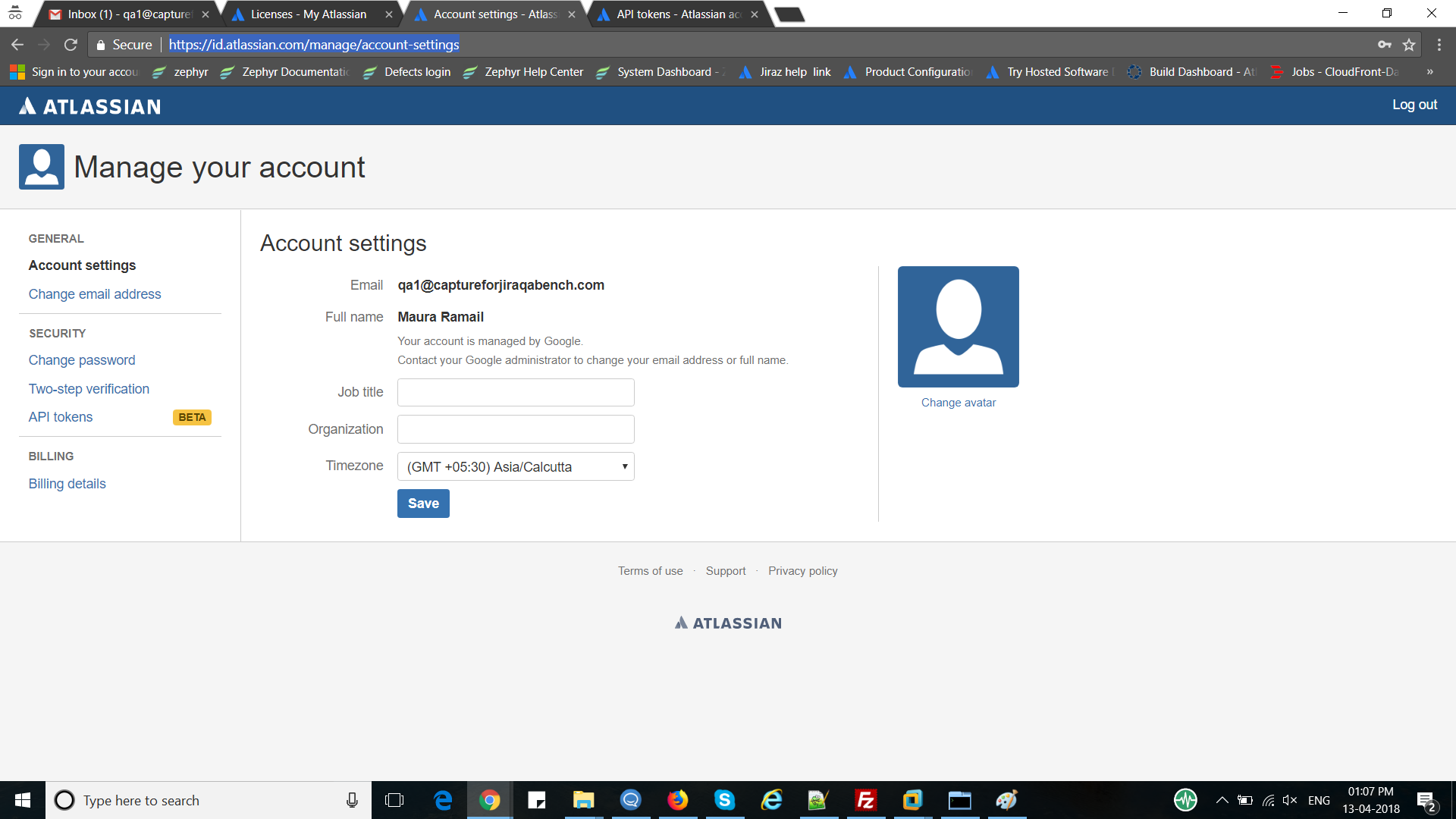
Enter URL- https://id.atlassian.com/manage/api-tokens in Browser or Launch manage user account page - https://id.atlassian.com/manage/account-settings where G suite user is logged in, you will get below screen.
-
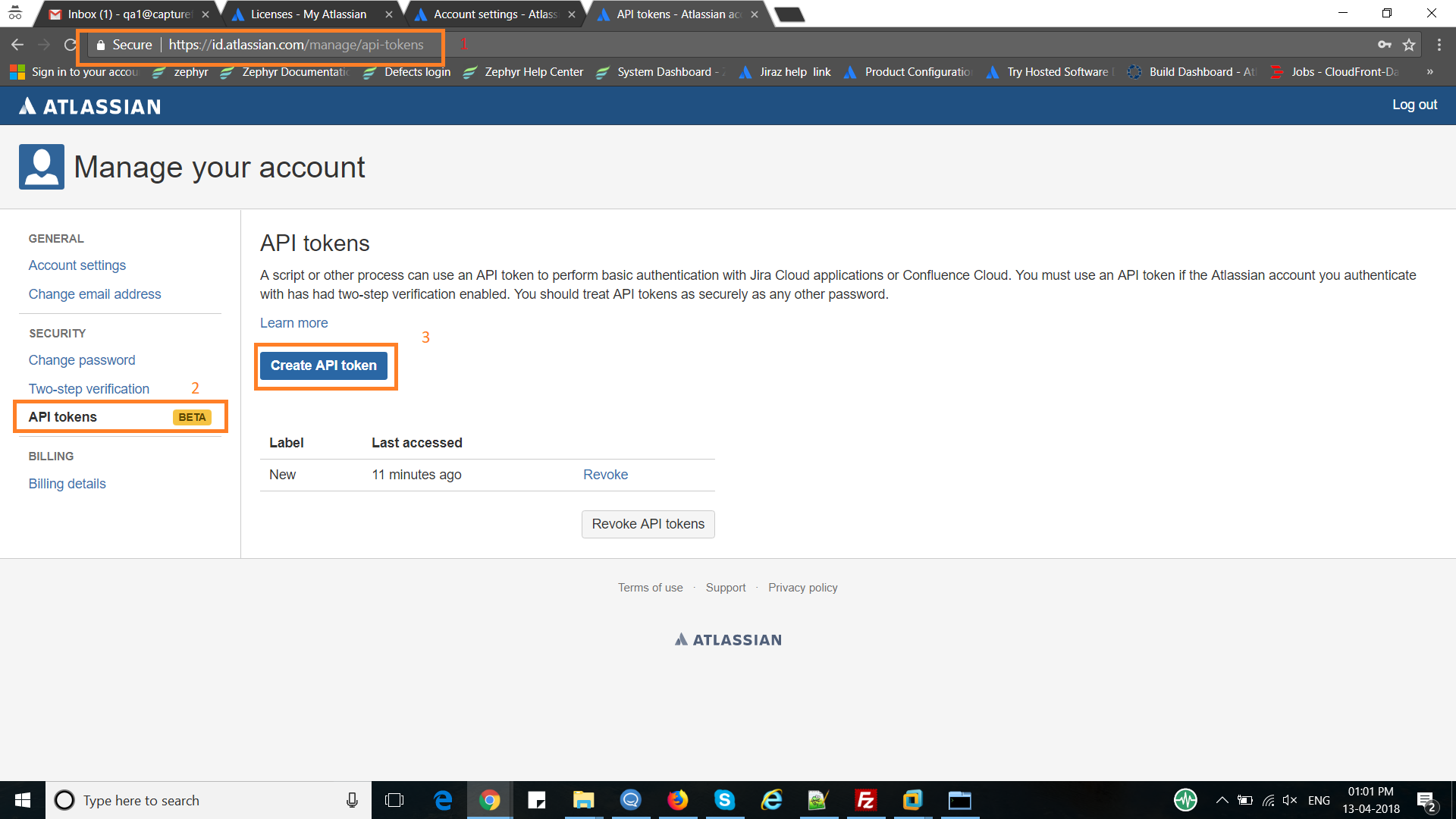
Now click on API Token Beta As show below you will get - Create API Token Button in page
-
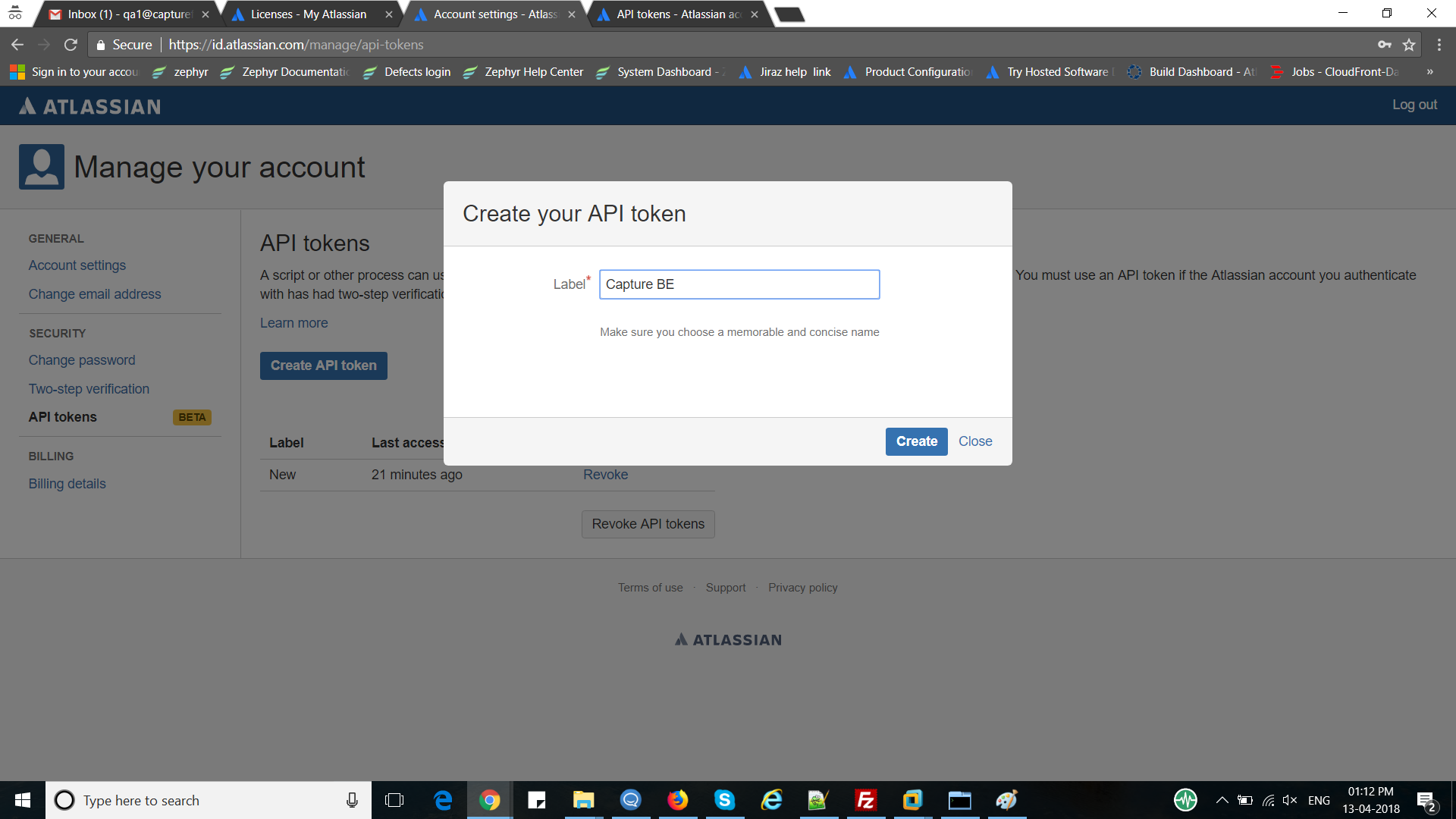
After Click on create API Token you will get Below Screen Enter Label like “ Capture BE” Click on create.
-
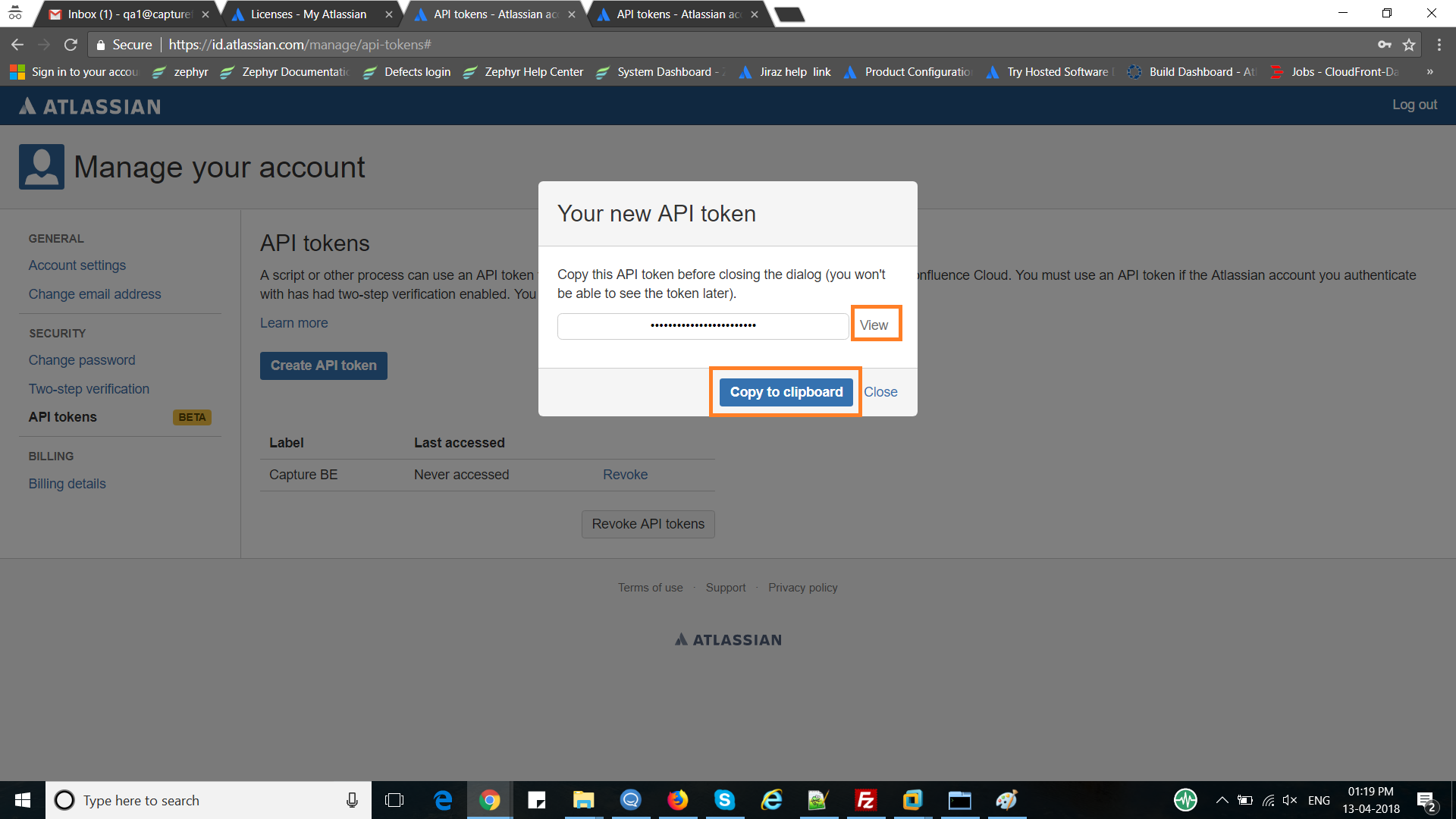
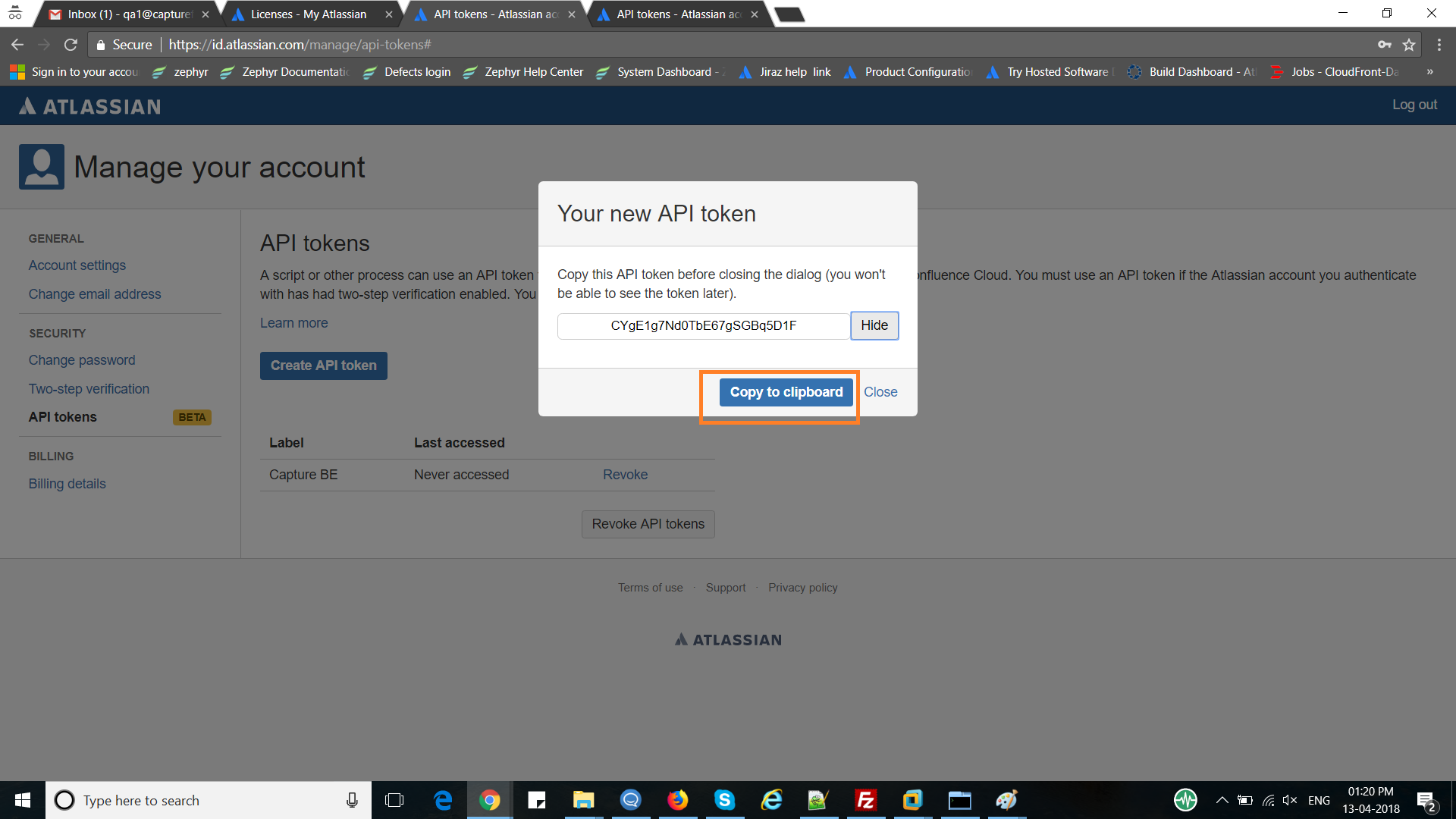
After Click on Create you will get Below Page to Copy Token
-
Click on Copy to Clipboard your Token willl be Copied , we have to save Token at Some where for Future Use.
-
-
After Generating API user can Login in capture BE with API Token as password instead of JIRA User password. like Below.
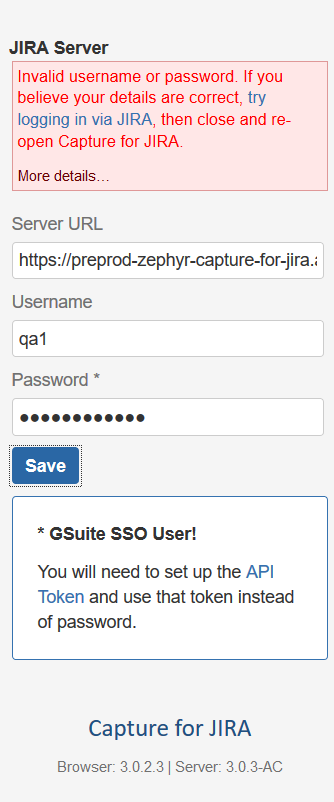
Note: During Capture BE authentication(login) as username the email address should be used.
if we gave user name instead of email we will get below error:
-
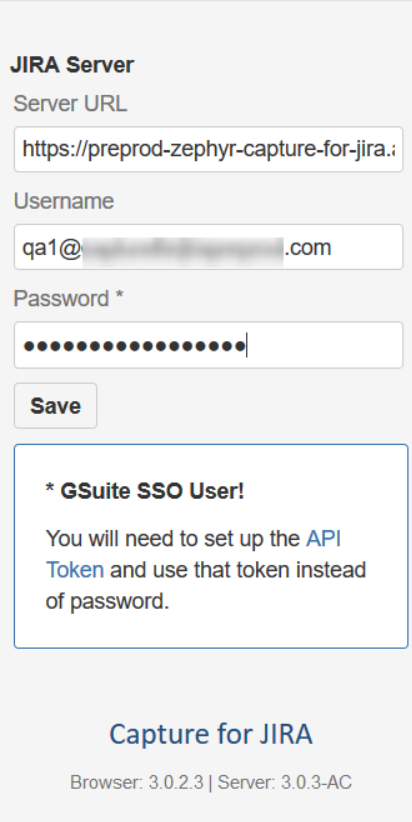
To Avoide that Error we have to Give user Email of Gsuite Like Below:
-
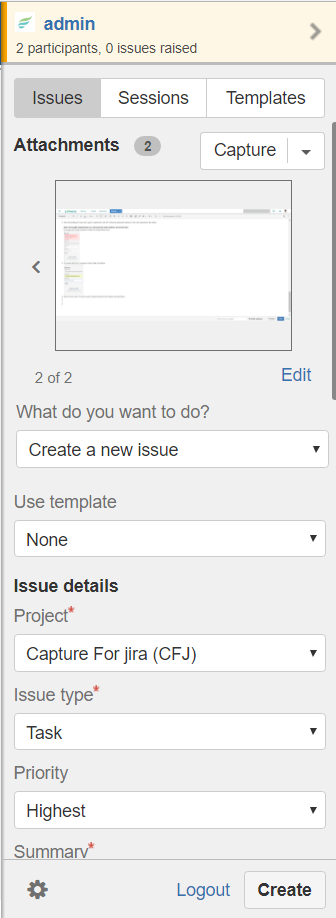
After Click on save You can Access Capture Browser with Gsuite user like Below
-
Now we can perfrom all operation related to BE.

Note :
If user is deleted API Token or if we are trying to login old Token we get below error.
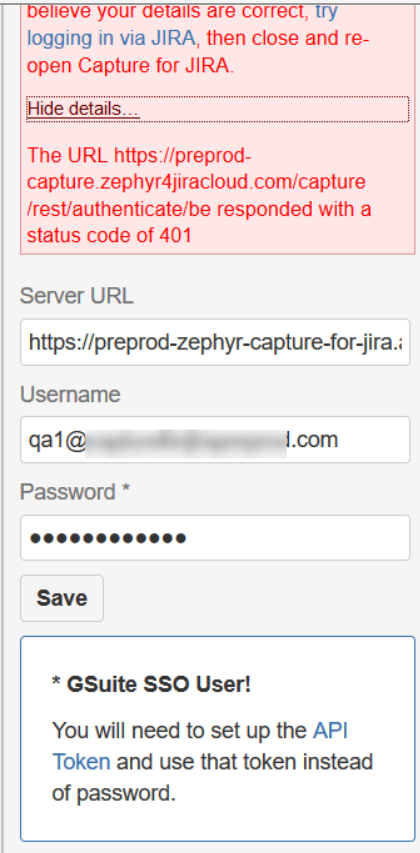
In above scenarion we need to Revoke the existing API Key or Else they need generate new API Token.
In below page then They need generate new API Token As mentioned above steps:
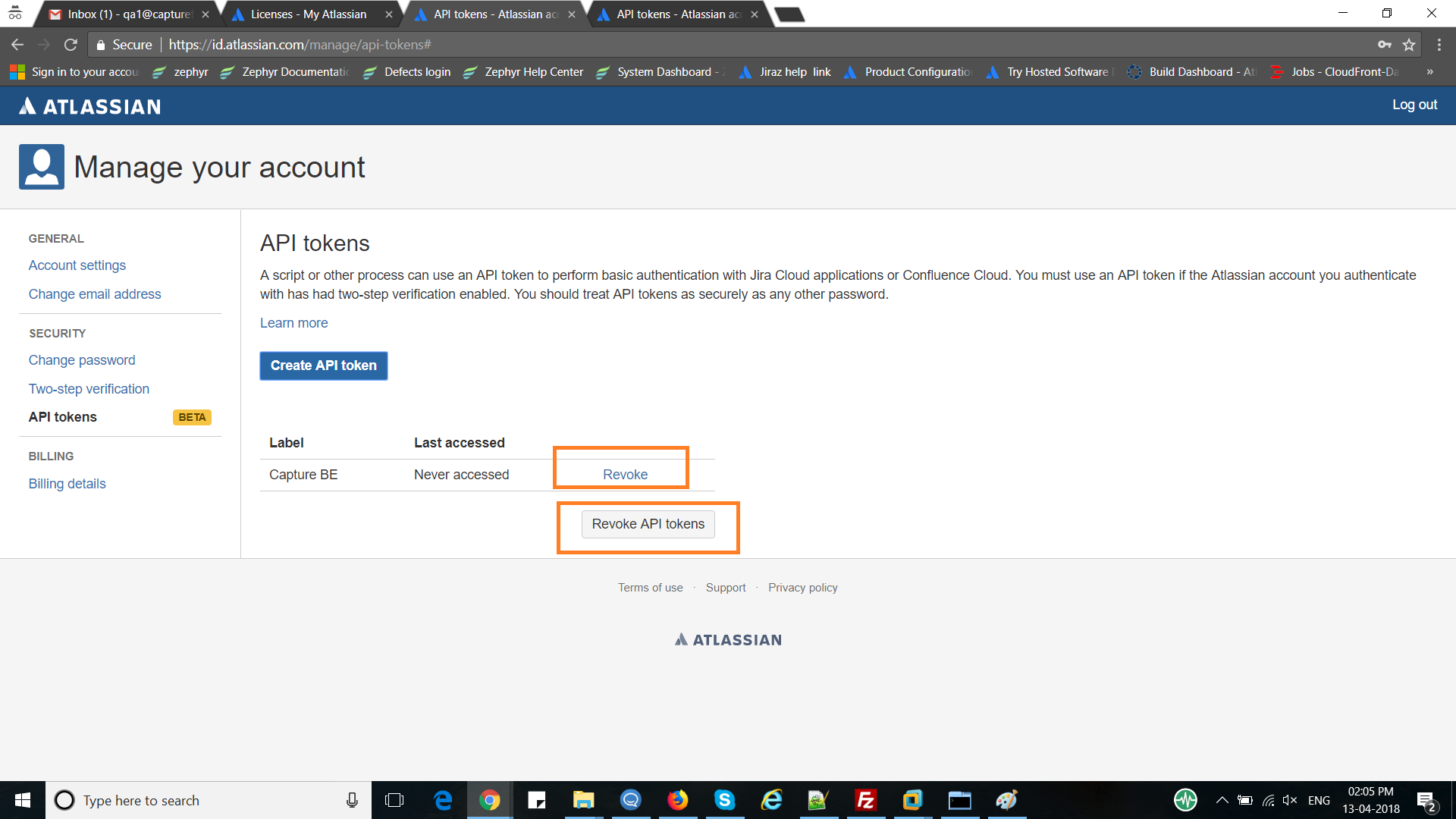
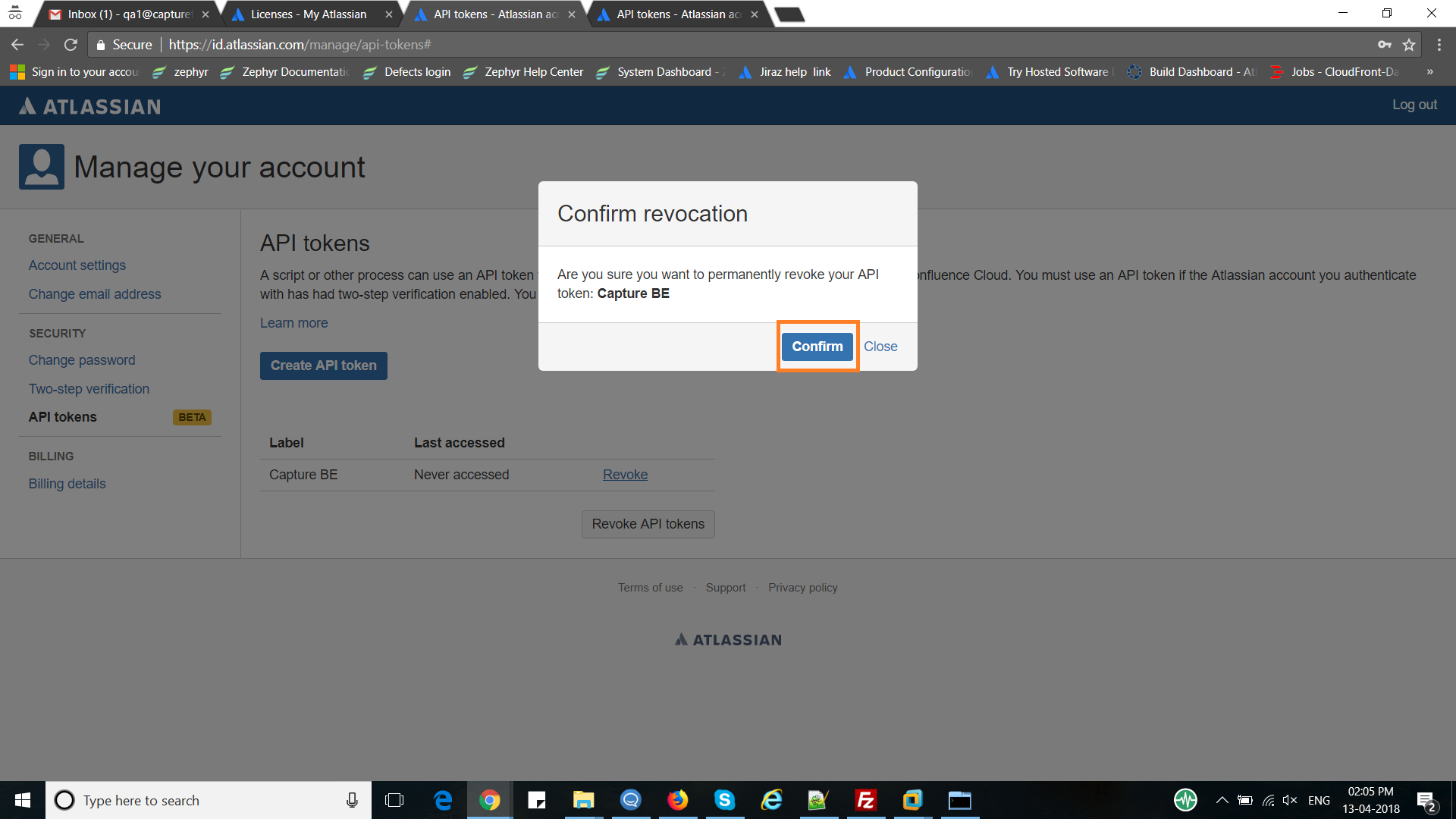
If we click Confirm all APi tokens will be deleted automatically.
Please note this SSO set up used to work fine earlier as they were within the Atlassian domain and hence no change was needed.