
Importing Markdown Files to Swagger Portal
Swagger does not support Stoplight-flavored Markdown.
Manual Swagger Portal hydration
-
Create a Portal product to manage your APIs and markdown files. See Provider View for detailed instructions.
For guidance on managing product appearance, URLs, and API linking, see Products Setting.
-
(Optional.) Configure a Portal. Refer to Portal Configuration Page for detailed instructions.
-
Create pages and add Markdown content directly, using traditional copy and paste methods. Refer to Manage Documentation for details.
-
Import your APIs into Swagger Studio and link them to your product. Follow the instructions available in Manage APIs.
AI-powered Swagger Portal hydration
Hydrating your Swagger Portal using AI-based features requires you to convert Markdown content to HTML.
You can implement the Swagger Portal AI-based options either in the first step - when creating a new page, or later in the process.
Hydrate Swagger Portal using standard page creation
-
On the homepage, select Manage Content next to the product.
-
Click the plus icon (+) at the Table of Contents, and select Add Page.
-
Enter the page name in the Name box.
-
Select Create Page.
-
Click the AI icon.
-
Paste the Markdown content into the prompt area.
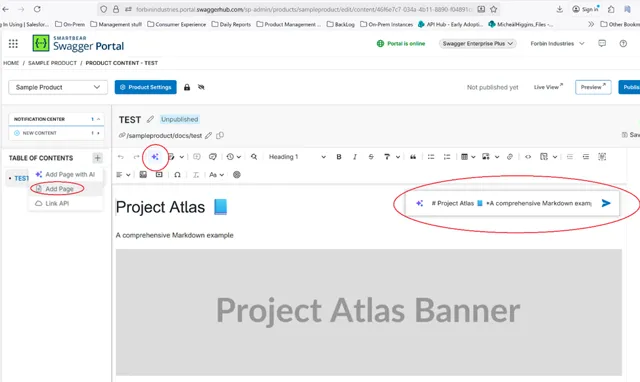
A new page is created.
Hydrate Swagger Portal using AI-based page creation
-
On the homepage, select Manage Content next to the product.
-
Click the plus icon (+) at the Table of Contents and select Add Page with AI.
-
In the AI Prompt box, paste the Markdown content as a prompt to create a model.
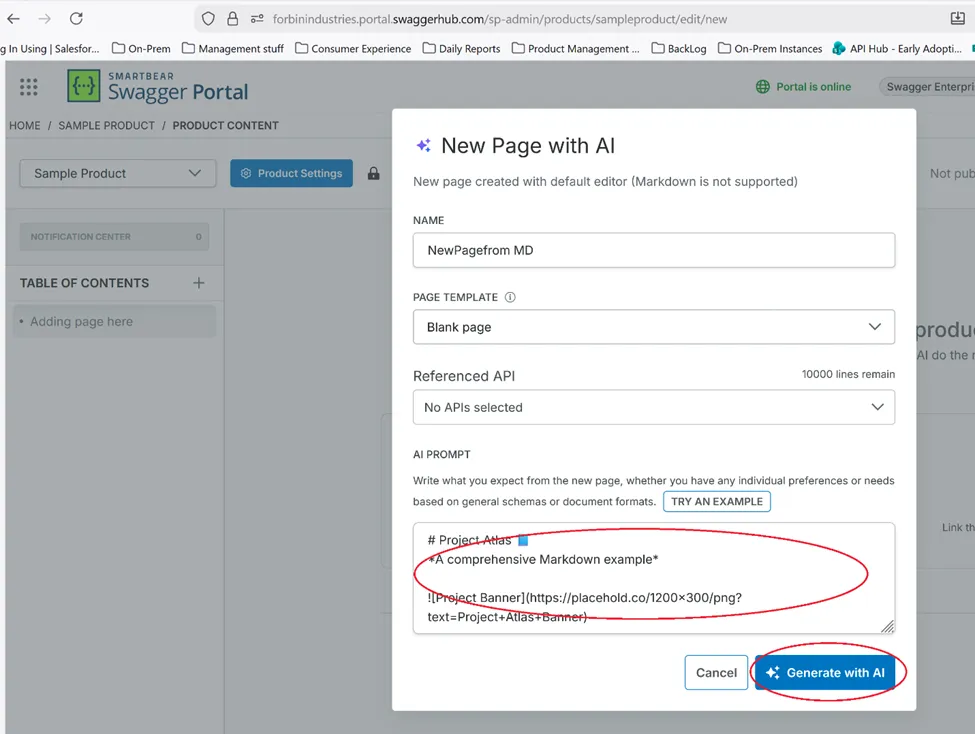
-
Click Generate with AI.
A page is generated based on the prompt you provided.
-
Click the AI icon.
-
In the prompt area, enter a request to convert the Markdown content to HTML.
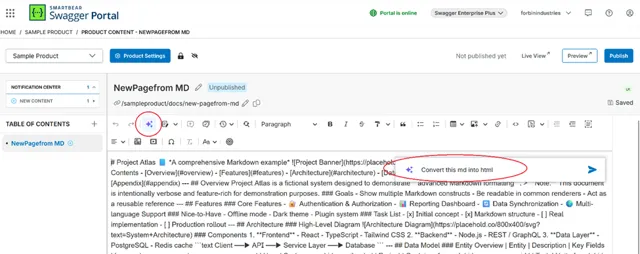
Docs-as-code process
Swagger Portal was built API first - you can find details about the Swagger Portal API here.
Use and adapt a sample GitHub repository to suit your own docs-as-code approach.
Refer to the video below for details on docs-as-code automation:
SCM-based hydration
For information on hydrating your Swagger Portal instance through direct interaction with Swagger Portal API, refer to Manage Products and Content.