Dashboard
This screen helps you quickly find and access your applications.
Applications
My Favorites
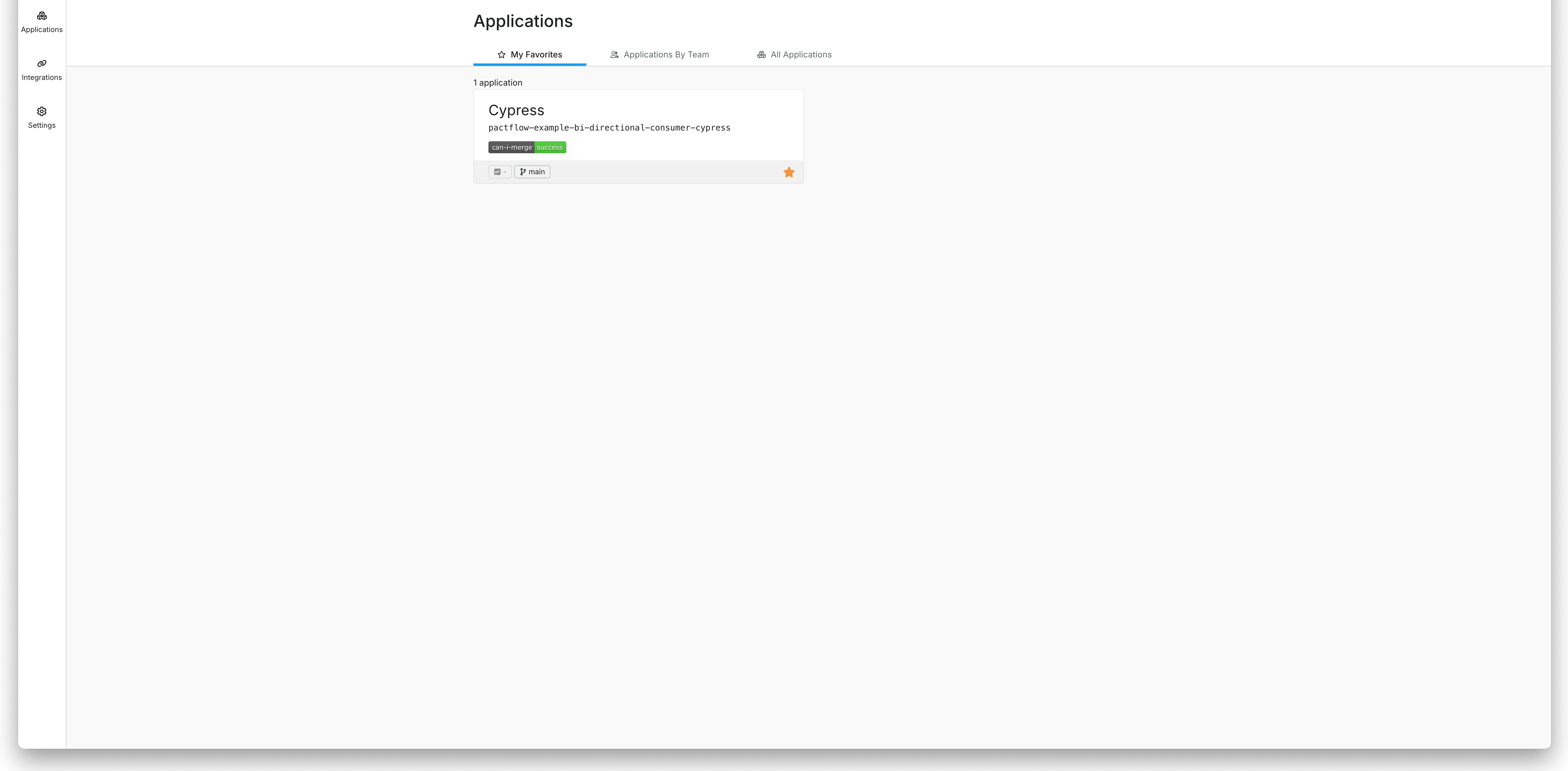
The My Favorites tab shows a condensed view of your saved applications for quick access.
-
Select My Favorites from the drop-down to view your saved applications.
-
Click to add it to your favorites.
-
Click to remove an application from your favorites.
You can favorite up to 20 applications.
Applications by Team
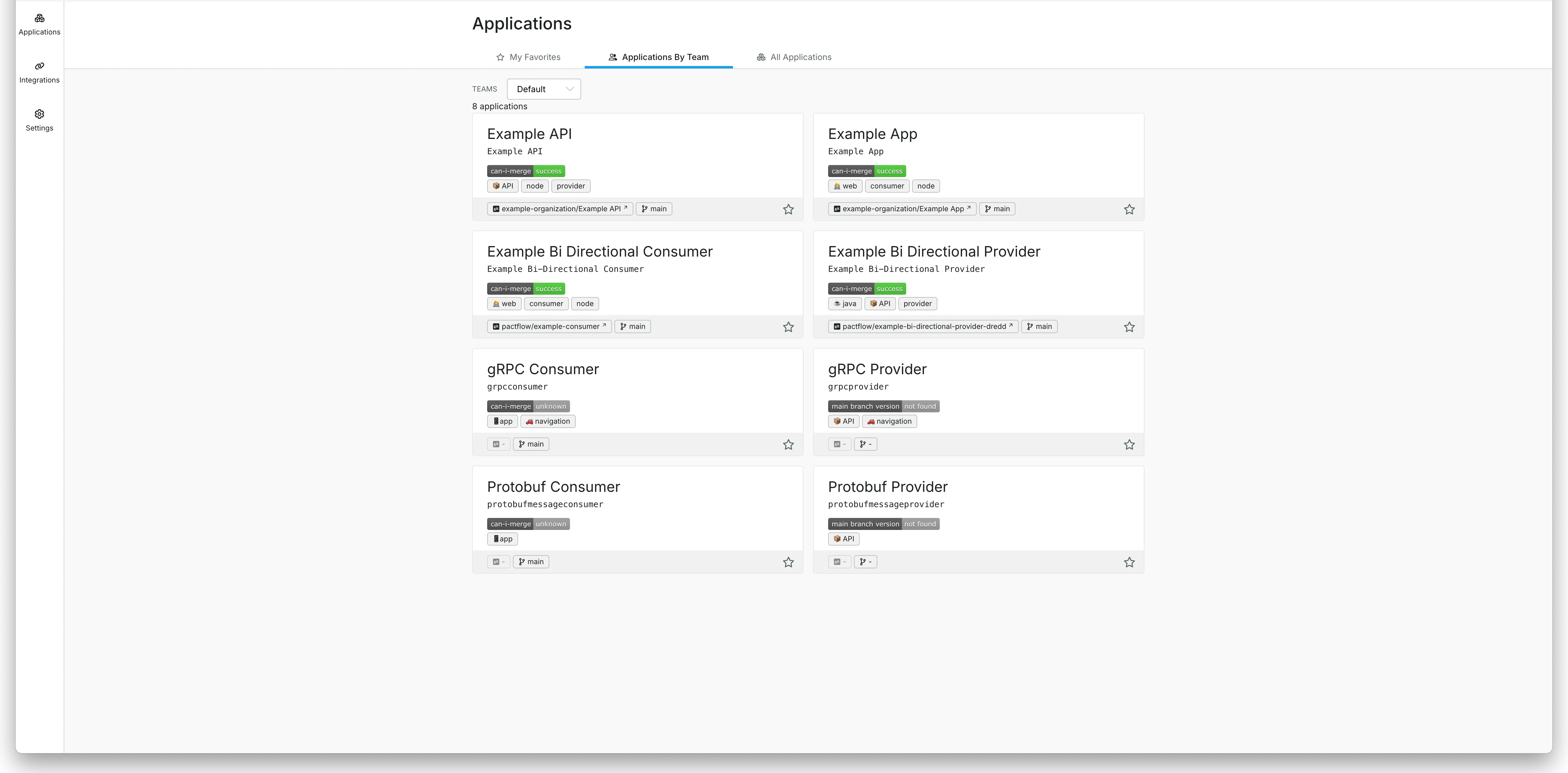
The Applications by Team tab displays all applications by team.
-
Select a team from the drop-down to view its applications.
-
If you have the appropriate permissions, all teams will be visible.
Each application tile shows the mergeability status of the main branch.
This tab displays up to 20 applications.
All Applications
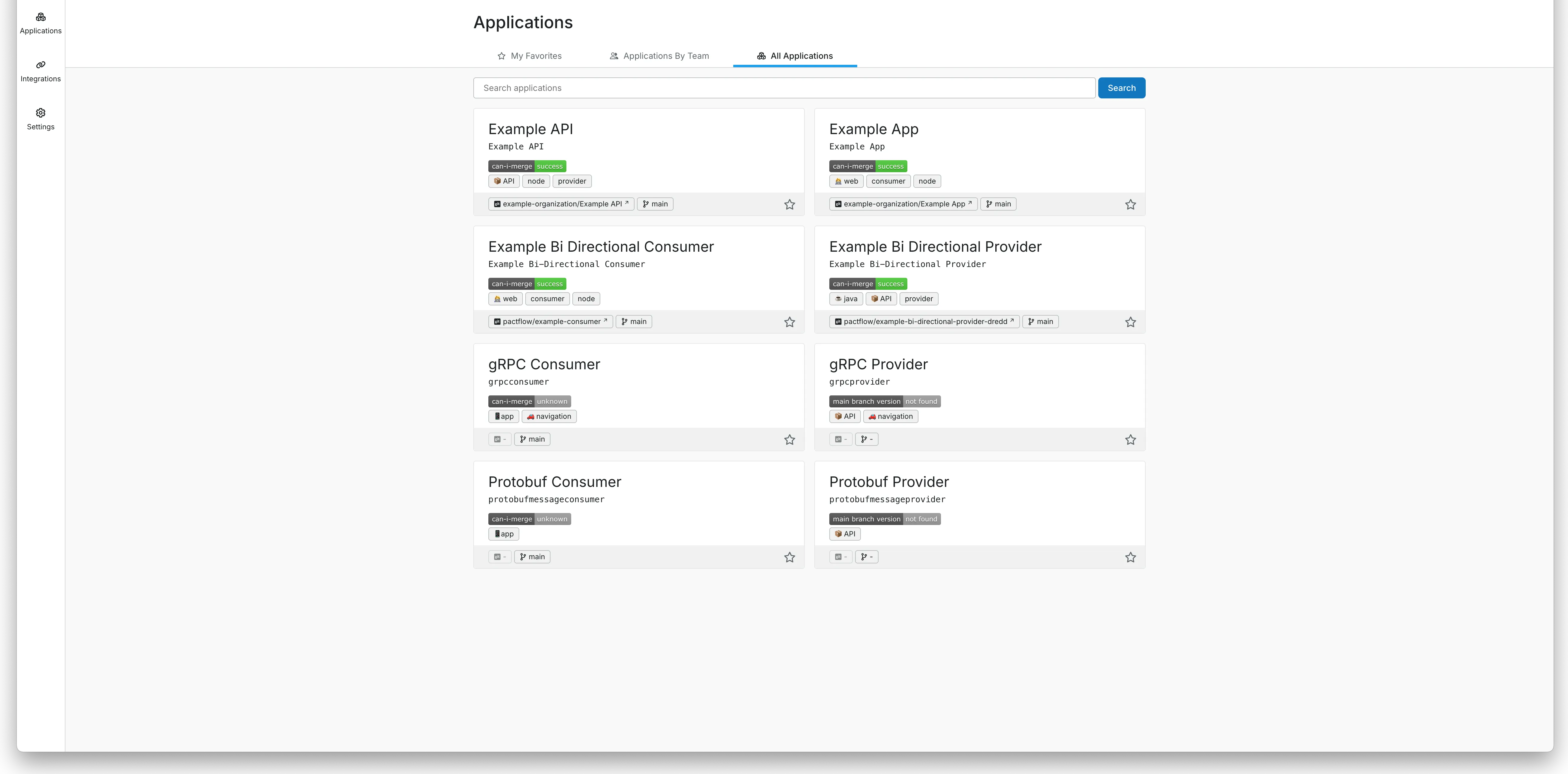
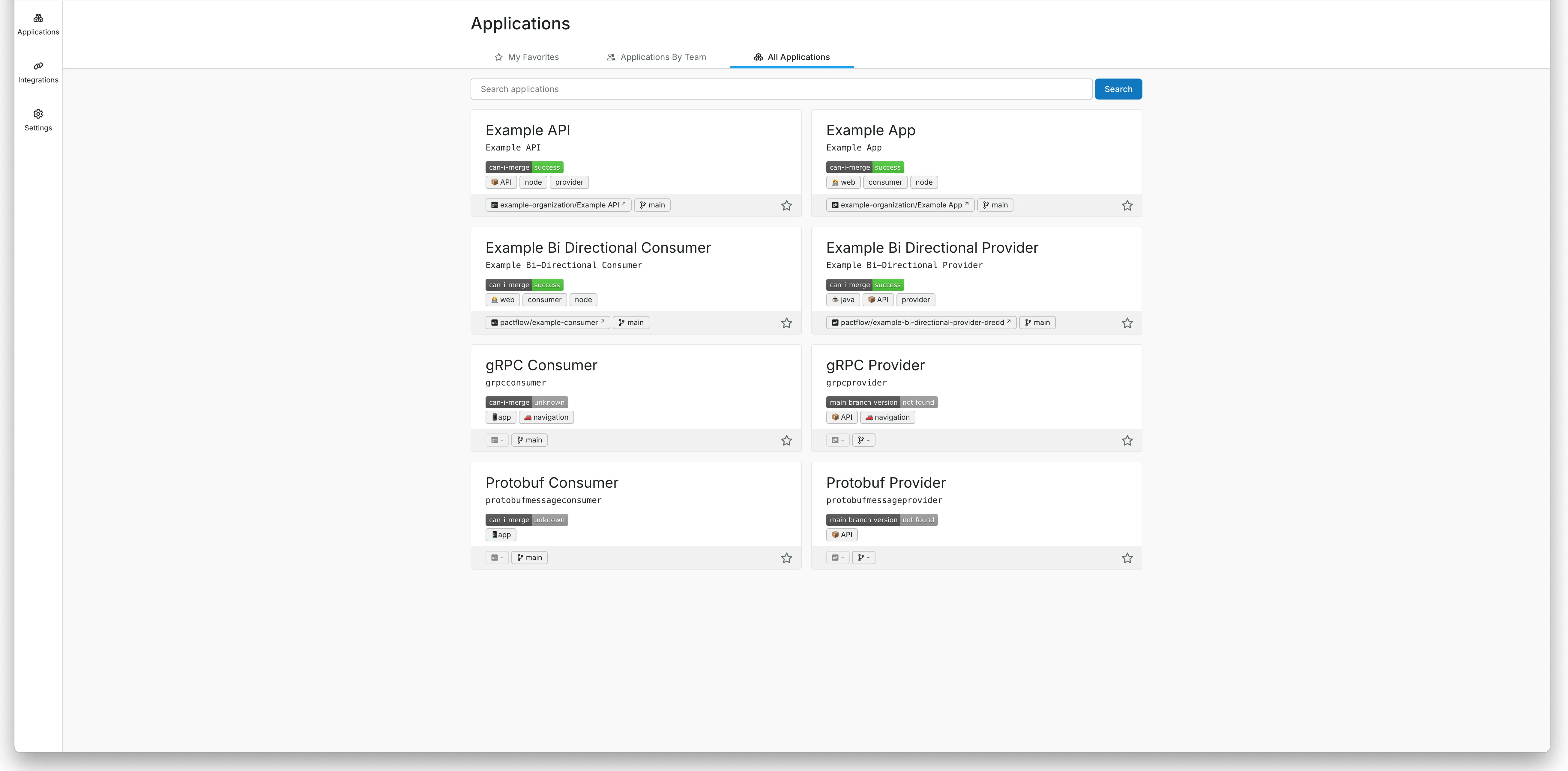
The All Applications panel shows all applications in your organization.
-
Use the search box to filter by name or display name.
-
If you have many applications, pagination controls will appear to help you navigate.
Integrations
Integrations Dashboard
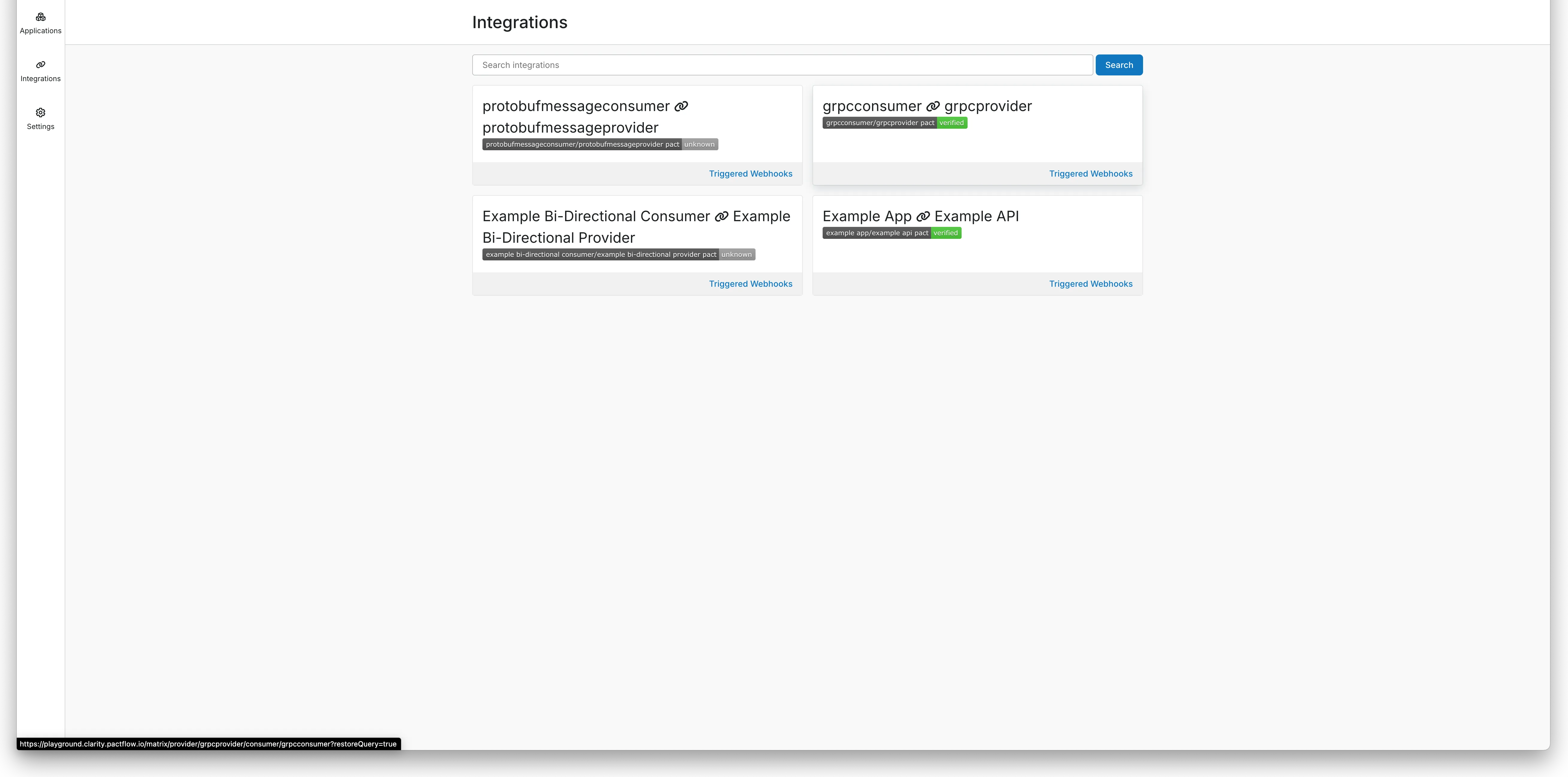
The Integrations page lists all integrations for your organisation. An integration is a pair of a consumer and provider that share a pact.
-
Use the search box to filter by name or display name.
-
If you have many integrations, pagination controls will appear.
-
Click an integration to go to its integration page.
Each tile shows the compatibility status for the latest version of the contract.
Navigation
Top Navigation
Feedback / Switch UI
Click Feedback to switch to the old UI or submit feedback on the new UI.
Help
Click Help to open the documentation.
Profile
The Profile link shows:
-
The currently logged-in user.
-
The current Swagger Contract Testing version.
-
A link to log out.
Side Navigation
Applications
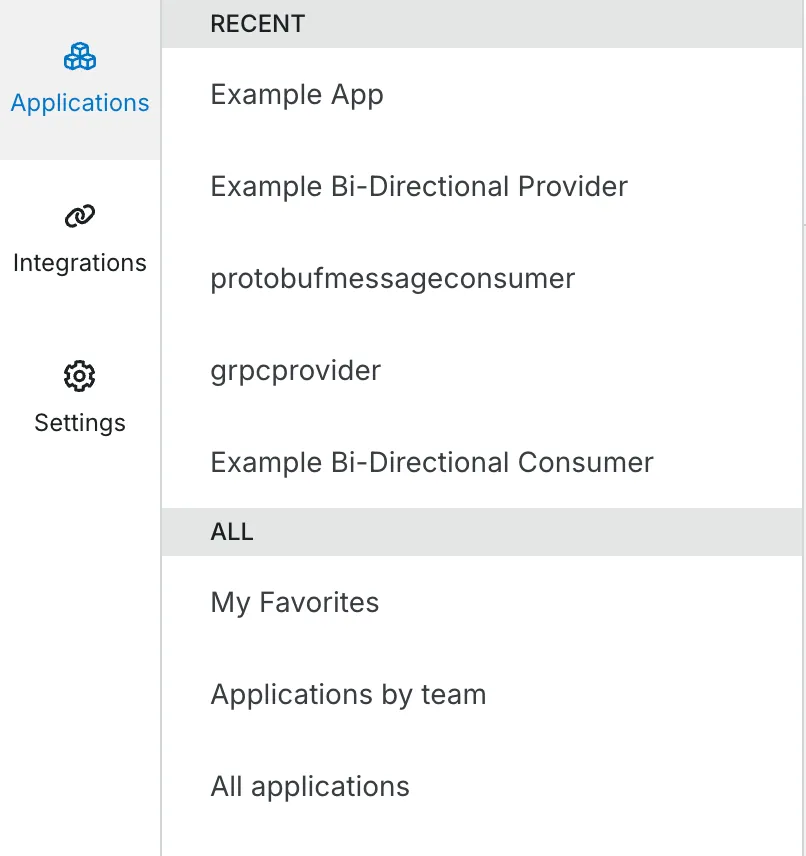
Quickly access your most frequent or recently used applications. Navigate to the application dashboard.
Integrations
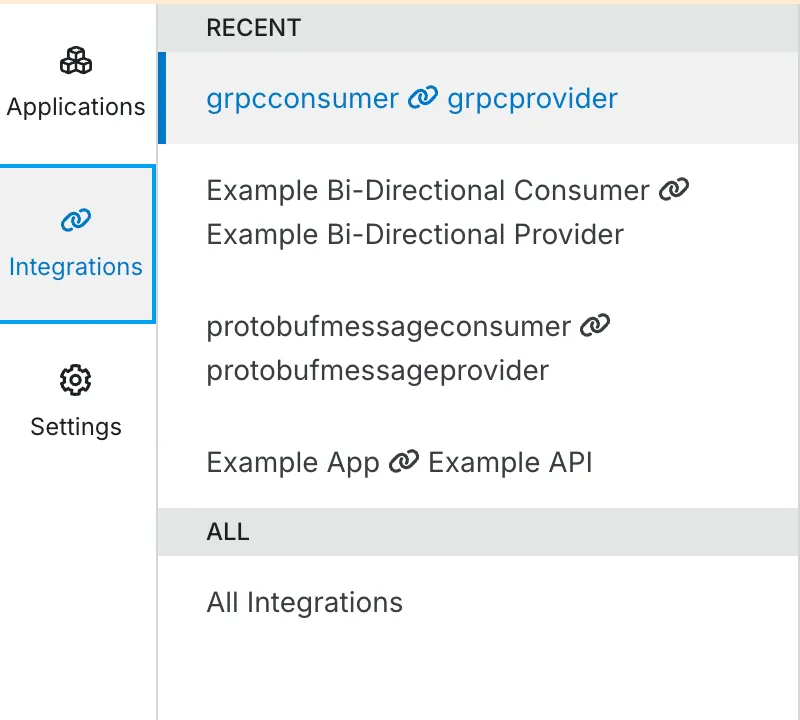
Quickly access your most frequent or recently used integrations. Navigate to the integration dashboard.
Settings
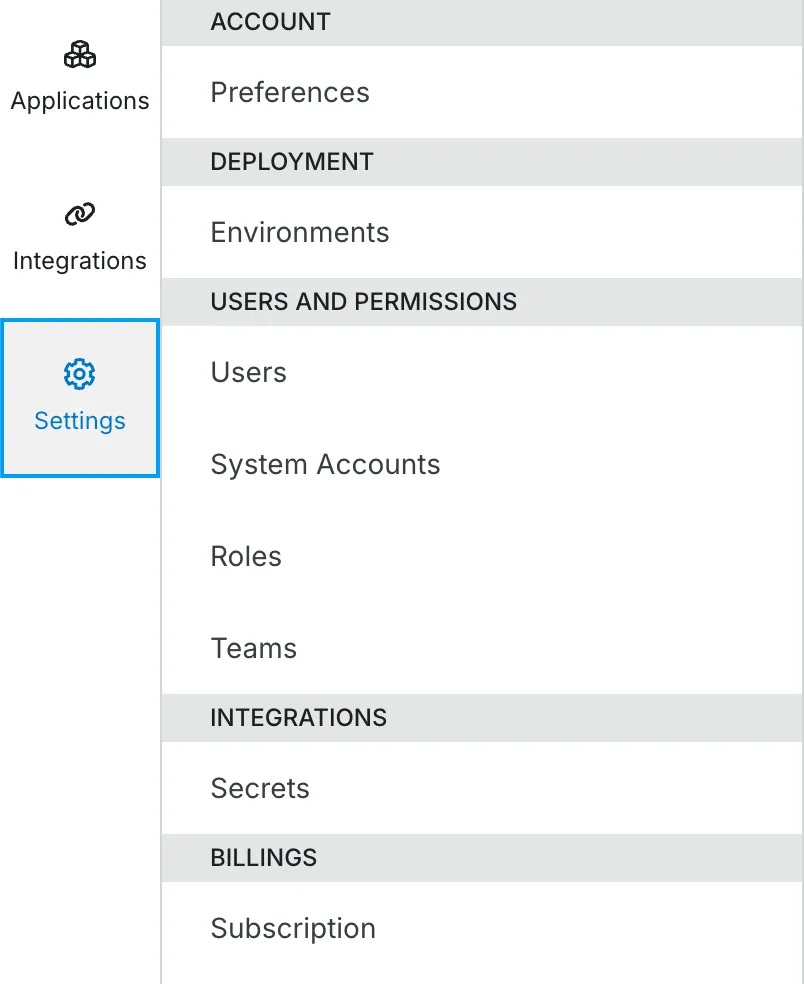
Click the Settings (cog) icon to access all configuration screens, including:
-
And more