Overview of Main Screen
This topic describes the layout and controls of Swagger Explore's main screen.
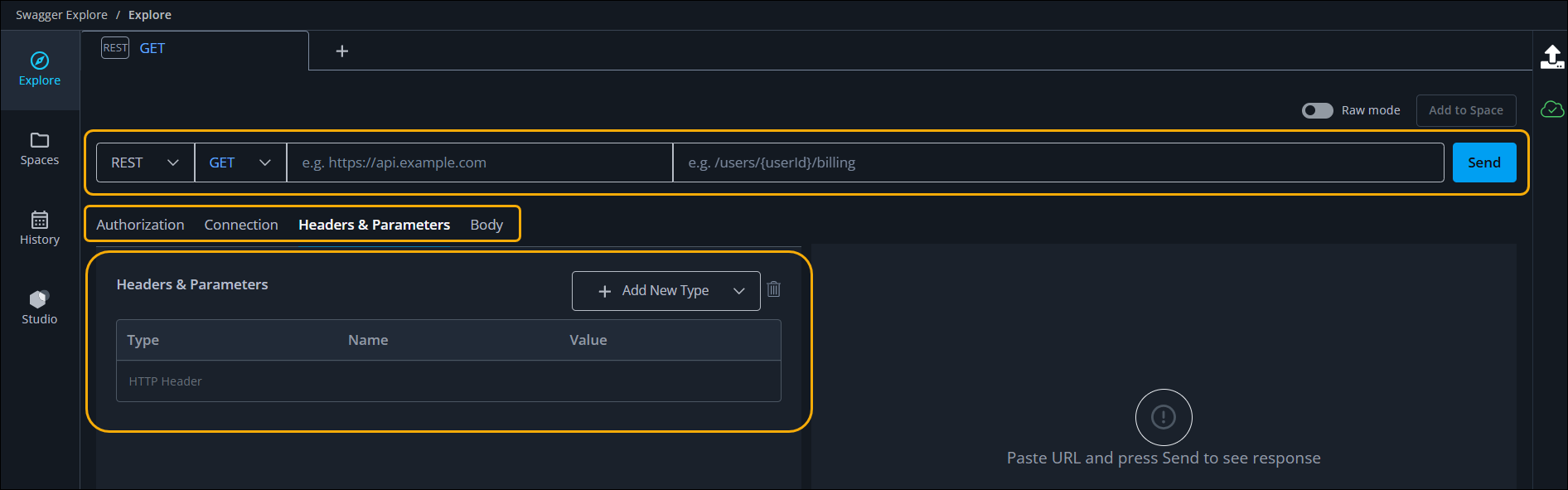
When you open Swagger Explore, you see the following icons on the left toolbar:
Explore. This is the main Swagger Explore page. This is your main work area, and it displays tabs for each of your current operations.
Spaces. You can group API operations into collections, like folders of bookmarks. For more information, see Save Operations in Spaces.
History. This lists a log of 1000 previous operations in descending order by date.
Swagger Studio. Choose APIs from Swagger Studio to work on in Swagger Explore.
At the top of the screen display breadcrumbs, helping you to better understand your location within the system and easily navigate Swagger Explore. They indicate your current location by showing the path from higher-level sections to the page you are viewing. Note that breadcrumbs reflect the structure of the content you are accessing, not the navigation history. For example:
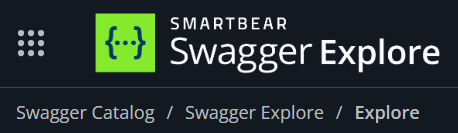
You can navigate between the content by clicking on a breadcrumb.
Below the breadcrumbs, across the top of the screen are tabs, like standard web browser tabs. All tabs are closed when you exit Swagger Explore. You can retrieve previous tab contents and re-run operations from the History log.
The main screen (the Explore tab) also includes the following areas:
Operation Details. Specify the settings for this connection. This section includes:
Protocol. Kafka or REST.
Operation. For REST the operations are GET, PUT, POST, DELETE, OPTIONS or PATCH. For Kafka the operations are publish or subscribe.
Authorization. Specify authorization credentials if required.
Connection. Configure connections settings for the API interactions, such as connection timeout.
Headers & Parameters. Specify parameter values to be used in this operation.
Body. Enter text to be sent in the body of the operation.
Server and Path. Enter the URL into the Server field. Swagger Explore automatically adds http:// if it is not already included and moves the path portion of the URL into the Path field.
Settings display area. By default, the Headers & Parameters values are displayed in the settings display area. When you click on other settings, this area will change to display the chosen settings.
Response. When you click Send, the API response displays here.
App and Org Switchers
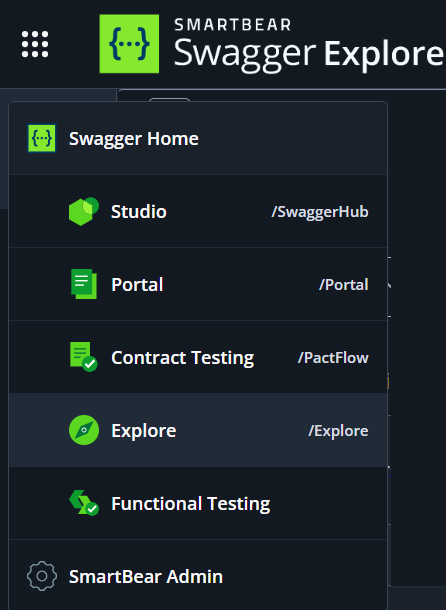
To change between Swagger features, click the menu in the top-left corner and click the desired Product.
If you have more than one organization, you can navigate between them using the dropdown displaying your current organization name.
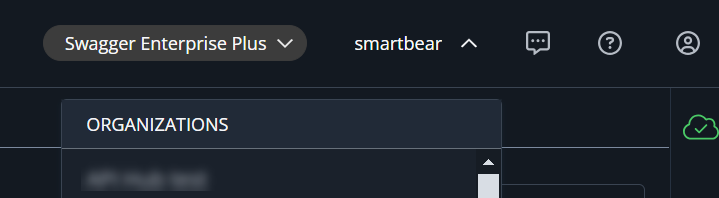
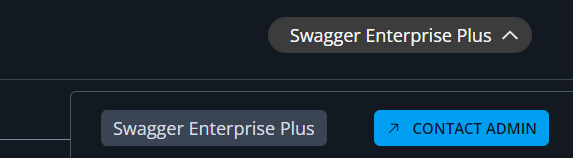
To see the capabilities of your current subscription, click the dropdown showing the name of your subscription.
Next Steps
To learn more about Swagger Explore see the following topics: