
Navigation Panel
Use the side navigation panel to:
-
Create new documentation pages.
-
Select the active documentation page.
-
Link APIs to the active product.
-
Unlink APIs from the active product.
-
Duplicate and move pages.
-
Order and nest pages and APIs.
Notification Center
Notification Center is a collapsible panel that informs you about changes in your pages with unique statuses. Learn more about the meanings of each status in the Notification Center section.
Table of Contents
Click the plus button to:
-
Add new pages.
-
Link APIs.
Add Page
Select + and then Add Page to add a new documentation page to the active product. Select the type of editor to use when creating the page: the default HTML or Markdown editor.
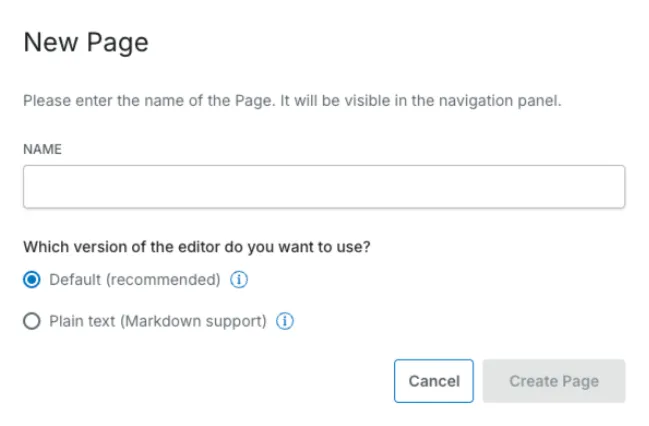
New organizations use the HTML editor by default.
Link API
You must ensure your APIs are valid before they can be published.
The supported protocols are: OpenAPI 2.0, 3.0, 3.1; AsyncAPI 2.6, 3.0, 3.1; GraphQL; MCP, gRPC and A2A 1.0.
Select + and then Link API to link a new API from Swagger Studio to the active product.
Selecting the Link API button shows a list of all the APIs in the connected Swagger Studio organization. To filter the list, select the drop-down ﹀ button and select a Swagger Studio project.
With Portal On-Premise, you have the option to create a single Portal or multiple Portals that link to APIs in one or many organizations.
Context Menu
Click the vertical ellipsis button to see the context menu of a page, subpage, or API.
Pages and subpages
The context menu allows you to:
-
Rename the page or subpage.
-
Add a subpage.
-
Link APIs.
-
Duplicate the page.
-
Move the page to another product.
-
Delete the page or subpage.
APIs
The context menu allows you to:
-
Edit the API.
This action opens the API in Swagger Studio.
-
Rename the API.
-
Unlink the API.
Order Pages and APIs
You can rearrange the order of documentation pages and linked APIs using the drag-and-drop actions.
Nest Pages and APIs
Click the vertical ellipsis button next to a page and select Add Subpage or Link API.
-
There’s no limit to nesting depth.
-
It is not possible to nest under an API.
-
Reorder items using drag and drop.