General Tab
Use the general tab to configure:
-
Portal Status
-
Portal Name
-
Portal URL
-
Page Creator
-
Logo
-
Favicon
-
OpenAPI Rendering
Portal Status
Portal allows you to set one of the following statuses:
-
Portal online. This status means that you can access both the provider view and the consumer view. Both providers and consumers can access and navigate your published portal when it is online.
-
Portal offline. This status means that you can only access the provider view. Opening the consumer view returns an offline message. Providers and consumers cannot access your published portal when it is offline.
You can change the visibility status of your portal anytime.
Portal Name
The Portal name is a unique name that is shown on all your Portal pages.
Use a Portal name that reflects the branding of your Portal.
Portal URL
Caution
Changing the portal URL breaks links and bookmarks pointing to the portal.
The Portal URL is a unique web address used to access your published Portal.
The Portal URL consists of the following parts:
-
A domain, which is always the following:
https://portal.swaggerhub.com/ -
A configurable subdomain, for example:
petco
Example 1. Custom Portal URL for PetCo Portal
https://petco.portal.swaggerhub.com/
-
Provide a more branded experience for your consumers - learn how to create a custom domain name for your portal here.
-
Choose a descriptive subdomain name that reflects your organization’s branding.
Page Creator
This setting is not available to new organizations, which use the HTML editor by default.
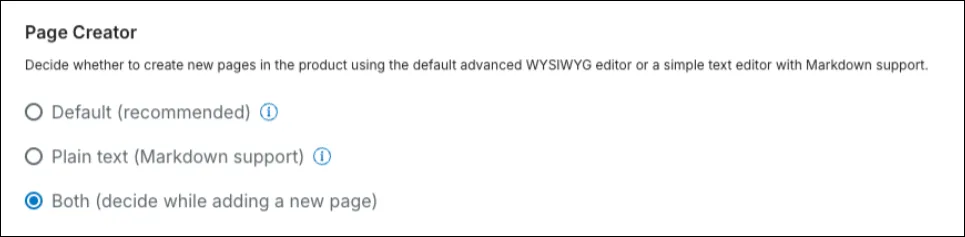
This setting allows you to select the type of editor used when creating your portal pages. You can use an HTML or Markdown editor by default, or choose the editor each time you add a new page.
Logo
The logo is a small image that is shown on the left side of the top menu bar on portal pages.
| Property | Value |
|---|---|
| Minimum Horizontal Size | 64 pixels |
| Minimum Vertical Size | 64 pixels |
| File Format |
|
The image file size cannot be more than 5 MB.
Favicon
The favicon is a small image that is shown in browser tabs and bookmark bars.
| Property | Value |
|---|---|
| Horizontal Size | 16 pixels |
| Vertical Size | 16 pixels |
| File Format |
|
The image file size cannot be more than 5 MB.
OpenAPI Rendering
This setting allows you to choose how you want to render your OpenAPI definitions across all your products in Portal.
You can choose:
-
Elements/SwaggerUI
-
Elements
-
SwaggerUI
If you choose Elements/SwaggerUI, you’ll be able to switch between the two options using a toggle when viewing the API.
You can generate code snippets in the Elements User Interface.
“Try it out” Routing Settings
This setting allows you to select the routing option for your API definitions - via a browser or secure proxy.