
If you have questions, problems or just need help with TestComplete, you can either contact our Support Teams or try to search for the needed information using the help resources located on our web site (communities, blogs, technical papers).
Contacting the Support Team
-
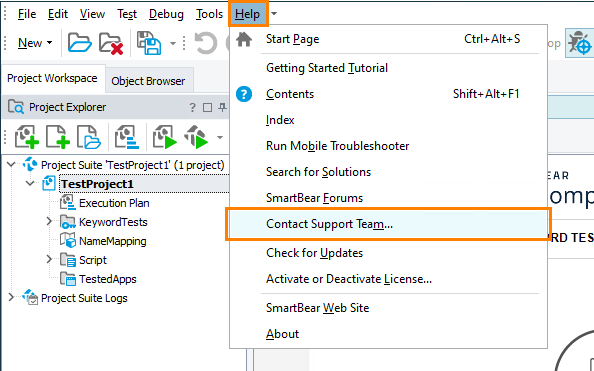
In TestComplete, select Help > Contact Support Team from the main menu:
-
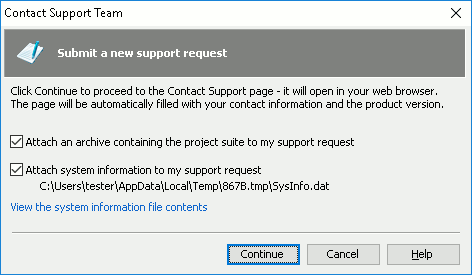
This will invoke the Contact Support Team dialog:
-
In the dialog, to pack your current TestComplete project suite to an archive and attach it to your request, select the Attach an archive containing the project suite to my support request check box. We recommend that you attach your project suite. It can help our Support team solve your problem faster.
-
To collect system information and attach it to your request, select the Attach system information to my support request check box. The system information includes the version of your operating system, free memory, total memory, running processes, services, installed programs, user privileges, and other helpful data.
We recommend that you attach this information, because it can help resolve your problem faster.
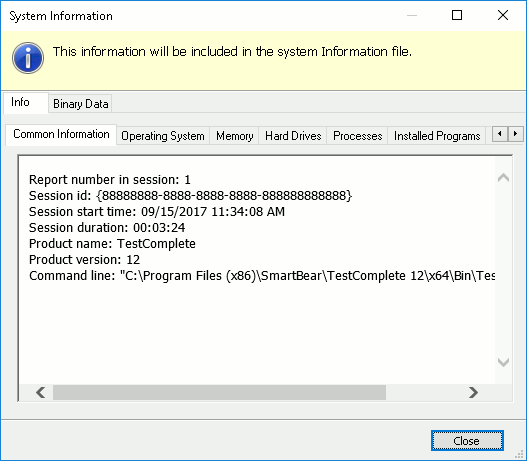
To preview the collected system information, click the View the system information file contents link at the bottom of the dialog:
-
Click Continue in the Contact Support Team dialog. TestComplete will load a web page with the Contact Support Form in your web browser:
 support.smartbear.com/message/?prod=TestComplete
Fill in the required fields of this form.
Note: Your contact information, product name and version, and Customer ID are filled in automatically when you proceed from the dialog. If they are not filled automatically, you can find them in your purchase email or in the About dialog (Help > About).
-
Click Submit to submit the request.
The Support team will answer you via email. All further communication will be made via email. However, to start a conversation, please use the Contact Support Team dialog in TestComplete and the Contact Support Form on our web site.
For information on our support policies, visit support.smartbear.com/about.
More Resources
-
To get acquainted with the product faster, watch video tutorials and screencasts on our web site:
-
You can ask questions, search for answers, exchange comments and suggestions in our SmartBear Community:
To post a question in the SmartBear Community, perform the following steps:
-
Go to the SmartBear Community website.
-
Login or register with your SmartBear ID or Github account.
The Welcome to SmartBear Community page appears.
-
Select the TestComplete product community to post questions related to the TestComplete application.
-
On the Product Category page, select TestComplete Questions.
Note: Click Suggest an Idea or Create an Article if you want to post other types of content.
-
Click Ask a Question.
-
On the Start a Discussion page, enter a heading title and provide a detailed overview of your question. To add images or files, select Add Attachment and upload the required items. To organize your question, select relevant tags as needed.
- Click Publish.
Your question is available for discussion on the SmartBear Community website. For more information, see
SmartBear Community User Guide. -
-
You can find answers to your question in the list of the frequently asked questions which is available at:
-
Learn more about using TestComplete from blogs published at:
-
Take part in TestComplete training seminars offered by our partners:
-
Make sure you regularly visit our web site, smartbear.com, where you will find:
- News
- Updated support options
- Downloads, such as plugins and free tools
- Hot Stuff contributed by experienced users and the SmartBear team (solutions, code, script extensions, and more)
-
You can download and install the complete TestComplete documentation: