
Governance
Swagger Catalog displays governance status. Users can open Swagger Studio to configure governance and resolve errors. Swagger Studio provides various rules to check the operations, parameters, and model definitions for compliance. Use model definitions to set up compliance. You can also define custom rules and compliance parameters. Inconsistencies can be detected and fixed early in the API design process, before the actual implementations are developed and go live. See, Governance for more information.
-
Governance is not supported for gRPC API definitions in Swagger Catalog. gRPC assets do not display governance badges.
-
Governance is not currently supported for MCP API definitions. These specification types will not display Governance badges.
Viewing Governance Rules
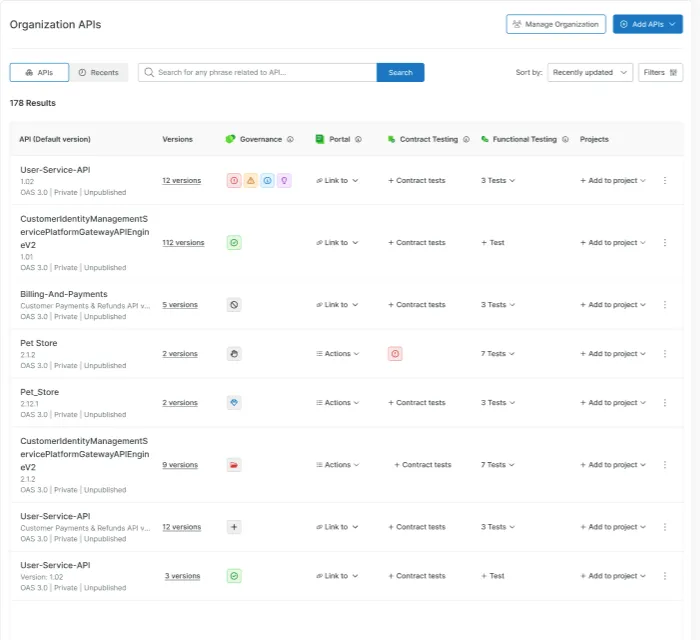
On the Swagger Catalog home screen, under Governance, all organization-owned APIs that do not comply with governance rules are displayed, with the View rules, Info, Warnings, Hints, and Error badges next to each API. You can also use the Filter option to find non-compliant APIs under Governance.
-
Organization-owned APIs that do not comply with governance rules are displayed with Errors and Warnings badges. To view the error list, open an API in the Swagger Studio editor by clicking the Warning, Errors, Hints, Info, or View Results badges. See API Governance
-
If the status for the API displays as “No permission”, which means that the user does not have the required permissions due to the user role access.
Viewing Governance Results
On the Organization APIs page, the Governance column displays a badge for each organization-owned API. The badges display Error, Warning, Compliant, Hints, and Info to show whether the API complies with the applied style guide and how many results each severity returns.
To filter APIs by Governance status, do the following:
-
Click Filters.
-
Select a Governance status.