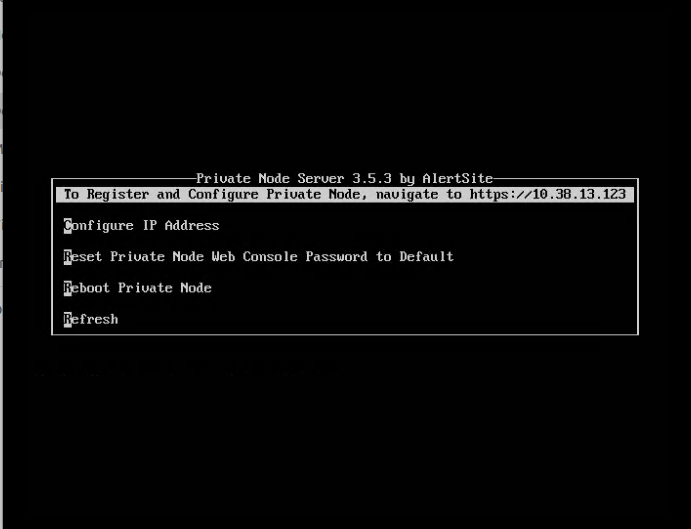
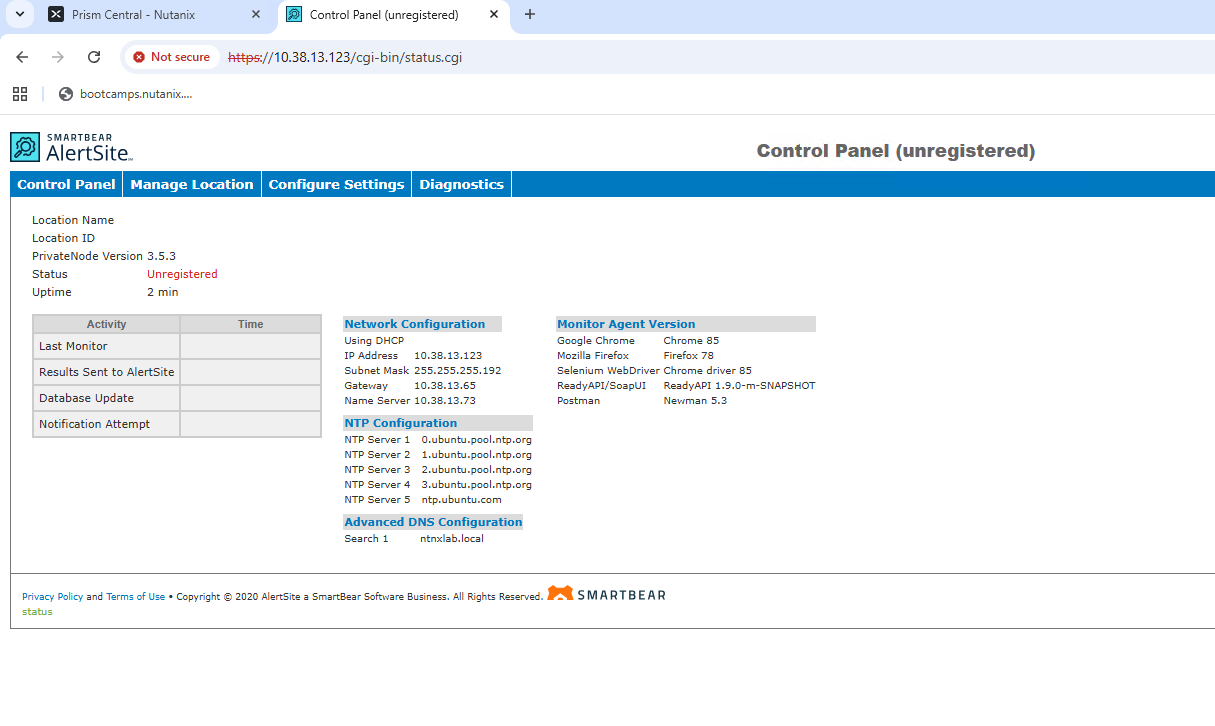
This guide explains how to deploy Private node on Nutanix using Prism Central.
Download
Request a download link for the virtual machine image from your AlertSite Sales Representative or Customer Success Advisor.
The VM is available in following format
-
OVA - a single file for easier deployment. You can deploy it directly from the URL.
Deploy the VM using Prism UI
Below you can find the instructions for deploying Private Node Server on Nutanix using Prism Central. The steps for other versions may differ slightly.
Cluster creation details:
-
AOS Version: 7.3
-
Hypervisor Version: AHV 10.3 (AOS 7.3)
-
Launch Nutanix Client and connect to your Prism host.
-
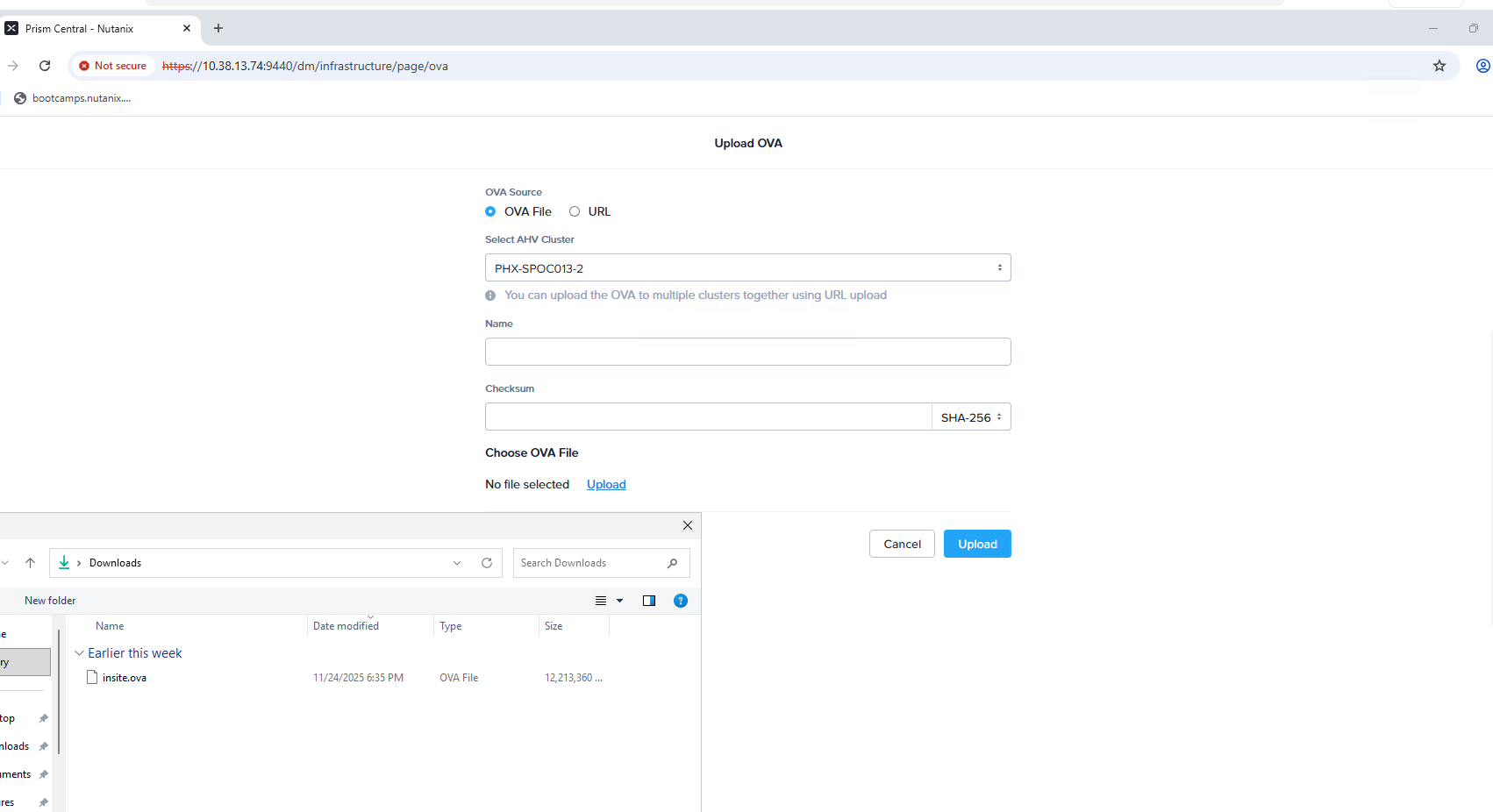
From the main menu, select Dashboard > Compute > OVAs > Upload OVA.
-
Browse for the .ova and click Upload.
-
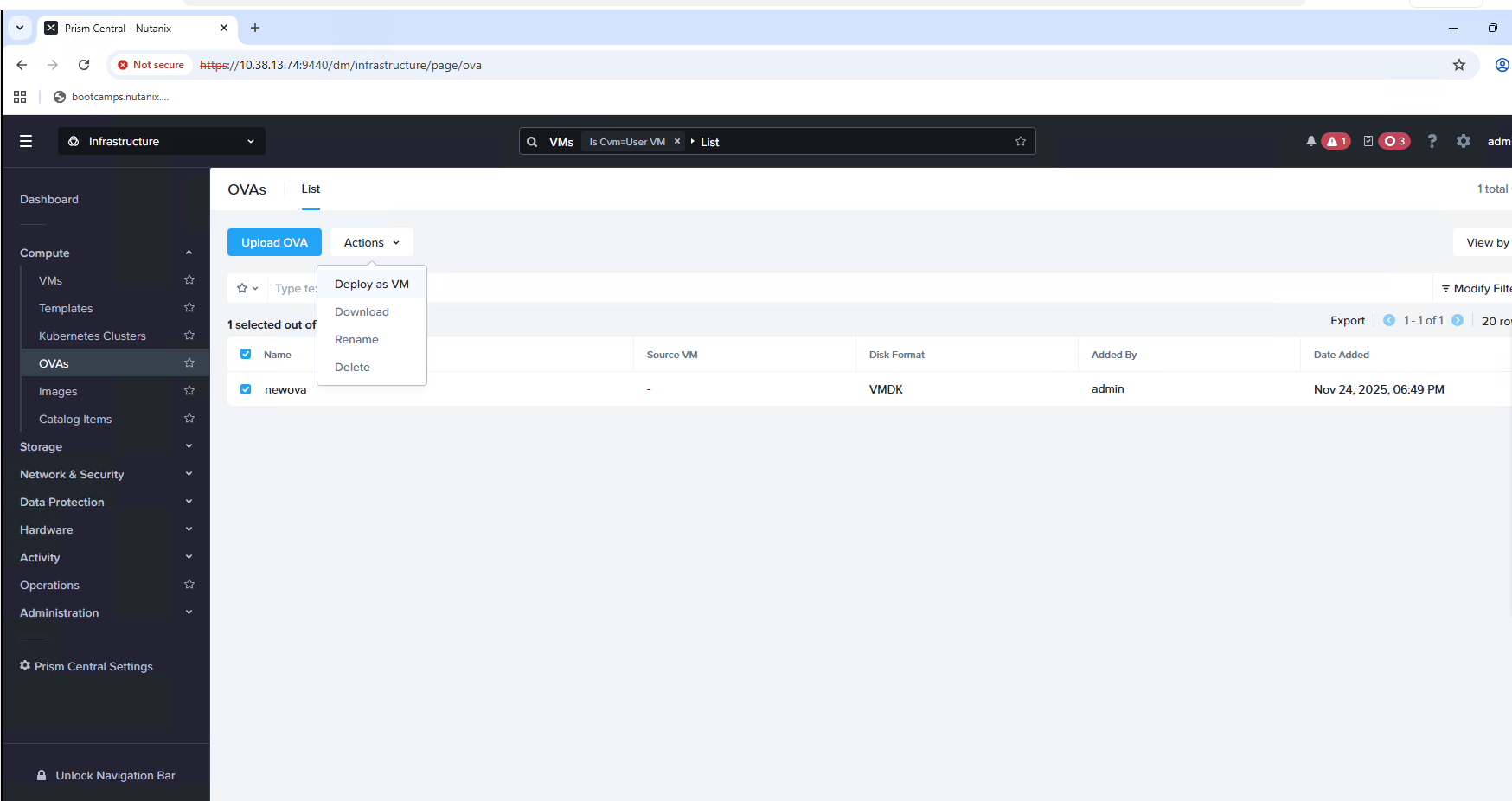
Once upload is completed, select the uploaded OVA > Actions > Deploy as VM.
-
Add the name for the VM.
-
Other properties will be fetched from the .ovf file inside the OVA.
-
Click Next.
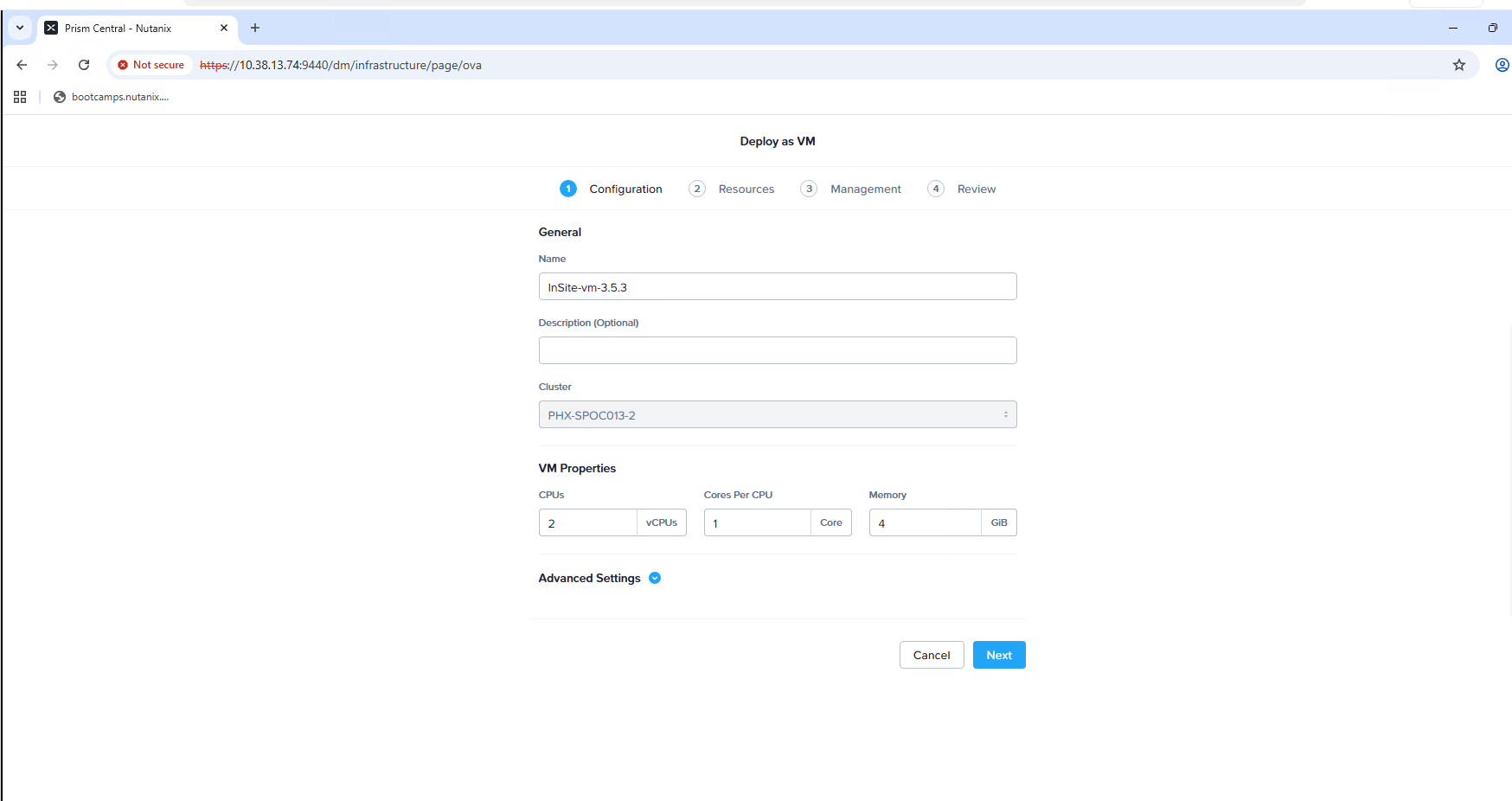
-
Select the Subnet from the drop down options.
-
You may keep the rest of the settings as shown in the screenshot below.
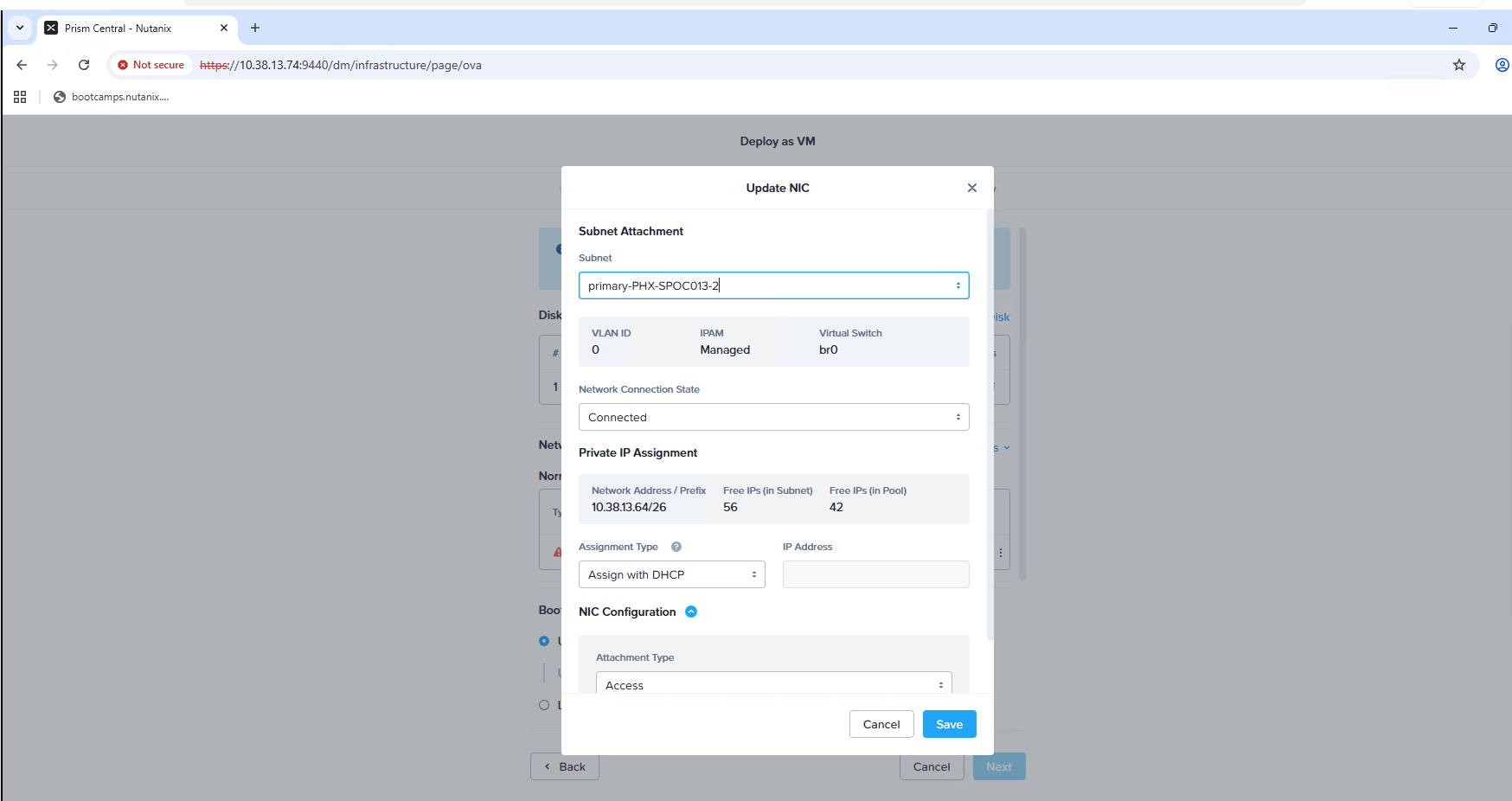
-
Boot configuration should be “Legacy BIOS Mode”.
-
Click Next.

-
Review the final configuration and click Create VM.
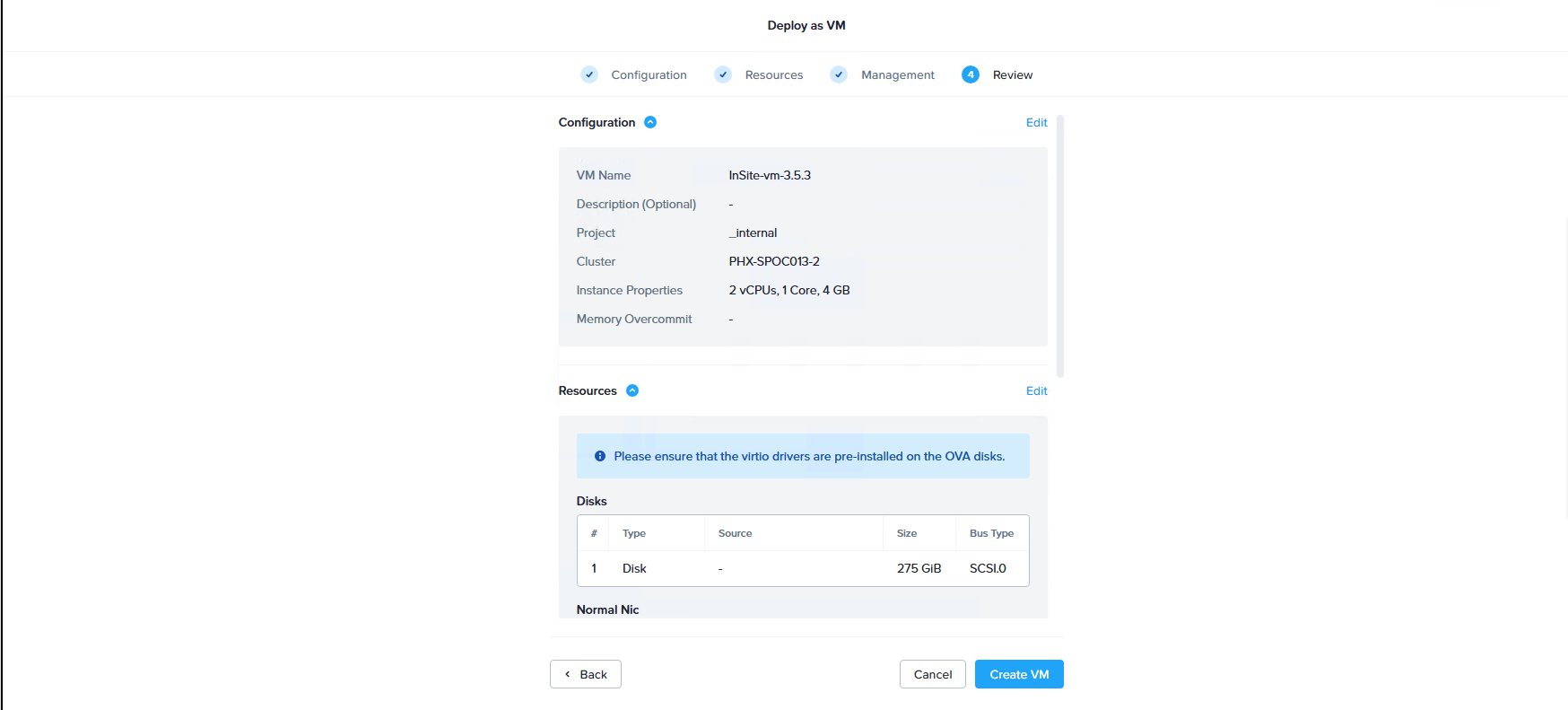
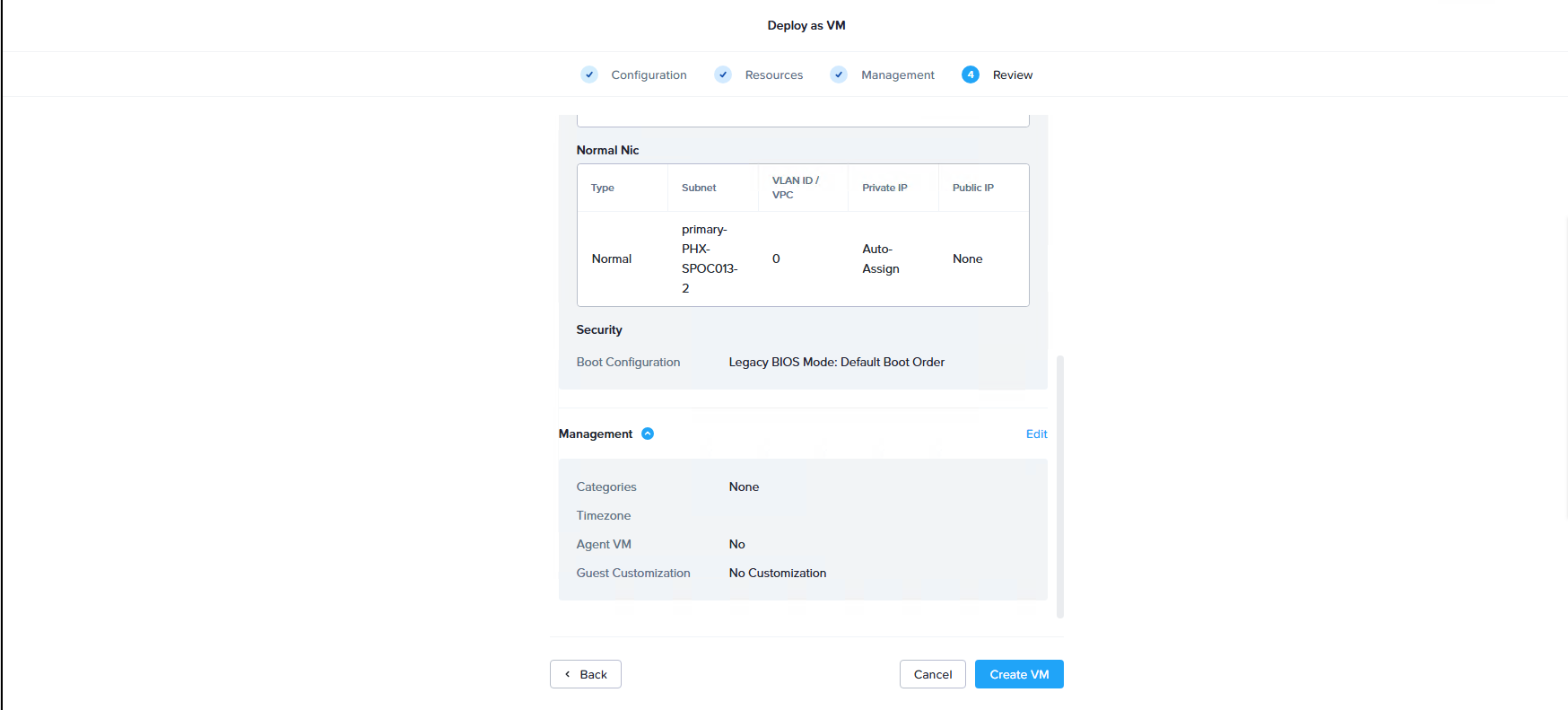
-
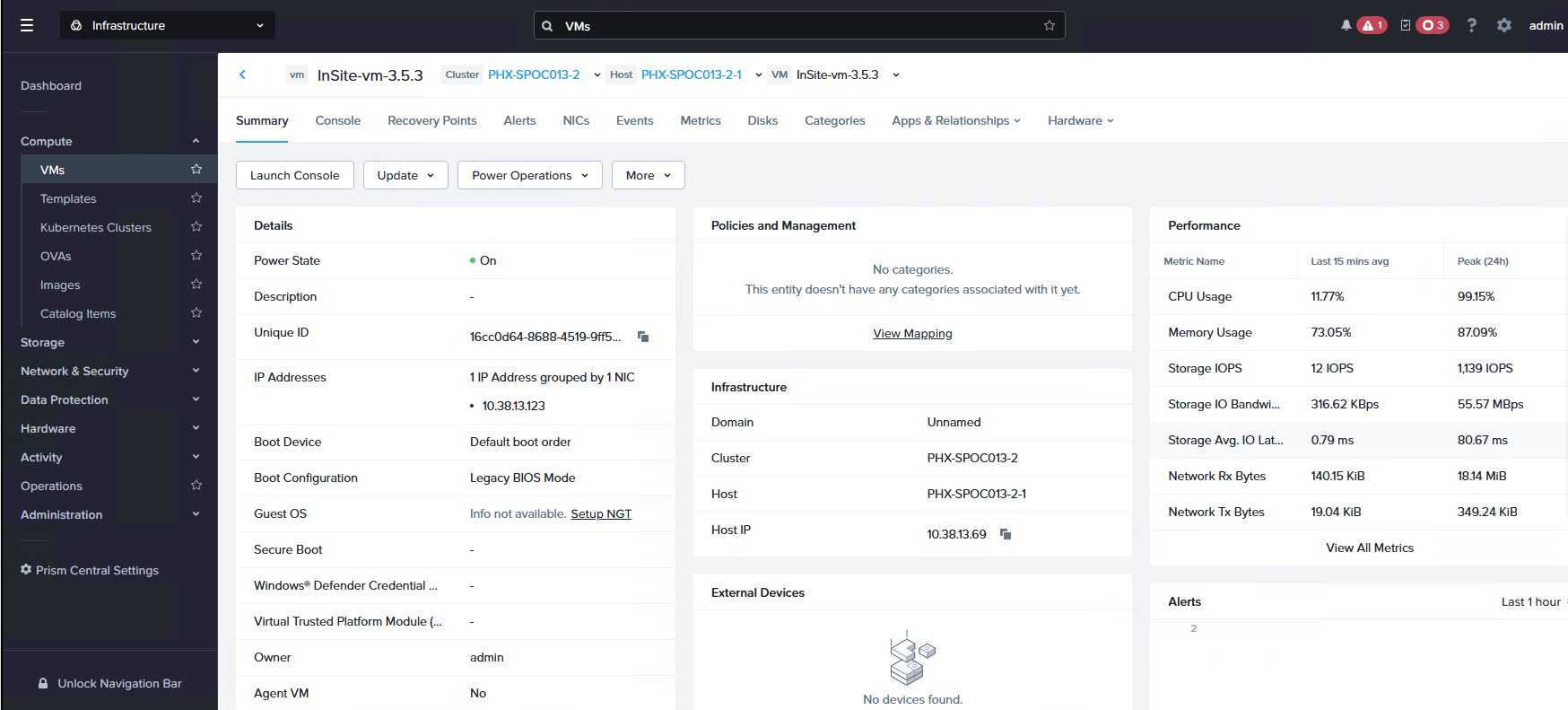
Once the VM creation is completed, navigate to Compute > VMs > VM name.
-
Power on the VM and click Launch Console.
-
Switch to the Console tab and verify that the VM has been booted and you can see the console menu. There is no need to interact with the VM console – you can configure your private node using a web interface (Control Panel) accessible at https://[IP address].