
This page is related to key-based licenses — a regular license type used in TestExecute 15.40. For information on the new ID-based license type, see SmartBear ID-based Licenses.
To use TestLeft, you must have a valid license. TestLeft automatically performs a license check at startup and during the run. If TestLeft fails to check the license, it displays this message.
If your license is not activated yet, follow the steps below to learn how to activate it. If your license is already activated, learn how to fix the issues that prevent TestLeft from accessing the license:
Before You Start
After you activate your license on your License Manager PC, it becomes bound to that computer. To move your TestLeft license to another computer, you need to go through a special procedure of license deactivation. At that, you may need to contact the SmartBear Sales Team. To save your time in the future, we recommend that you plan your installations to avoid unnecessary moves of the license.
1. Select a License Manager PC
-
Your License Manager PC must be a physical computer. Do not activate licenses on virtual or cloud computers.
-
It must always be available to workstations where TestLeft instances will run. That is why we recommend that you activate Floating User licenses on a server computer.
-
It must have a working network connection. TestLeft instances running in your network must be able to connect to the License Manager PC.
-
The License Manager PC must allow traffic through port 1947 sent via the TCP and UDP protocols. It will use the protocols and the port to exchange data with TestLeft instances. Make sure that the firewalls and proxies running in your network do not block these protocols and port.
-
We recommend that your computer have an Internet connection. It will use the connection for license activation. After activating the license, it will no longer need the connection.
In addition, it must have access to the SmartBear web server (URLs
https://ls1.smartbear.comandhttp://ls2.smartbear.com, port 443). Make sure the proxies and firewalls working in your network allow the activation requests.If your License Manager PC does not have an Internet connection, you will need another computer that has an Internet connection and that you will use to exchange data with the SmartBear web server. This computer must have access to the SmartBear web server (URLs
https://ls1.smartbear.comandhttp://ls2.smartbear.com, port 443).
2. Install License Manager on the License Manager PC
After selecting a License Manager PC that meets all the needed requirements, install the stand-alone License Manager utility on it. You can get the utility installation modules from the SmartBear web site:
 downloads.smartbear.com/SmartBearLicenseManager.exe
The utility does not have any special requirements for RAM and hard disk space. The utility is small and lightweight, and you can install and run it on any, even low-end, computer.
3. Activate the License on the License Manager PC
If you have an Internet connection on the computer where you are going to activate your license, it will exchange the activation data with the SmartBear web server automatically. Otherwise, you will need an intermediate computer with a working Internet connection that you will use to exchange data between your computer and the SmartBear web server manually:
Automatic Activation (Recommended)
1. Start Activation
Click the operating system’s Start button (or press the Windows button) and select All Programs | SmartBear | License Manager | Activate or Deactivate License.
This will open the License Management wizard.
2. Provide the Activation Information
-
On the first page of the License Management wizard, choose Activate a new license on this computer and click Next.
If your computer has an Internet connection and can access the SmartBear licensing web sites, the wizard will choose the automatic activation mode.
-
On the next page of the wizard, specify the information needed for the activation: the user name, company name, email address and license key.
You can find the license key on the TestExecute product page of the My SmartBear section of our web site (https://my.smartbear.com) or in the email message that we sent you after you requested the license.
As for the other values, you can enter either your user name, company name and email address, or those of the license holder. We recommend that you enter your data.
After you specify the activation data, click Next to continue.
-
If your computer connects to the Internet through a proxy server, on the next page of the wizard, specify the proxy authentication settings. Ask your system administrator for assistance, if needed.
-
Click Activate. The wizard will activate your license.
3. Finalizing the Activation
If the activation succeeds, you will see the final page of the License Management wizard informing you that the activation is over.
If the activation fails, the wizard will display an error message explaining the problem.
Manual Activation
1. Start Activation
Click the operating system’s Start button (or press the Windows button) and select All Programs | SmartBear | License Manager | Activate or Deactivate License.
This will open the License Management wizard.
If your computer is not connected to the Web or if it does not have access to the SmartBear licensing web sites, the wizard will display an error message and will suggest performing offline (manual) activation. Choose the offline (manual) activation.
2. Collect Information About Your Computer
To generate activation data, we need some information about your computer’s hardware. The wizard collects this information automatically and saves it to a .c2v file on your computer. You will see the file name in the wizard.
If you are activating the trial license, the wizard will also display the trial license key. Remember it or write it down.
3. Exchange Data With the SmartBear Web Site
-
Transfer the .c2v file generated on the previous step to the intermediate computer.
-
On the intermediate computer, launch any web browser and open the following URL in it (this URL is also mentioned in the License Management wizard running on the License Manager PC):
-
On the opened web page, specify your license key and the name of your .c2v file. Click Send File. This will upload the file to the SmartBear web site. Transferring the file may take some time.
-
The web site will process the file and generate activation data for your License Manager PC.
After the web site generates the activation data, it will display a download link for the file containing this data (the file has the .v2c extension). Download the .v2c file to the intermediate computer.
-
Transfer the .v2c file with the activation data from the intermediate computer to your License Manager PC.
4. Apply the Activation Data
-
Click Next in the License Management wizard.
-
Specify the name of the file (.v2c) containing the activation data in the edit box and click Activate. This will save the activation data on your computer.
5. Finalizing the Activation
If the activation succeeds, the wizard will display a page notifying you that the license has been activated successfully. You can close the wizard then.
If an error occurs, the wizard will display a message notifying you about the problem. Try to solve the problem and activate the license again.
After the Activation
After the activation is over, you can check whether the license has been activated successfully:
-
On your License Manager PC, navigate to the following URL:
-
The activated license will be in the list:
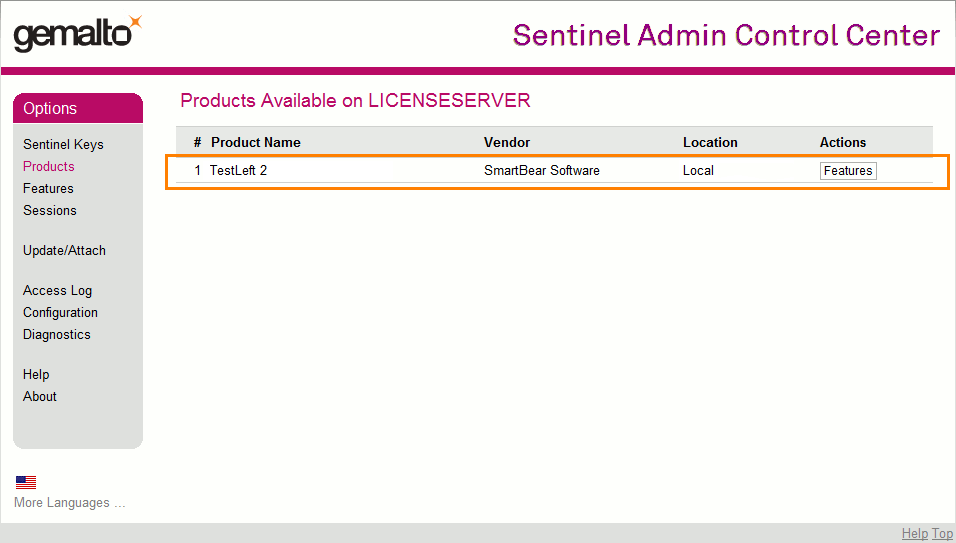
Click the image to enlarge it.
4. Connect TestLeft Instances to the License Manager PC
After you activate the license, it will become available to TestLeft workstations in your network:
-
If TestLeft is not installed on your workstation yet, install it.
-
Launch TestLeft UI Spy as a standalone utility or launch Visual Studio with TestLeft integrated. TestLeft will first search for an activated license locally and then in the network.
-
When it finds an appropriate activated license, it will start.
If it fails to find an appropriate license, it will show an error message. To check whether the needed license is activated and is available on your computer:
-
On your computer, navigate to the following URL —
-
Find your Floating User license in the list:
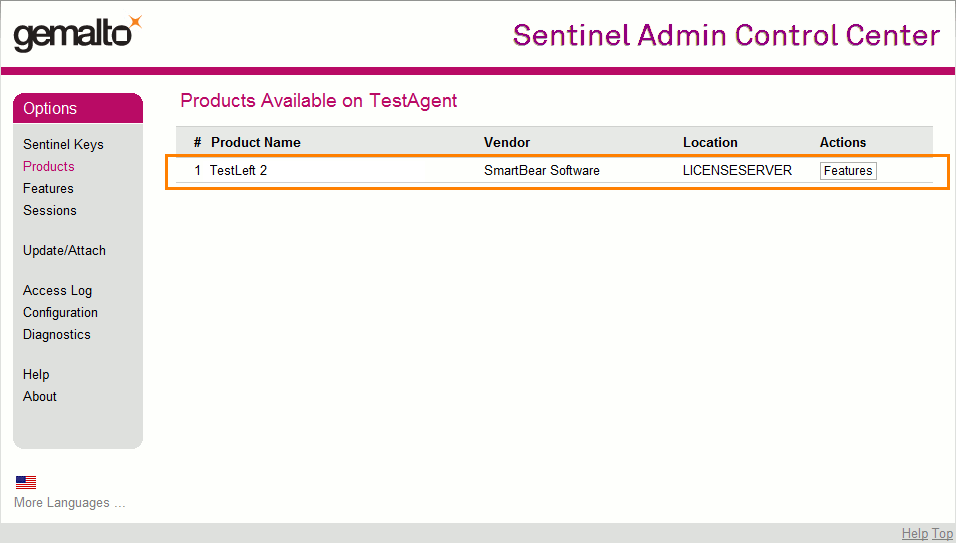
Click the image to enlarge it.
If the license is not in the list, probably, your TestLeft workstations cannot access the License Manager PC. To learn how to fix this, see below.
Troubleshooting
The Sentinel LDK License Manager Service Is Not Running
Make sure that the service is running both on your computer and on your License Manager PC:
-
On your computer, open Control Panel | Administrative Tools | Services.
-
Check whether the Sentinel LDK License Manager service is in the list and that the service is running:
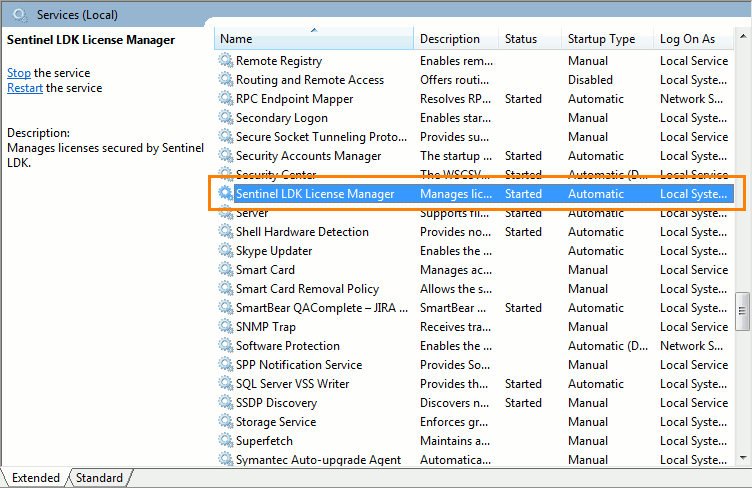
Click the image to enlarge it.
-
If the service is not running, start it.
-
If the service does not start, reinstall TestLeft and try again.
-
Log in to your License Manager PC and check whether the Sentinel LDK License Manager service is running on it.
-
If the service is not running, start it.
-
If the service does not start, reinstall the License Manager utility and try again.
Your Computer Cannot Access Your License Manager PC
Your License Manager PC or Your Computer Does Not Have a Functioning Network Connection
-
Check that the network cable is connected to your computer.
-
If you are launching TestLeft on a virtual machine, check if this machine has a network card and that its host computer is connected to the network.
-
Check that your computer can access the License Manager PC. For instance, you can “ping” this PC.
-
Perform the same actions with the License Manager PC.
Your Firewall or Proxy Denies Traffic Between Your Computer and Your License Manager PC
The Sentinel LDK License Manager service uses the TCP and UDP protocols and port 1947 to transfer data. Check that the firewalls or proxies running on your computer and in your local network do not block these protocols and port. Ask your network administrator for help with configuring the firewall or proxy settings, if needed.
To check whether your computer can access your License Manager PC through your firewall or proxy:
-
Log in to your License Manager PC.
Navigate to the following URL to access the License Manager settings —
-
Enable the Allow Remote Access to ACC option:
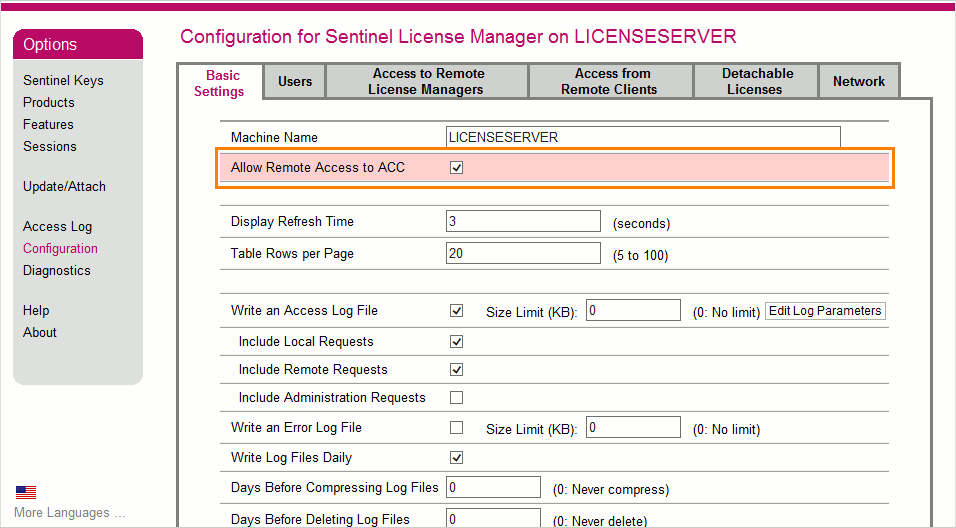
Click the image to enlarge it.
-
On your computer, navigate to the following URL —
http://<License_Manager_PC>:1947/Where <License_Manager_PC> is the network name or IP address of your License Manager PC.
If the web interface of your License Manager is not available, your firewall or proxy server most likely blocks traffic between your computer and the License Manager PC. Contact your system administrator for assistance.
Your Network Denies Broadcast Requests
By default, to find the License Manager PC, TestLeft uses broadcast requests. This type of requests may not work in networks of certain types. For example, they will not work if the License Manager PC is outside the local network in which your computer resides. These requests may also not function in Virtual Private Networks that are configured in a certain way.
On your computer, specify the License Manager PC to which TestLeft will connect, explicitly:
-
On your computer, navigate to the following URL to access the License Manager settings
-
Switch to the Access to Remote License Managers tabbed page.
-
In the Specify Search Parameters text box, enter the computer name or IP address of the License Manager computer:
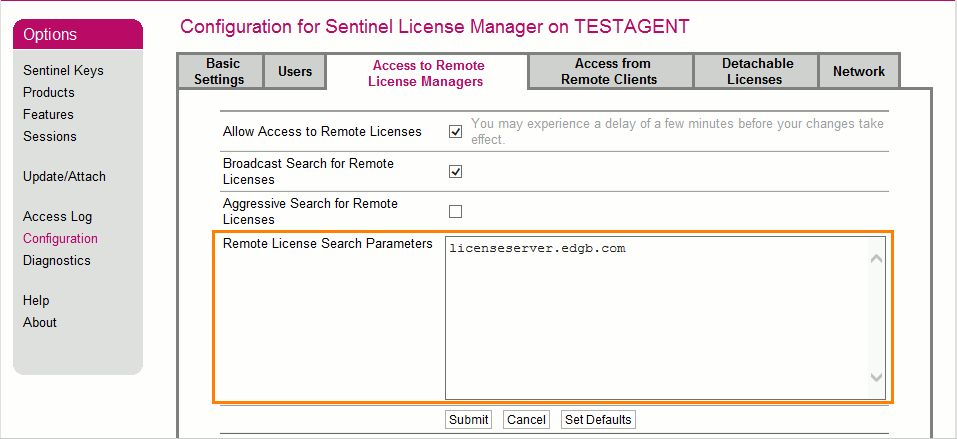
Click the image to enlarge it.

If you are using a VPN, enter the IP address as you see it in your network. If the License Manager PC is outside the local network in which your computer resides, then specify the static external IP address of the License Manager computer.
-
Click Submit to apply your changes.
License Manager Settings Deny Access From Your Current User Account
-
Log in to the License Manager PC.
-
Navigate to the following URL to access the License Manager settings:
-
Switch to the Users tab page.
-
Examine the User Restrictions rules and remove any deny rules that include the needed user name, or add an allow rule for this user name:
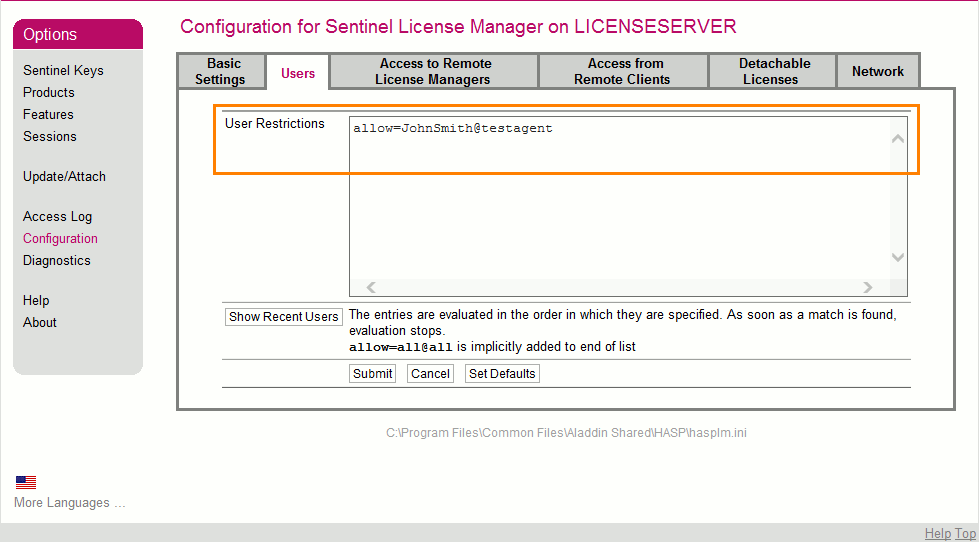
Click the image to enlarge it.

You Have Exceeded the Maximum Number of Allowed Product Instances
A Floating User license allows running multiple instances of TestLeft on multiple workstations. The license key specifies the maximum number of concurrent instances.
If all the available instances are currently in use, TestLeft will fail to start. To resolve the problem:
-
Wait until another user finishes working with TestLeft.
— or —
-
Close TestLeft instances that are not currently in use.
Getting Help Online
You can also try resolving the problem by using the Licensing Troubleshooter on our web site:
The troubleshooter will also help you collect information and submit a request to the SmartBear Support Team. When submitting a request, please specify the exact error message you see. To get it, click the header of the message box and press Ctrl+C.
For information on TestLeft licensing, see TestLeft online documentation.