
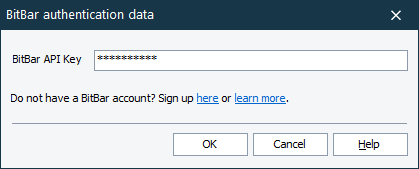
TestComplete shows the BitBar Authentication Data dialog when you are trying to connect to the BitBar device cloud and the API key required to access the cloud is not specified.
To call the dialog
-
Click
 on the Code Editor toolbar.
– or –
-
In the Object Browser, right-click the Mobile item and then click Connect to Device.
About the dialog
In the dialog, enter the API key assigned to the BitBar account you will use to run automated mobile tests in the BitBar device cloud.
 Learn how to get the API key
 > My Account
 to copy your API key to the clipboard.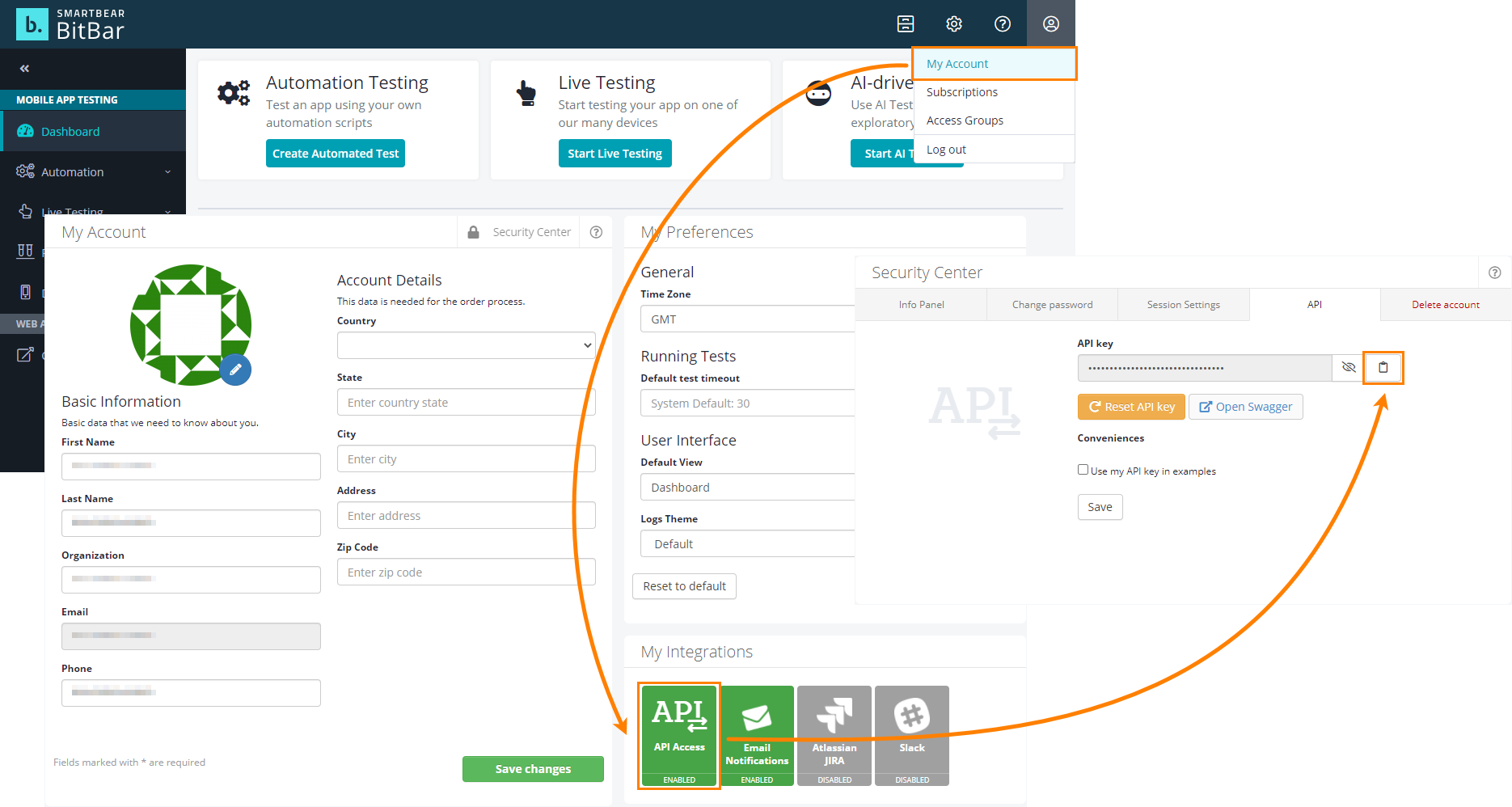
The specified API key will be stored in your project in the encrypted form. You can view and modify the key, on the Properties > Mobile Devices > BitBar page of your project, if needed.
See Also
About Mobile Tests
Project Properties - BitBar and Local Appium Options