
In TestComplete, you can create mobile tests for applications running on devices controlled by BitBar or by a private Appium server. To reduce the overall test run time and manage testing resources more efficiently, you can run several such tests concurrently.
You can control parallel runs from TestComplete by using the Parallel object:
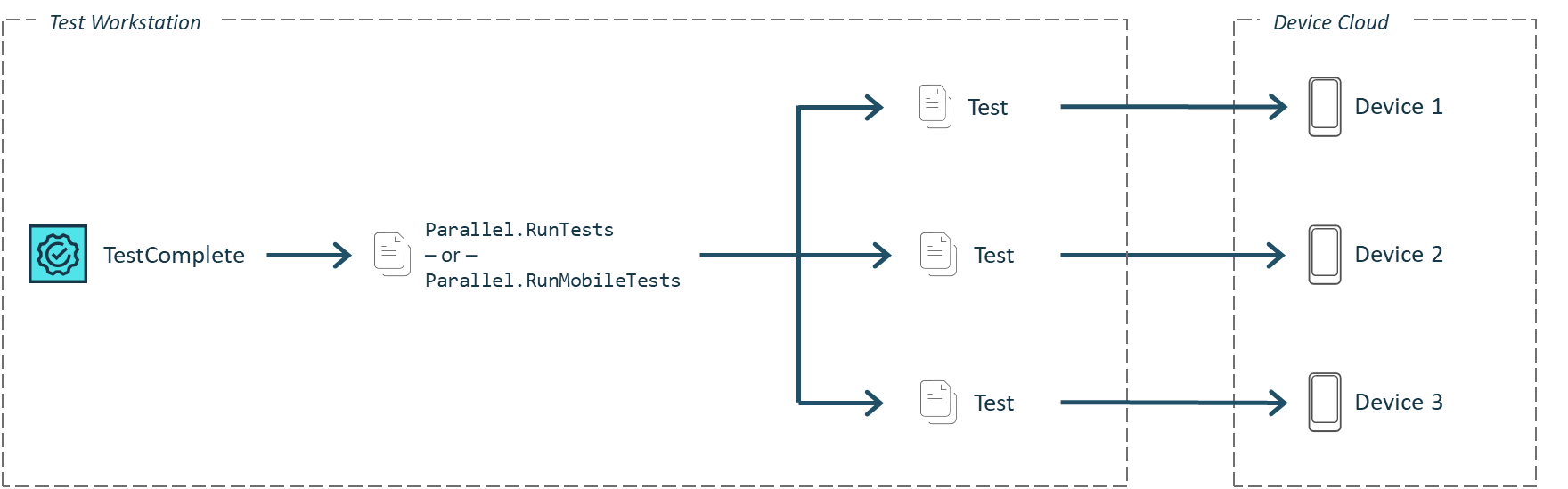
Click the image to enlarge it.
After all test runs are over, the test results will be available in your TestComplete project:
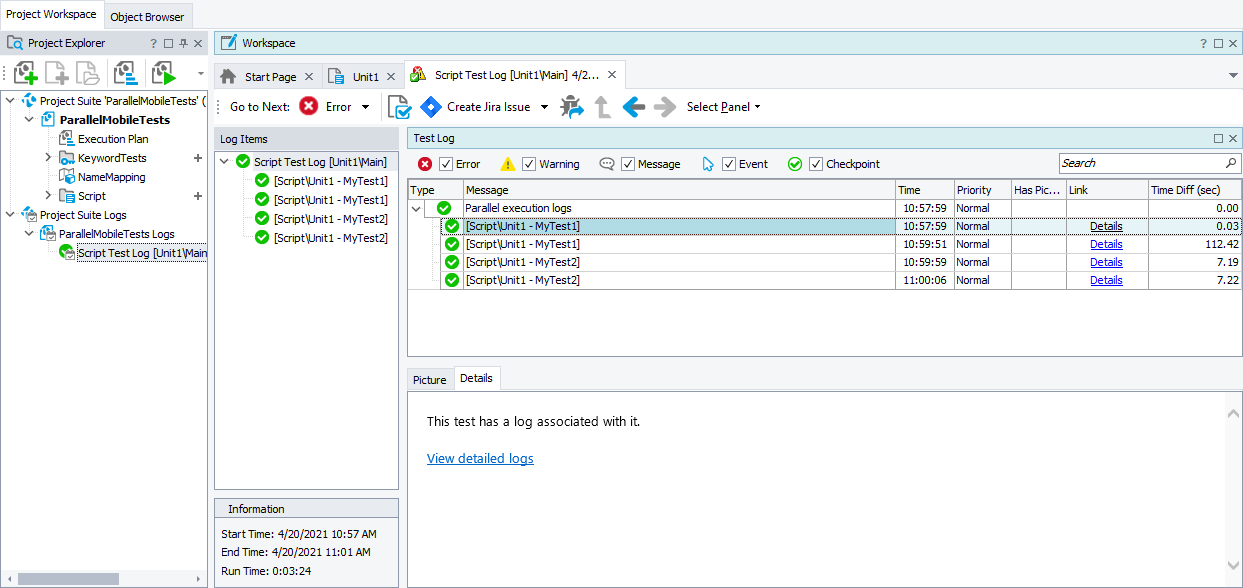
Click the image to enlarge it.
Requirements
-
TestComplete version 14.81.
-
An active license for the TestComplete Mobile module.
-
The Appium Support plugin must be enabled in TestComplete. The plugin is installed and enabled by default. You can check the plugin state in the File > Install Extensions dialog of TestComplete.
-
Mobile devices controlled by Appium. It can be:
-
A mobile device cloud provided as a service by BitBar.
– or –
-
A private mobile device cloud managed by Appium. It can run on your test workstation (a computer where TestComplete is running) or on a remote computer in your local network:
For details, please see Testing Mobile Applications - Requirements.
-
-
The TestComplete workstation must have access to the server that controls the mobile devices.
-
The TestComplete project must be configured to support Appium mobile devices.
By default, all new projects are configured this way. To make sure that your project is configured correctly, check its Mobile support type property on the Properties > Mobile Devices > General page. It must be set to Mobile device cloud (BitBar and local Appium).
-
Mobile tests you want to run in parallel must be Appium-compatible. Running legacy mobile tests in parallel is not supported.
-
Mobile tests you want to run in parallel must belong to the same TestComplete project from which you will control the test runs. Running tests that belong to external projects is not supported.
Supported features
Tests that will run in parallel can include the following:
-
Operations that simulate user actions over mobile applications.
-
Operations for connecting to the Appium server and opening testing sessions on mobile devices there.
-
Checkpoints.
-
Operations that get test input data from external files (data-driven tests).
-
aqNNNscripting objects, for exampleaqStringoraqConvert. -
Event handlers.
-
BDD features and scenarios.
Unsupported features
-
Nested parallel tests. Parallel tests that control other parallel tests are not supported.
-
Running parallel tests is not supported on 32-bit operating systems.
-
Desktop tests. Tests that simulate user actions over Windows desktop applications cannot run in parallel. For example, the following is not supported:
-
Operations that simulate user actions over desktop applications.
-
Low-level procedures.
-
-
Non-cross-platform web tests. Tests that simulate user actions over local web browsers accessed via ways other than by using Selenium Grid cannot run in parallel. For example, the following is not supported:
-
Accessing web browsers by using the
Sys.Browserobject. -
The Run Browser and Browser Loop operation.
-
-
Legacy mobile tests. Tests that simulate user actions over physical mobile devices connected to your local workstation cannot run in parallel.
-
Image-based and OCR-based tests.
-
Testing web services.
-
User Forms, Network Suites, Unit tests, manual tests, object-driven tests (ODT), ReadyAPI tests.
If your test uses an object or an operation that is not supported by parallel runs, the test engine will report an error. Depending on the way your project handle errors, the test run may be terminated.
How to run tests in parallel
-
In your TestComplete project, create mobile tests that you will run in parallel in the device cloud controlled by Appium. To learn more on creating cloud-compatible mobile tests, see Creating and Running Mobile Tests.
-
Create a script test from which you will control the parallel test runs. Use methods of the
Parallelobject:-
Parallel.RunMobileTests(Tests, Capabilities, ServerURL)- Connects to the device cloud specified by the ServerURL parameter, opens testing sessions described by the Capabilities parameter, and then runs mobile tests in these sessions in parallel. -
Parallel.RunTests- Runs the specified tests in parallel. This method does not connect to the device cloud and does not specify target environments for the test to run. You have to do it manually in each test the method runs.
-
The examples below show how you can use the methods to run mobile tests in parallel.
Example 1: Running several tests on specified devices in parallel
The sample code below runs the MyTest1 and MyTest2 mobile tests on several mobile devices running in the BitBar device cloud.
JavaScript, JScript
function Main_RunMobileTests_Parallel()
{
var capabilities = [
{
"automationName": "UiAutomator2",
"bitbar_app": "123",
"bitbar_device": "Google Pixel 3a Android 10",
"bitbar_findDevice": "false",
"bitbar_target": "android",
"deviceName": "Android Phone",
"newCommandTimeout": "600",
"platformName": "ANDROID"
},
{
"automationName": "UiAutomator2",
"bitbar_app": "123",
"bitbar_device": "LG Google Nexus 5 6.0.1",
"bitbar_findDevice": "false",
"bitbar_target": "android",
"deviceName": "Android Phone",
"newCommandTimeout": "600",
"platformName": "ANDROID"
}
];
var server = "https://appium.bitbar.com/wd/hub/";
var tests = ['Script|Unit1|MyTest1', 'Script|Unit1|MyTest2'];
Parallel.RunMobileTests(tests, capabilities, server);
}
function MyTest1()
{
var device = Mobile.Device();
device.FindElementByXPath("//*[@text=\"Samuel Clemens\"]").Touch();
device.FindElementById("smartbear.example.orders:id/editButton").Touch();
// …
}
function MyTest2()
{
var device = Mobile.Device();
device.FindElementByXPath("//*[@text=\"Clare Jefferson\"]").Touch();
device.FindElementById("smartbear.example.orders:id/editButton").Touch();
// …
}
Python
def Main_RunMobileTests_Parallel():
capabilities = [
{
"automationName": "UiAutomator2",
"bitbar_app": "123",
"bitbar_device": "Google Pixel 3a Android 10",
"bitbar_findDevice": "false",
"bitbar_target": "android",
"deviceName": "Android Phone",
"newCommandTimeout": "600",
"platformName": "ANDROID"
},
{
"automationName": "UiAutomator2",
"bitbar_app": "123",
"bitbar_device": "LG Google Nexus 5 6.0.1",
"bitbar_findDevice": "false",
"bitbar_target": "android",
"deviceName": "Android Phone",
"newCommandTimeout": "600",
"platformName": "ANDROID"
}
]
server = "https://appium.bitbar.com/wd/hub/"
tests = ['Script|Unit1|MyTest1', 'Script|Unit1|MyTest2']
Parallel.RunMobileTests(tests, capabilities, server)
def MyTest1():
device = Mobile.Device()
device.FindElementByXPath("//*[@text=\"Samuel Clemens\"]").Touch()
device.FindElementById("smartbear.example.orders:id/editButton").Touch()
# …
def MyTest2():
device = Mobile.Device()
device.FindElementByXPath("//*[@text=\"Clare Jefferson\"]").Touch()
device.FindElementById("smartbear.example.orders:id/editButton").Touch()
# …
}
VBScript
Sub Main
Dim capabilities : capabilities = Array(_
"{""automationName"": ""UiAutomator2"", ""bitbar_app"": ""123"", ""bitbar_device"": ""Google Pixel 3a Android 10"", ""bitbar_findDevice"": ""false"", ""bitbar_target"": ""android"", ""deviceName"": ""Android Phone"", ""newCommandTimeout"": ""600"", ""platformName"": ""ANDROID""}",_
"{""automationName"": ""UiAutomator2"", ""bitbar_app"": ""123"", ""bitbar_device"": ""LG Google Nexus 5 6.0.1"", ""bitbar_findDevice"": ""false"", ""bitbar_target"": ""android"", ""deviceName"": ""Android Phone"", ""newCommandTimeout"": ""600"", ""platformName"": ""ANDROID""}")
server = "https://appium.bitbar.com/wd/hub/"
Dim tests : tests = Array("Script|Unit1|MyTest1", "Script|Unit1|MyTest2")
Call Parallel.RunMobileTests(tests, capabilities, server)
End Sub
Sub MyTest1()
Set device = Mobile.Device()
device.FindElementByXPath("//*[@text=\"Samuel Clemens\"]").Touch
device.FindElementById("smartbear.example.orders:id/editButton").Touch
' …
End Sub
Sub MyTest2()
Set device = Mobile.Device
device.FindElementByXPath("//*[@text=\"Clare Jefferson\"]").Touch
device.FindElementById("smartbear.example.orders:id/editButton").Touch
' …
End Sub
DelphiScript
procedure MyTest1();
var device;
begin
device := Mobile.Device();
device.FindElementByXPath('//*[@text=\"Samuel Clemens\"]').Touch();
device.FindElementById('smartbear.example.orders:id/editButton').Touch();
// …
end;
procedure MyTest2();
var device;
bbegin
device := Mobile.Device();
device.FindElementByXPath('//*[@text=\"Clare Jefferson\"]').Touch();
device.FindElementById('smartbear.example.orders:id/editButton').Touch();
// …
end;
procedure Main_RunMobileTests_Parallel();
var capabilities : Array[0..1];
var server;
var tests : Array[0..1];
begin
capabilities[0] := '{"automationName": "UiAutomator2", "bitbar_app": "123", "bitbar_device": "Google Pixel 3a Android 10", "bitbar_findDevice": "false", "bitbar_target": "android", "deviceName": "Android Phone", "newCommandTimeout": "600", "platformName": "ANDROID"}';
capabilities[1] := '{"automationName": "UiAutomator2", "bitbar_app": "123", "bitbar_device": "LG Google Nexus 5 6.0.1", "bitbar_findDevice": "false", "bitbar_target": "android", "deviceName": "Android Phone", "newCommandTimeout": "600", "platformName": "ANDROID"}';
server := 'https://appium.bitbar.com/wd/hub/';
tests[0] := 'Script|Unit1|MyTest1';
tests[1] := 'Script|Unit1|MyTest2';
Parallel.RunMobileTests(tests, capabilities, server);
end;
C++Script, C#Script
function Main_RunMobileTests_Parallel()
{
var capabilities = [
'{"automationName": "UiAutomator2", "bitbar_app": "123", "bitbar_device": "Google Pixel 3a Android 10", "bitbar_findDevice": "false", "bitbar_target": "android", "deviceName": "Android Phone", "newCommandTimeout": "600", "platformName": "ANDROID"}',
'{"automationName": "UiAutomator2", "bitbar_app": "123", "bitbar_device": "LG Google Nexus 5 6.0.1", "bitbar_findDevice": "false", "bitbar_target": "android", "deviceName": "Android Phone", "newCommandTimeout": "600", "platformName": "ANDROID"}'
];
var server = "https://appium.bitbar.com/wd/hub/";
var tests = ['Script|Unit1|MyTest1', 'Script|Unit1|MyTest2'];
Parallel["RunMobileTests"](tests, capabilities, server);
}
function MyTest1()
{
var device = Mobile["Device"]();
device["FindElementByXPath"]("//*[@text=\"Samuel Clemens\"]")["Touch"]();
device["FindElementById"]("smartbear.example.orders:id/editButton")["Touch"]();
// ...
}
function MyTest2()
{
var device = Mobile["Device"]();
device["FindElementByXPath"]("//*[@text=\"Clare Jefferson\"]").Touch();
device["FindElementById"]("smartbear.example.orders:id/editButton").Touch();
// ...
}
Example 2: Running several tests in parallel
The sample code below runs the MyTest1 and MyTest2 mobile tests in parallel. Each test connects to a mobile device, opens a testing session there, and simulates user actions:
JavaScript, JScript
function Main()
{
var tests = ['Script|Unit1|MyTest1', 'Script|Unit1|MyTest2'];
Parallel.RunTests(tests);
}
function MyTest1()
{
var capabilities = {
"automationName": "UiAutomator2",
"bitbar_app": "123",
"bitbar_device": "Google Pixel 3a Android 10",
"bitbar_findDevice": "false",
"bitbar_target": "android",
"deviceName": "Android Phone",
"newCommandTimeout": "600",
"platformName": "ANDROID"
};
var server = "https://appium.bitbar.com/wd/hub/";
Mobile.ConnectDevice(server, capabilities);
var device = Mobile.Device();
device.FindElementByXPath("//*[@text=\"Samuel Clemens\"]").Touch();
device.FindElementById("smartbear.example.orders:id/editButton").Touch();
// …
}
function MyTest2()
{
var capabilities = {
"automationName": "UiAutomator2",
"bitbar_app": "123",
"bitbar_device": "LG Google Nexus 5 6.0.1",
"bitbar_findDevice": "false",
"bitbar_target": "android",
"deviceName": "Android Phone",
"newCommandTimeout": "600",
"platformName": "ANDROID"
};
var server = "https://appium.bitbar.com/wd/hub/";
Mobile.ConnectDevice(server, capabilities);
var device = Mobile.Device();
device.FindElementByXPath("//*[@text=\"Clare Jefferson\"]").Touch();
device.FindElementById("smartbear.example.orders:id/editButton").Touch();
// …
}
Python
def Main():
tests = ['Script|Unit1|MyTest1', 'Script|Unit1|MyTest2']
Parallel.RunTests(tests)
def MyTest1():
capabilities = {
"automationName": "UiAutomator2",
"bitbar_app": "123",
"bitbar_device": "Google Pixel 3a Android 10",
"bitbar_findDevice": "false",
"bitbar_target": "android",
"deviceName": "Android Phone",
"newCommandTimeout": "600",
"platformName": "ANDROID"
}
server = "https://appium.bitbar.com/wd/hub/"
Mobile.ConnectDevice(server, capabilities)
device = Mobile.Device()
device.FindElementByXPath("//*[@text=\"Samuel Clemens\"]").Touch()
device.FindElementById("smartbear.example.orders:id/editButton").Touch()
# …
def MyTest2():
capabilities = {
"automationName": "UiAutomator2",
"bitbar_app": "123",
"bitbar_device": "LG Google Nexus 5 6.0.1",
"bitbar_findDevice": "false",
"bitbar_target": "android",
"deviceName": "Android Phone",
"newCommandTimeout": "600",
"platformName": "ANDROID"
}
server = "https://appium.bitbar.com/wd/hub/"
Mobile.ConnectDevice(server, capabilities)
device = Mobile.Device()
device.FindElementByXPath("//*[@text=\"Clare Jefferson\"]").Touch()
device.FindElementById("smartbear.example.orders:id/editButton").Touch()
# …
VBScript
Sub Main
DIm tests : tests = Array("Script|Unit1|MyTest1", "Script|Unit1|MyTest2")
Call Parallel.RunTests(tests)
End Sub
Sub MyTest1()
capabilities = "{""automationName"": ""UiAutomator2"",""bitbar_app"": ""123"",""bitbar_device"": ""Google Pixel 3a Android 10"",""bitbar_findDevice"": ""false"",""bitbar_target"": ""android"",""deviceName"": ""Android Phone"",""newCommandTimeout"": ""600"",""platformName"": ""ANDROID""}"
server = "https://appium.bitbar.com/wd/hub/"
Call Mobile.ConnectDevice(server, capabilities)
Set device = Mobile.Device()
device.FindElementByXPath("//*[@text=\"Samuel Clemens\"]").Touch()
device.FindElementById("smartbear.example.orders:id/editButton").Touch()
' …
End Sub
Sub MyTest2()
capabilities = "{""automationName"": ""UiAutomator2"",""bitbar_app"": ""123"",""bitbar_device"": ""LG Google Nexus 5 6.0.1"",""bitbar_findDevice"": ""false"",""bitbar_target"": ""android"",""deviceName"": ""Android Phone"",""newCommandTimeout"": ""600"",""platformName"": ""ANDROID""}"
server = "https://appium.bitbar.com/wd/hub/"
Call Mobile.ConnectDevice(server, capabilities)
Set device = Mobile.Device()
device.FindElementByXPath("//*[@text=\"Clare Jefferson\"]").Touch()
device.FindElementById("smartbear.example.orders:id/editButton").Touch()
' …
End Sub
DelphiScript
procedure MyTest1();
var capabilities, server, device;
begin
capabilities := '{"automationName": "UiAutomator2", "bitbar_app": "123", "bitbar_device": "Google Pixel 3a Android 10", "bitbar_findDevice": "false", "bitbar_target": "android", "deviceName": "Android Phone", "newCommandTimeout": "600", "platformName": "ANDROID"}';
server := 'https://appium.bitbar.com/wd/hub/';
Mobile.ConnectDevice(server, capabilities);
device := Mobile.Device();
device.FindElementByXPath('//*[@text=\"Samuel Clemens\"]').Touch();
device.FindElementById('smartbear.example.orders:id/editButton').Touch();
// …
end;
procedure MyTest2();
var capabilities, server, device;
begin
capabilities := '{"automationName": "UiAutomator2", "bitbar_app": "123", "bitbar_device": "LG Google Nexus 5 6.0.1", "bitbar_findDevice": "false", "bitbar_target": "android", "deviceName": "Android Phone", "newCommandTimeout": "600", "platformName": "ANDROID"}';
server := 'https://appium.bitbar.com/wd/hub/';
Mobile.ConnectDevice(server, capabilities);
device := Mobile.Device();
device.FindElementByXPath('//*[@text=\"Clare Jefferson\"]').Touch();
device.FindElementById('smartbear.example.orders:id/editButton').Touch();
// …
end;
procedure Main();
var tests : Array[0..1];
begin
tests[0] := 'Script|Unit1|MyTest1';
tests[1] := 'Script|Unit1|MyTest2';
Parallel.RunTests(tests);
end;
C++Script, C#Script
function Main()
{
var tests = ['Script|Unit1|MyTest1', 'Script|Unit1|MyTest2'];
Parallel["RunTests"](tests);
}
function MyTest1()
{
var capabilities = {
"automationName": "UiAutomator2",
"bitbar_app": "123",
"bitbar_device": "Google Pixel 3a Android 10",
"bitbar_findDevice": "false",
"bitbar_target": "android",
"deviceName": "Android Phone",
"newCommandTimeout": "600",
"platformName": "ANDROID"
};
var server = "https://appium.bitbar.com/wd/hub/";
Mobile["ConnectDevice"](server, JSON["stringify"](capabilities));
var device = Mobile["Device"]();
device["FindElementByXPath"]("//*[@text=\"Samuel Clemens\"]")["Touch"]();
device["FindElementById"]("smartbear.example.orders:id/editButton")["Touch"]();
// …
}
function MyTest2()
{
var capabilities = {
"automationName": "UiAutomator2",
"bitbar_app": "123",
"bitbar_device": "LG Google Nexus 5 6.0.1",
"bitbar_findDevice": "false",
"bitbar_target": "android",
"deviceName": "Android Phone",
"newCommandTimeout": "600",
"platformName": "ANDROID"
};
var server = "https://appium.bitbar.com/wd/hub/";
Mobile["ConnectDevice"](server, JSON["stringify"](capabilities));
var device = Mobile["Device"]();
device["FindElementByXPath"]("//*[@text=\"Clare Jefferson\"]")["Touch"]();
device["FindElementById"]("smartbear.example.orders:id/editButton")["Touch"]();
// …
}
Number of parallel tests
-
Your workstation computing capacity: its processor, RAM, and so on. The more parallel tests TestComplete is controlling, the more workstation resources are consumed.
-
You can limit the number of maximum tests running in parallel manually by using the LicenseCount parameter of the
Parallelobject’s methods or by using the Options > Engine > Parallel > Parallel test count option.