
QAComplete security model allows controlling your team member permissions to project data. You create security groups and then specify what security permissions those groups have. For example, you can have a group whose members have the read-only permission for requirements and full access to defects and tests.
Let’s create a security group:
-
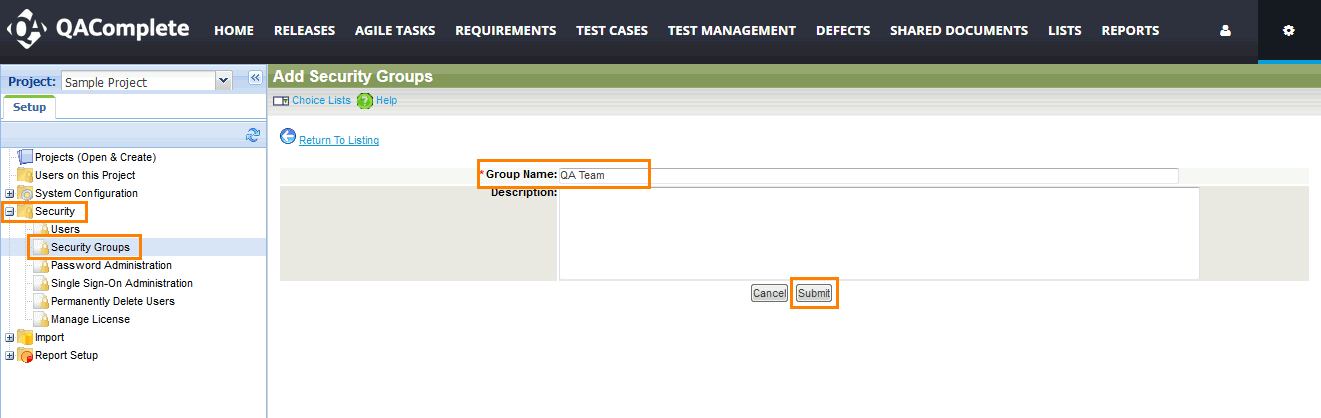
On the > Setup screen, in the navigation panel on the left, select Security > Security Groups.
-
Click Add New.
-
Name the security group (for example, Developers or QA Team) and click Submit:
Click the image to enlarge it.
-
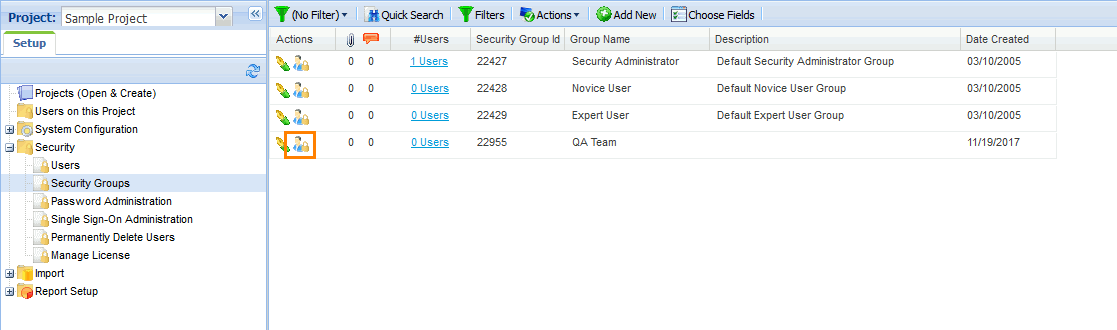
The new group appears on the list of security groups.
Click  Manage Security Rights next to the group:
Click the image to enlarge it.
-
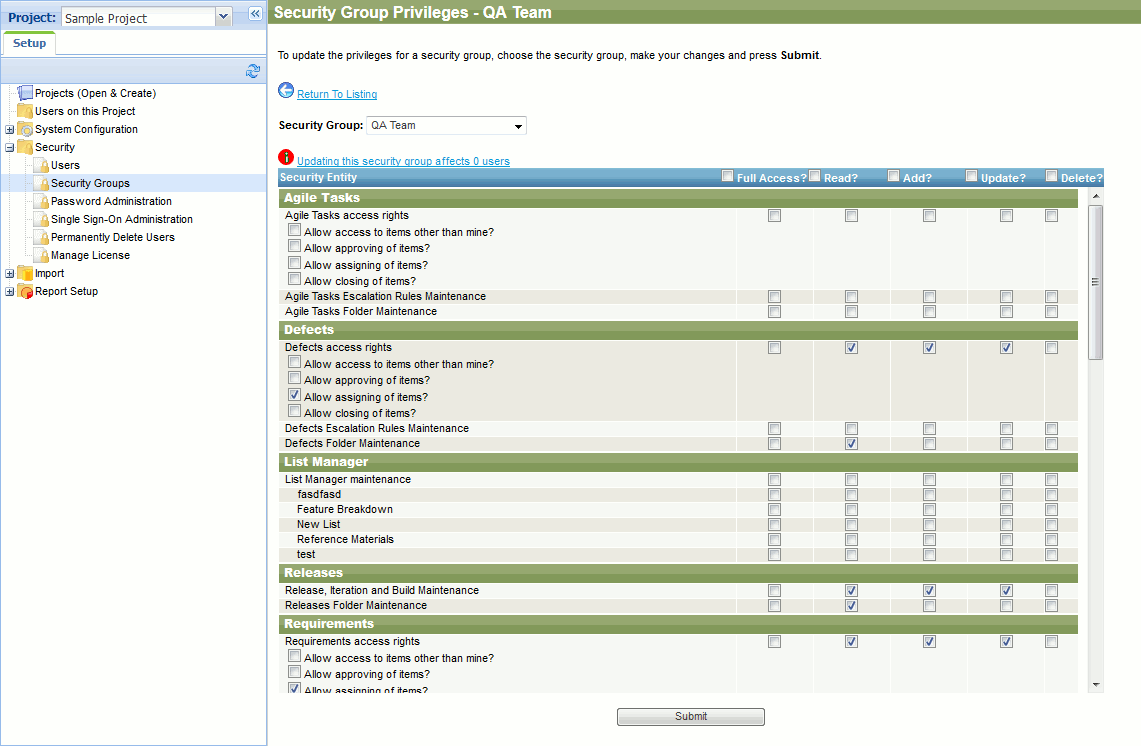
Select or clear check boxes to grant or remove the appropriate permissions for this group:
 Permissions Required to Complete User Tutorial
Permissions Required to Complete User TutorialPermissions Required to Complete User TutorialTo complete the User part of the Getting Started tutorial, create a group with the following permissions:
| Defects |
Read, Add, and Update |
| Defects > Allow assigning of items |
Enabled |
| Defects Folder Maintenance |
Read |
| Release, Iteration and Build Maintenance |
Read, Add, and Update |
| Releases Folder Maintenance |
Read |
| Requirements |
Read, Add, and Update |
| Requirements > Allow assigning of items |
Enabled |
| Requirements Folder Maintenance |
Read |
| Test Management > Test Library |
Read, Add, and Update |
| Test Management > Test Library > Allow assigning of items |
Enabled |
| Test Management > Test Library Folder Maintenance |
Read |
| Test Management > Test Hosts |
Read |
| Test Management > Test Runs > Allow editing Steps during Test Run |
Enabled |
| Test Management > Test Sets |
Read, Add, and Update |
| Test Management > Test Sets > Folder Maintenance |
Read |
| Management Features > Manage and View traceability (link between items) |
Enabled |
Click the image to enlarge it.
-
Click Submit to save your changes.
 Prev Next
See Also
Getting Started with QAComplete - Administrator Tutorial