
If the fields you want to synchronize take values from a list of predefined values, you can configure QAComplete Integration for JIRA to gather all the possible values automatically. To do that:
-
In the QAComplete Field and JIRA Field drop-down lists, select the needed QAComplete and JIRA item fields you want to map.
-
In the Field Type drop-down list, select AutoCompleteLookup. If the fields you synchronize accept multiple predefined values, select AutoCompleteLookupArray.
On the other hand, you may want to manually set the mapping rules for each possible value:
-
In the QAComplete Field and JIRA Field drop-down lists, select the needed QAComplete and JIRA item fields you want to map.
-
In the Field Type drop-down list, select Lookup. If the fields you synchronize accept multiple predefined values, select Lookup Array.
-
In the QAComplete Value drop-down list, select values the field can take in QAComplete.
-
For each of those values, select the corresponding value from the JIRA Value drop-down list:
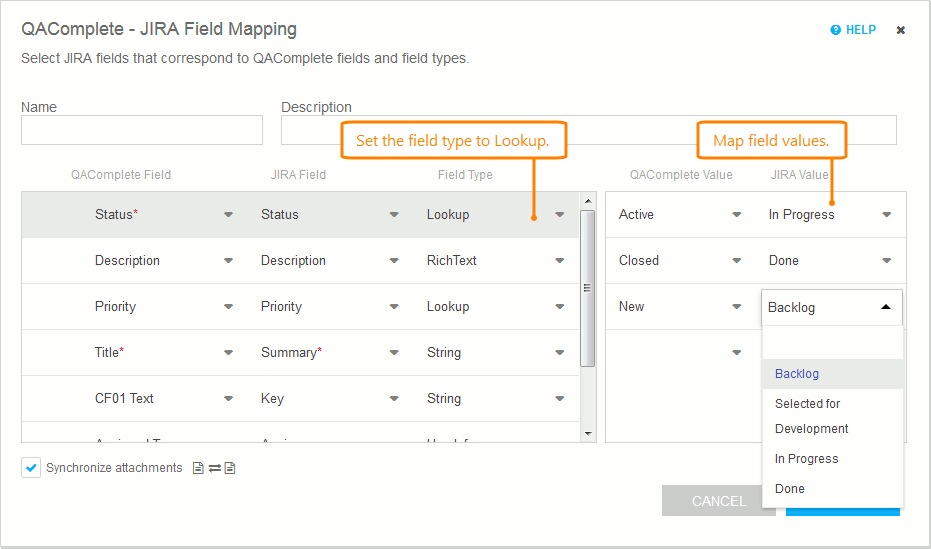
Click the image to enlarge it.
Notes on manual configuration:
-
If the JIRA field you want to synchronize stores Labels, set the field type to StringArray. Make sure to separate the values in the corresponding QAComplete field by the comma followed by the space.
-
Keep your QAComplete choice lists and multiselect choice lists identical to those in JIRA. For example, if you add a new version of your product in JIRA, make sure to add this version in your custom QAComplete field, then map these new values.
-
It is possible to map one QAComplete choice list value to multiple JIRA values, and vice versa:
-
When one value in QAComplete corresponds to multiple values in JIRA, it will be synchronized as the first ordinal value in the JIRA list.
-
When one value in JIRA corresponds to multiple values in QAComplete, it will be synchronized as the first alphabetical value in the QAComplete list.
-
-
If the fields that you want to synchronize store information on a user (for example, the AssignedTo field), set the field type to UserInfo and then synchronize user accounts:
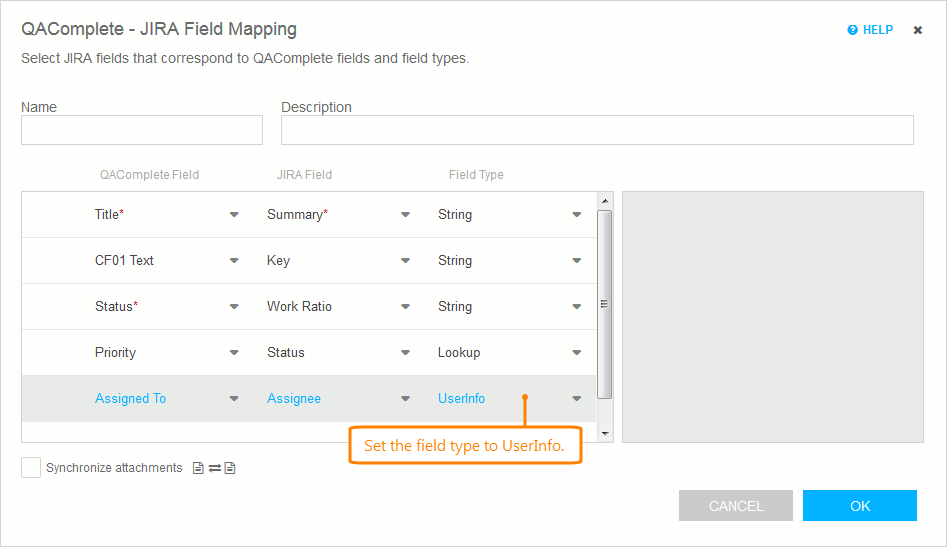
Click the image to enlarge it.
See Also
Advanced Synchronization
Choice Lists
Configure JIRA Synchronization